Clover Printing Troubleshooting
This article guides you through the troubleshooting steps you can follow if a restaurant reports that their online orders are not printing through the Clover POS printer.
Zuppler<>Clover Connection
The connection between Zuppler and Clover is established via an app which should be installed in the location's Clover App Market. If the Zuppler app is not installed we won't be able to pull the menu from Clover, push the orders which means the orders won't print as well. If the app is not installed you'll see a '404 Unauthorized' error while importing the menu or pushing the orderen be redirected to POSaaS. Try running an import, if it completes without any errors we are connected with Clover.
Order Printer & Receipt Printer
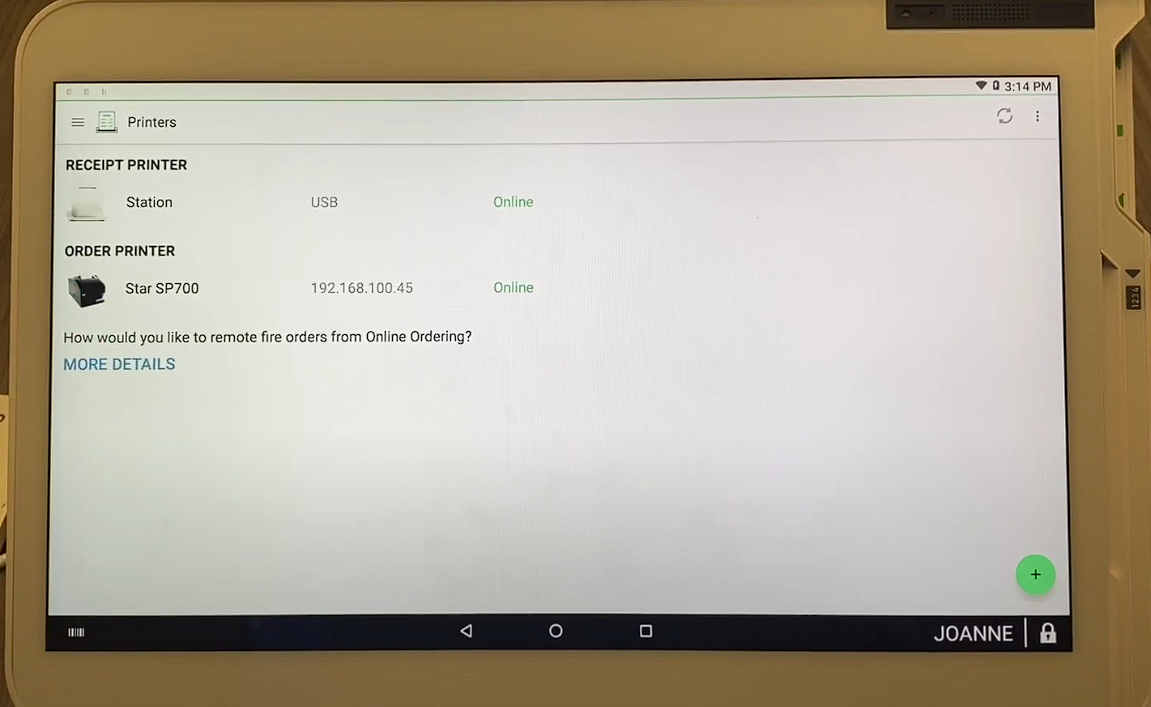
We need to make sure the printers that need to print online orders are set as Order Printer in Clover POS. The restaurant needs to go to the home page of their Clover device > Open the Printers app. The printer should be configured as an Order Printer there. Note: There can be multiple Order Printers set as well. All those printers will print the ticket when an order is sent to them. If this looks fine as well and orders still don't print, we should move to the next step.
Labels
Clover has printer labels using which you can assign items to print on a specific printer. We need to make sure if the order printer is set with a label, the items in the menu that should print to that printer are also set up with that label. Here's how it can be done.
- Navigate to Inventory > Printer Labels to check if there's any label.
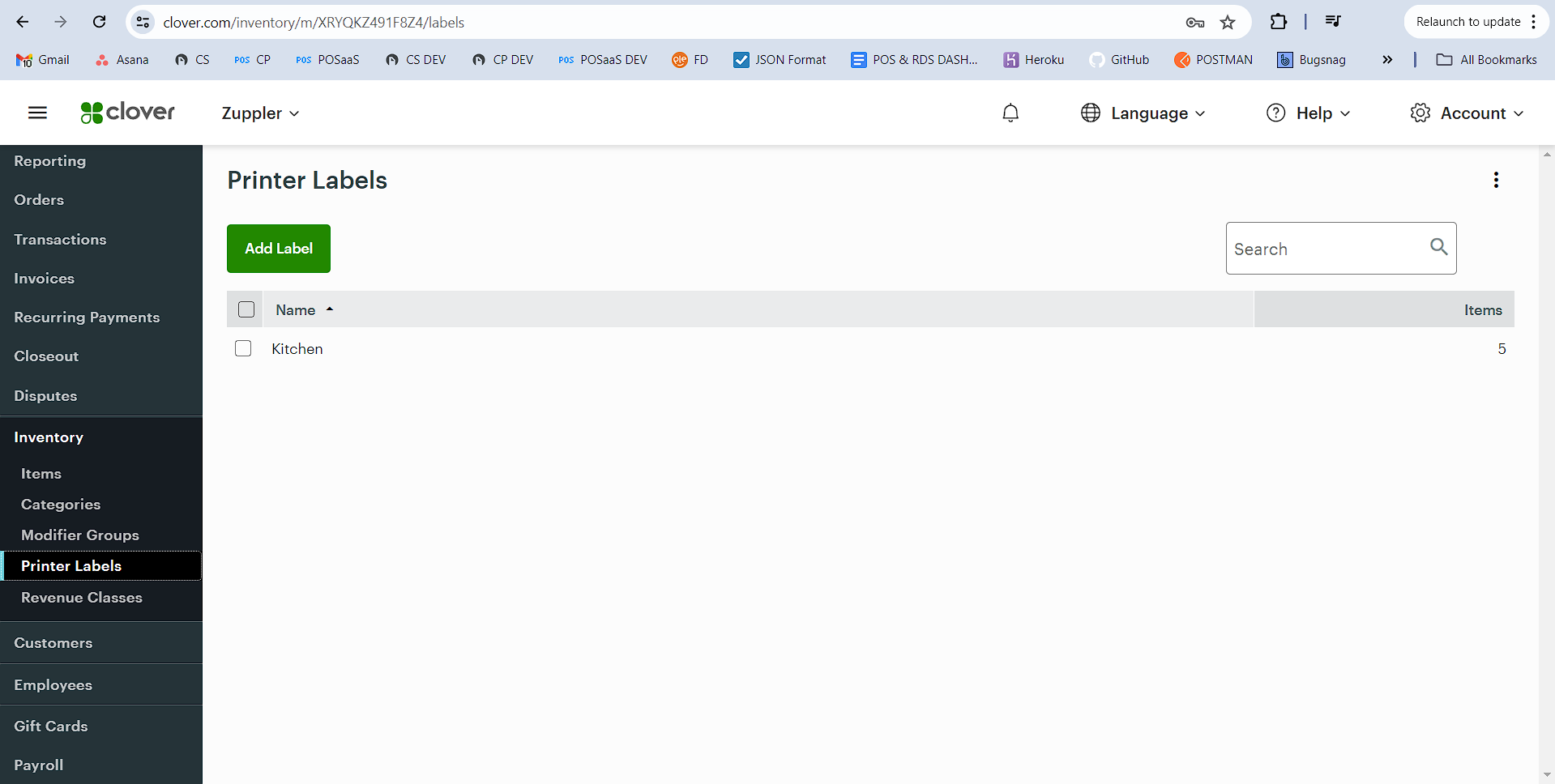
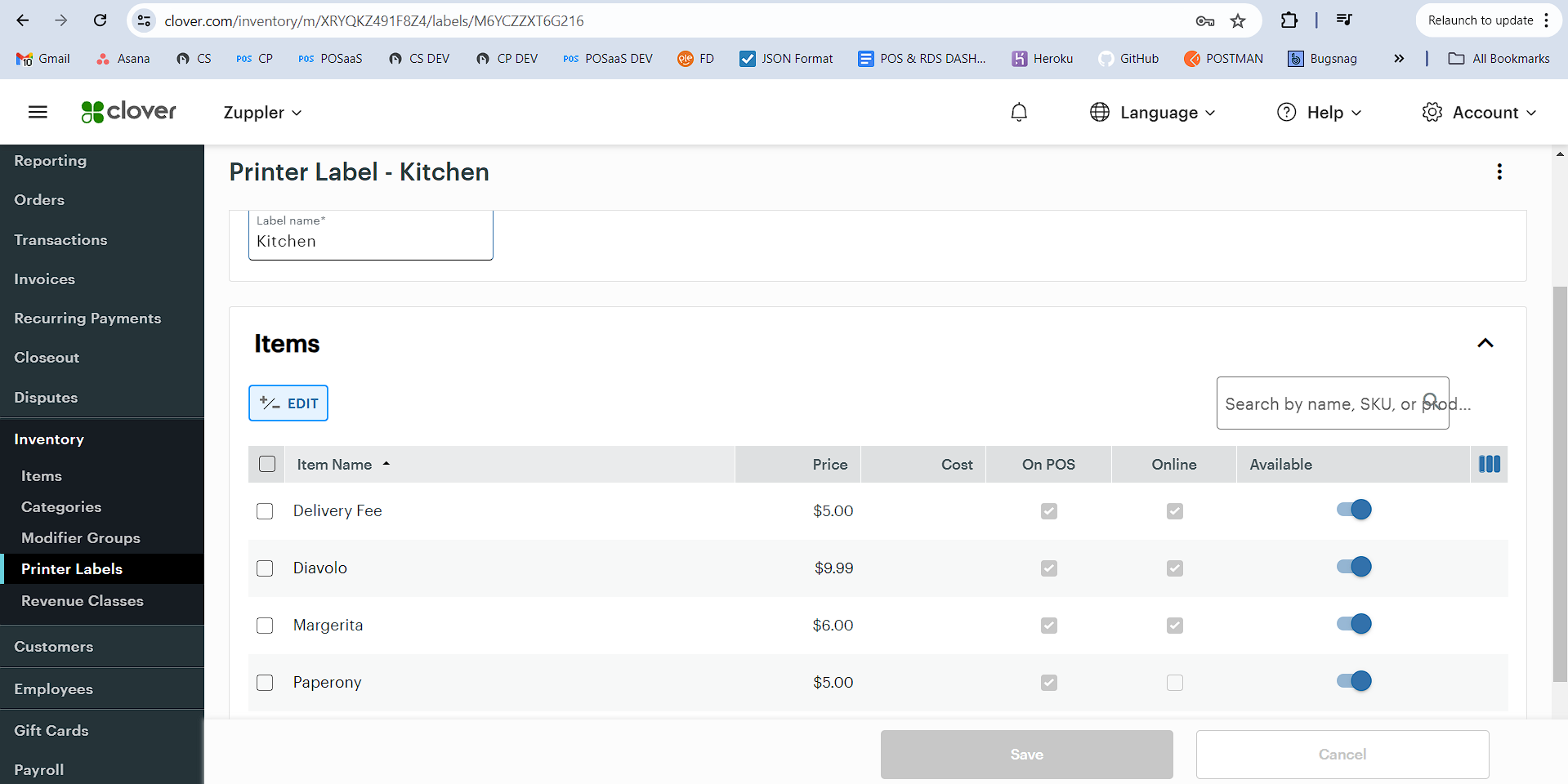
- You can see all the items that are assigned to this label. To assign items click on the label name and then click on the '+/- Edit' button.
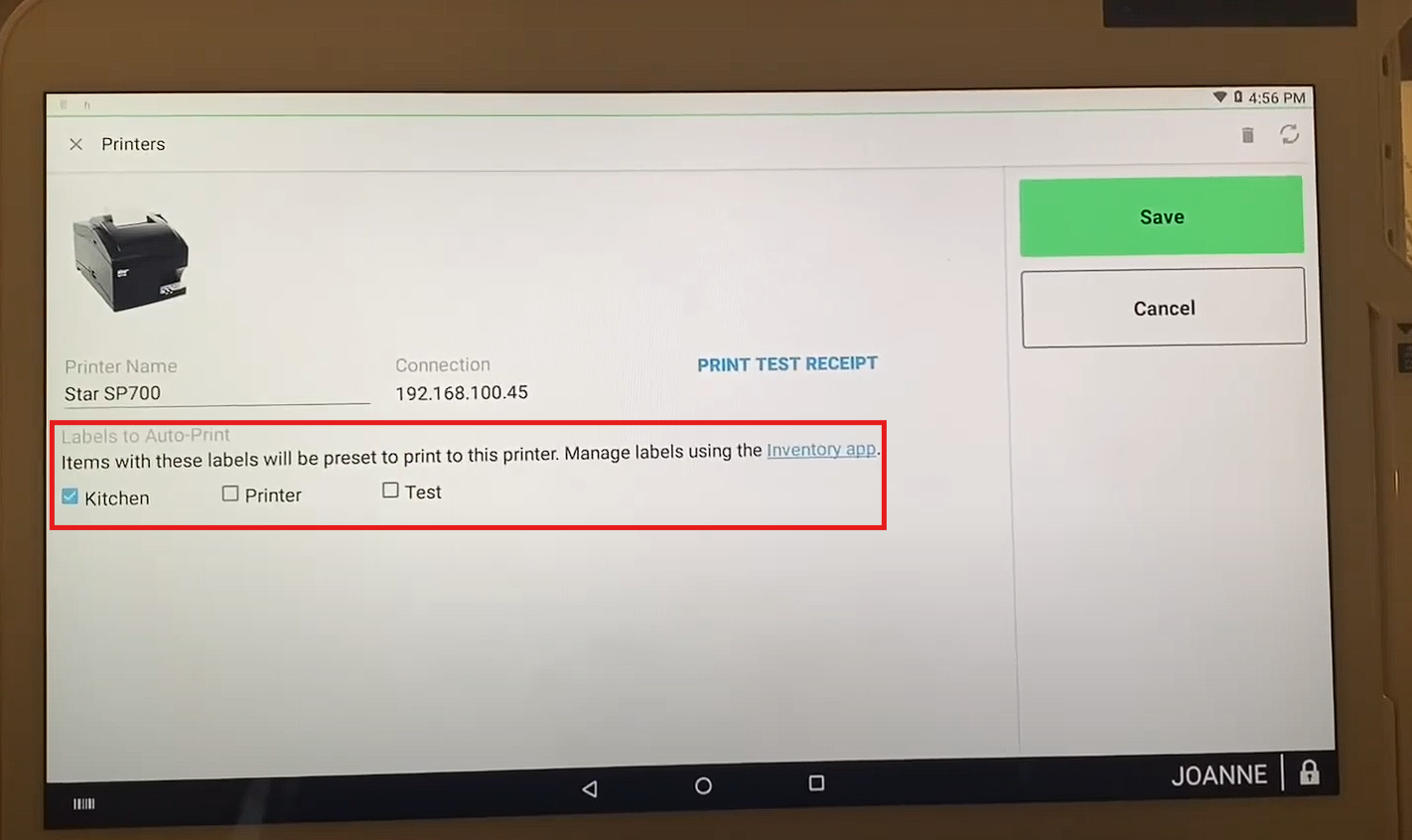
- To check if the label is enabled in one of the printers, go to the 'Printers' app in Clover POS terminal and select the printers added there.
- The labels will show up as checkboxes on the printer page, if any of them have the label enabled make sure the items are also configured with the label.
- If all of this looks good too, try following the next troubleshooting step.
Other Printer Settings
Remote Firing Printer
Make sure there's a printer added as the Remote Firing Printer. To enable this navigate to Setup app on the Clover terminal > Online Ordering > Settings > Remote Firing Printer and add the printer you want to have the orders print on there.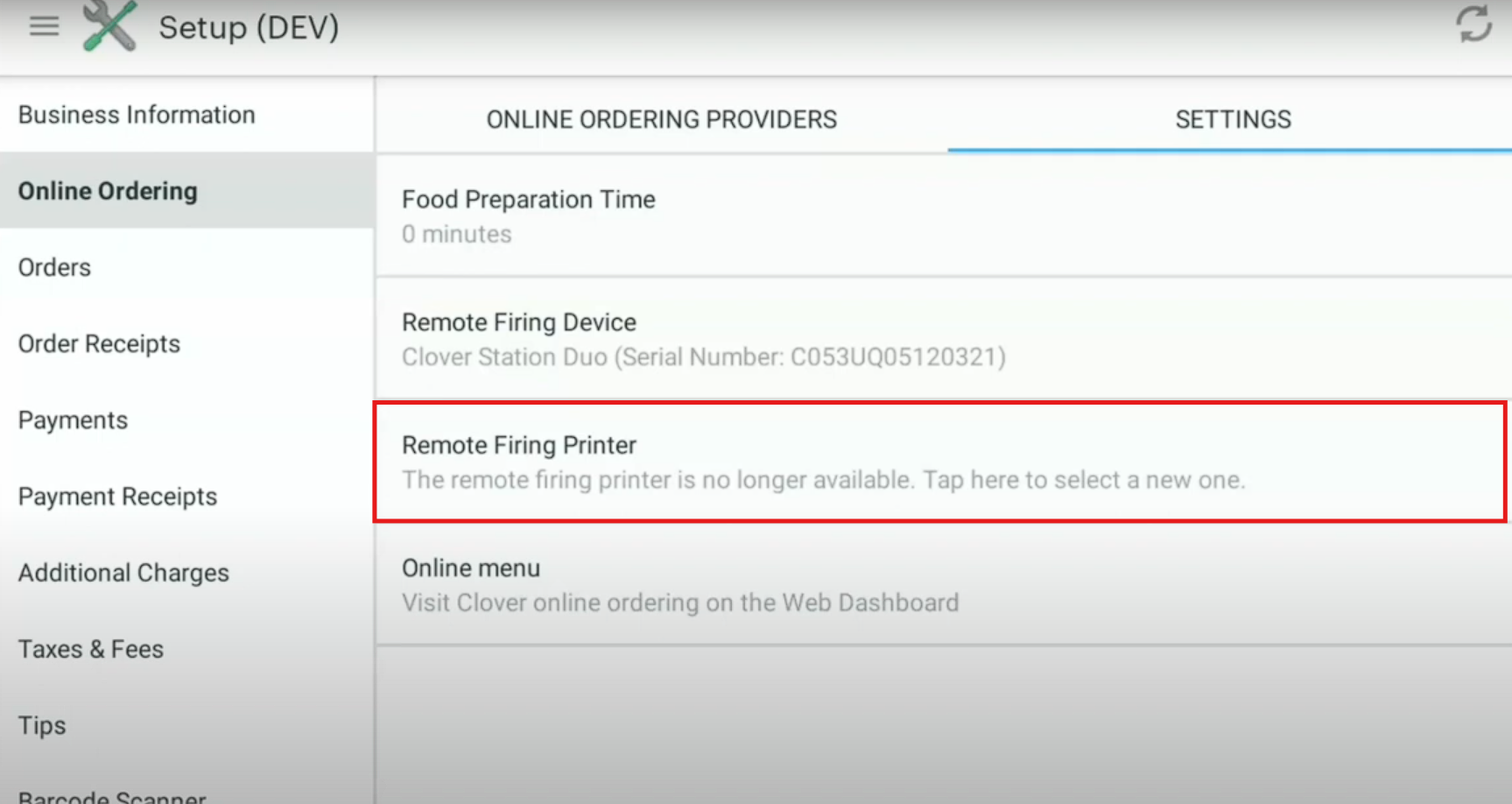
- Order Receipt Printer
Make sure there's a order receipt printer added in the setup app. To add it navigate to Setup app > Order Receipts > Order Receipt Printer and add a printer there.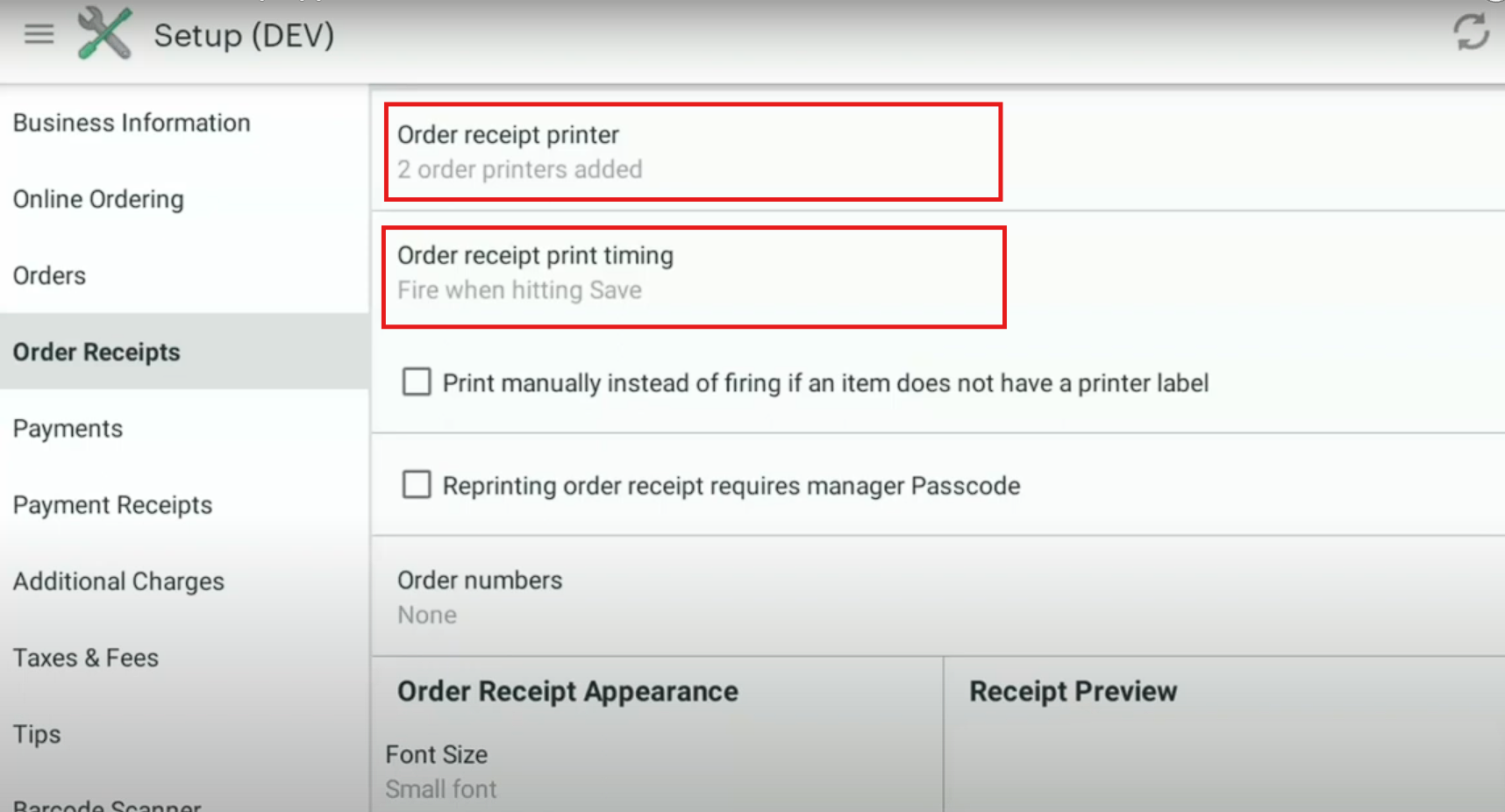 Also, the print timing should be defined properly. It should be set to 'Print when hitting Pay'.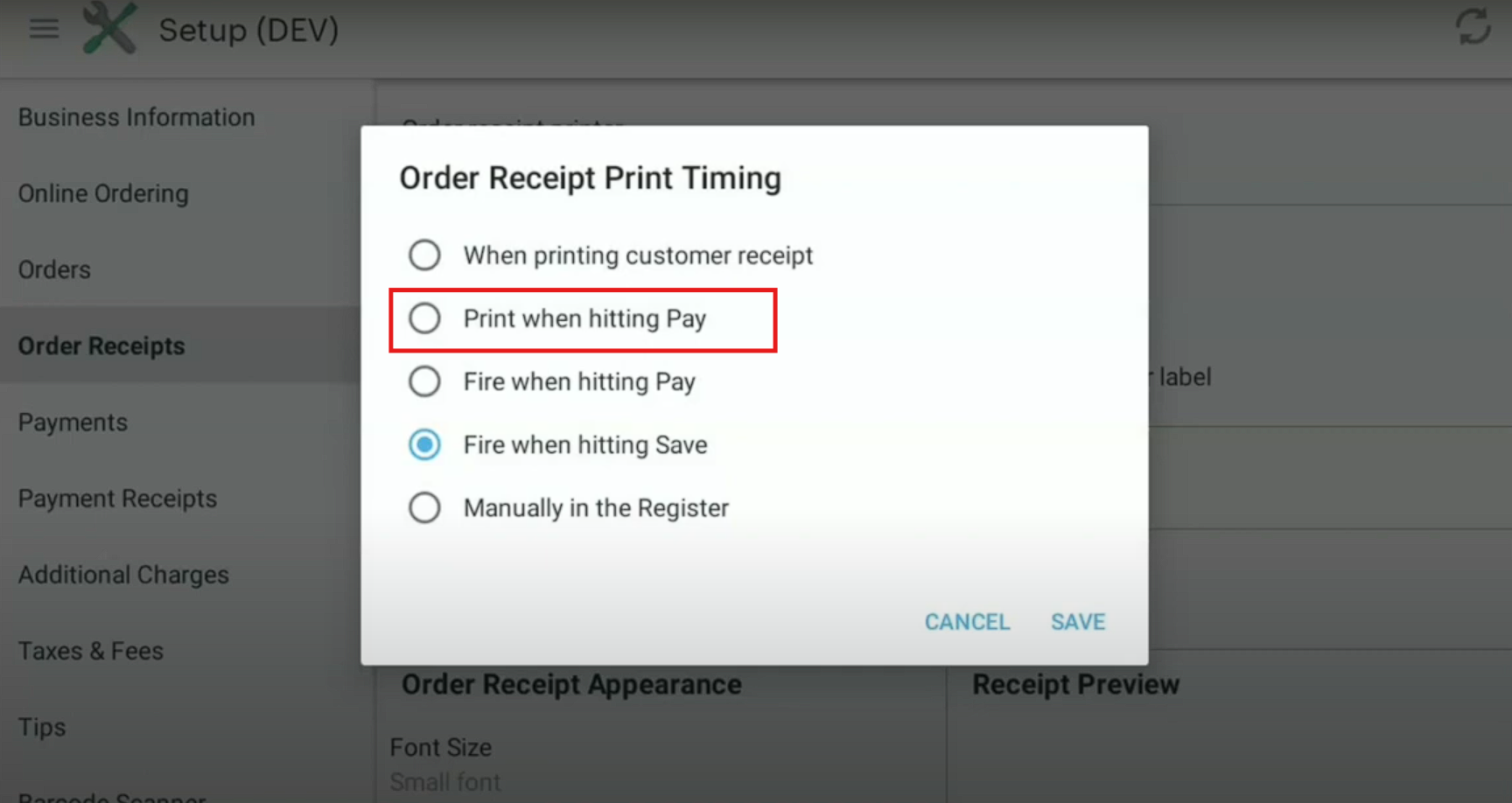
Few Key Notes To Verify { If the Order did not print completely }
- If an order printed incomplete is reported, we should first see if we sent the whole order in the order requests to Clover and if the items that have been sent have the correct information in the payload/order request like the name, id etc. You can check the order request in CS app, support tab of the order under NotiyPOS order action details.