Item level Modifier
An Item level modifier is a modifier that applies to all the sizes in the same item(s) within the same menu category.
In this article, you'll learn how and where you can use the Item level modifier.
Initial Steps
1. Be on the Control Panel
2. Go to Menu tab

TABLE OF CONTENTS
How to add an Item level Modifier and add items to it?
You can choose any menu item in any menu category of a menu. Here, for example, let's take a look at the options available for the BBQ Chicken Pizza menu item in the Pizza category of the Wednesday Special menu that we created in the article - 3. Adding a Menu Category.
Take the following steps:
1. Go to Wednesday Special,
2. Go to Pizza,
3. Click on BBQ Chicken Pizza

Now, let's say that the BBQ Chicken Pizza item comes with a Choice of BBQ Sauce modifier.
[And this modifier only applies to the BBQ Chicken Pizza item(s) within the same menu category (Pizza category)].
Adding an Item modifier
1. Go to "Modifiers...",
2. Go to "...to all BBQ Chicken Pizza items"

Go to the dish modifier properties window on the right side of your computer screen.
3. Add Name,
4. Check-in Required (optional),
5. Save it

And the Item modifier has been added:

Note: This Item modifier won't show up in the Order online menu until you add the items to this modifier.Adding items to the Item modifier: Setup and Output
Let's say, the BBQ Chicken Pizza comes with 2 types of BBQ Sauce choices - Regular and Spicy BBQ.
Setup
1. Click Choice of BBQ Sauce modifier, then
2. Click on Choice of BBQ Sauce Modifier Items..., that appears right next to Modifiers...,
3. Hit Edit,

4. Click Add new option and add Regular and Spicy BBQ items,
5. Save it

Output
1. Go to the Order online menu
2. Go to WEDNESDAY SPECIAL > Pizza > BBQ Chicken Pizza

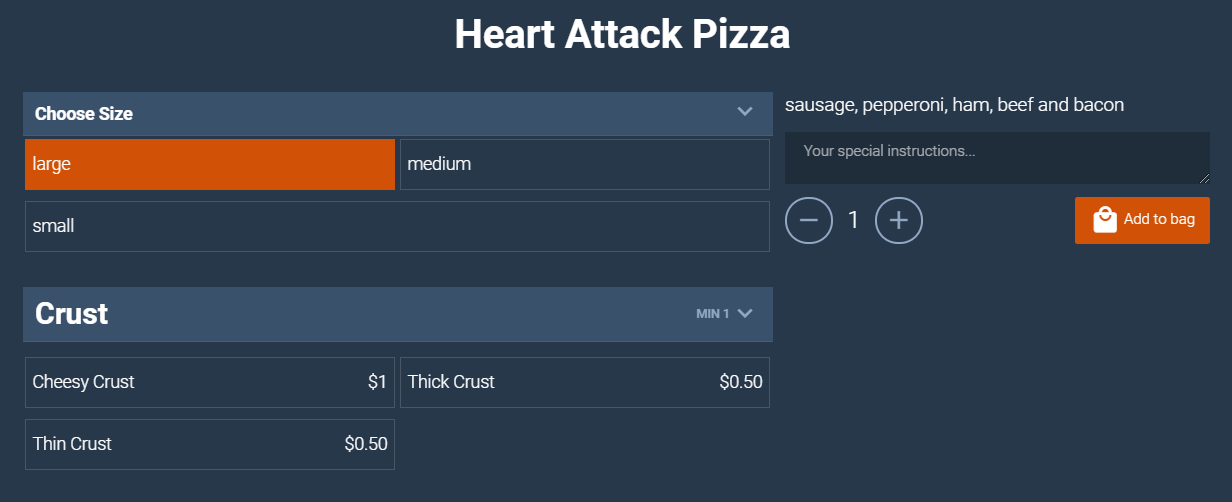
Note: Since this is an Item level modifier, the changes won't appear for the Heart Attack Pizza that we created in the previous article - 8. Category Level Modifier, in the same Pizza category.
Related Articles
Category level Modifier
A Modifier is an additional setting that can be applied to a category, dish, and menu items. In this article, you'll learn about the different levels of Modifiers and how to use the Category level Modifier. (For the user guide on the Dish level ...Master Modifier - Pizza Modifier
A Modifier that is created to align two or more dependent modifiers under that modifier is called a Master Modifier. In this article, you'll learn how you can create a Master Modifier and how it functions in the menu. Initial Steps 1. Be on the ...Nested Modifier
Nested Modifier (also called dependent modifier) is a modifier that appears only when a particular modifier is selected. In this article, you'll learn how you can create dependent modifiers and use the dependencies between the modifiers to show the ...Multi-Select Modifier with Modifier Multiplier
In this article, you'll learn how you can use Multiple selection and Modifier multiplier options for your modifier items. What is the difference? Multiple selection is used when you want to allow customers to add more than 1 type of modifier item. ...Modifier Grouping.
If you have a modifier with more number of modifier items in it, you might want to group them according to their types, to make it easier for the customer to navigate items according to the type they want. In this article, you'll learn how you can ...