Kiosk Settings and Features
This guide will walk you through the different settings and features that are available on the Zuppler kiosk. Settings highlighted in blue are the ones which are enabled by default by the shipping team when a new kiosk is sent. The restaurants can use and enable the other available settings if required.
Accessing Kiosk Settings:
To access the settings, navigate to the category screen in the menu. Tap on the store name (displayed in small font on the top right corner) five times. You will then be prompted to enter a pin—use 20221 to unlock the settings.
Kiosk Settings & Functionalities:
Debug Mode (Remove device hardware buttons)
- Disables the home/back navigation buttons to prevent users from exiting the kiosk app.
Enable Print
- Allows printing receipts from the kiosk's built-in printer. Users can print a receipt after placing an order.
Auto Print
- Automatically prints the order receipt once the order is placed.
Enable SMS Receipt
- Enables the option to send a receipt via SMS after the order is completed.
Enable Email Receipt
- Enables the option to email the receipt after the order is placed.
Enable Cash
- Allows cash payments as a payment option.
Enable Card
- Enables card payments, requiring a connected card terminal.
Enable QR
- This is unsupported.
Show Default Images
- Displays item images in the menu and category tiles if there are no images assigned to the menu or category.
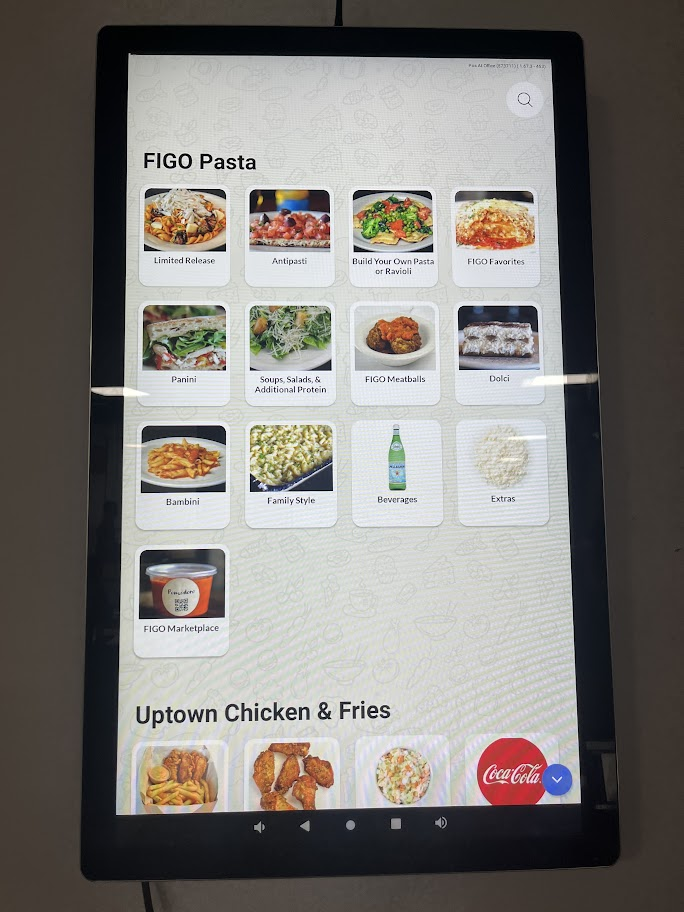
Horizontal categories
- Displays the menu options in horizontal fashion on the category page.
- Displays the menu options in horizontal fashion on the category page.
Addons with Images (Beta)
- Displays images for add-on modifications (modifiers) in a tile view. If an image is unavailable, a default icon is shown. If disabled, mods are displayed in a list view.
Enable Category Screen
- Displays all menu categories on one page after the splash screen for easy selection. Looks good only when there is more than 1 menu.
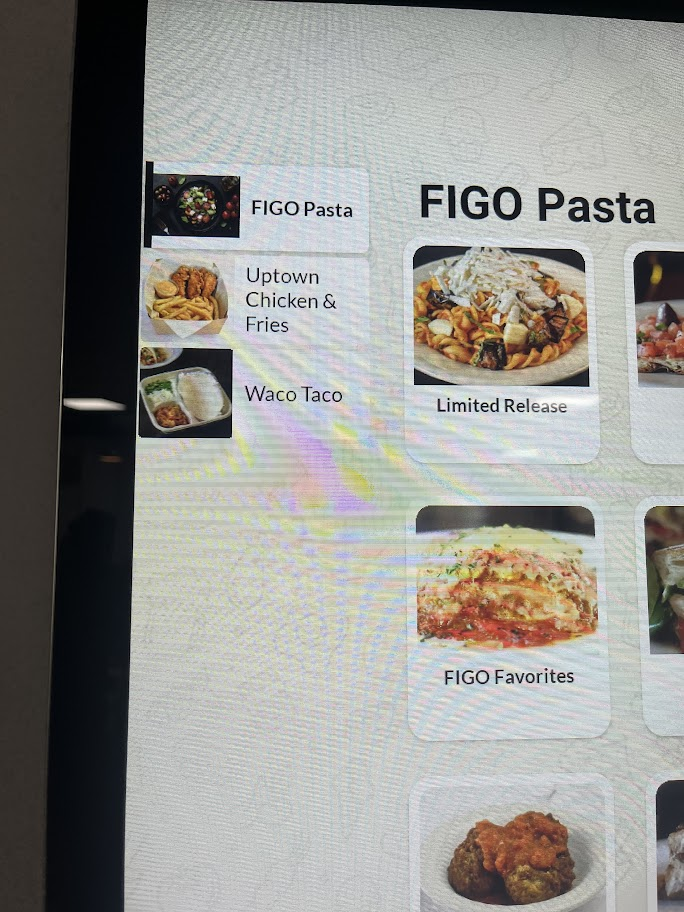
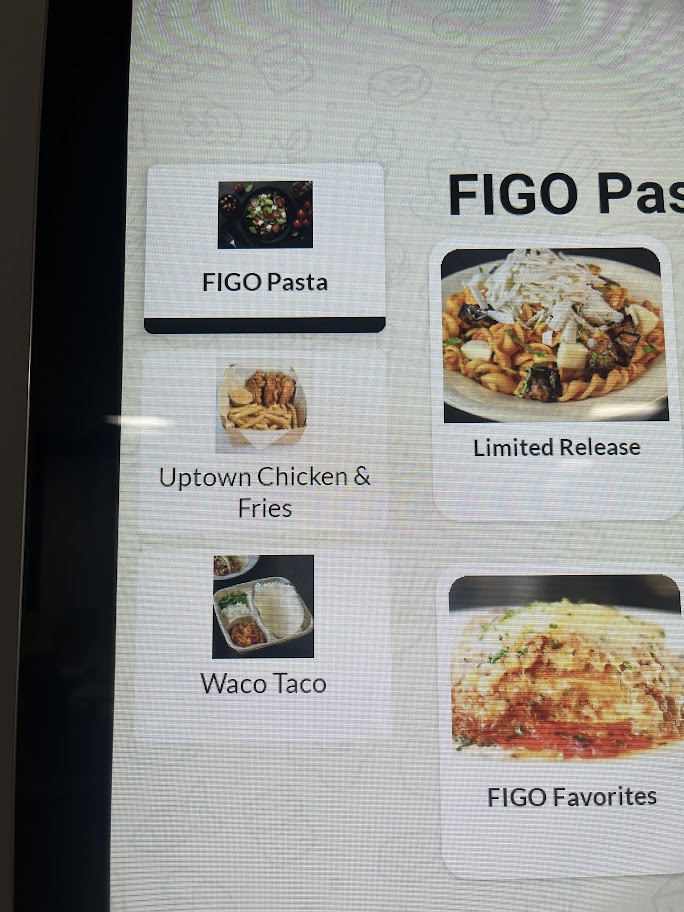
Enable Thumbnail View
- Changes how menu images are displayed on the category screen (thumbnail view).
Disabled:
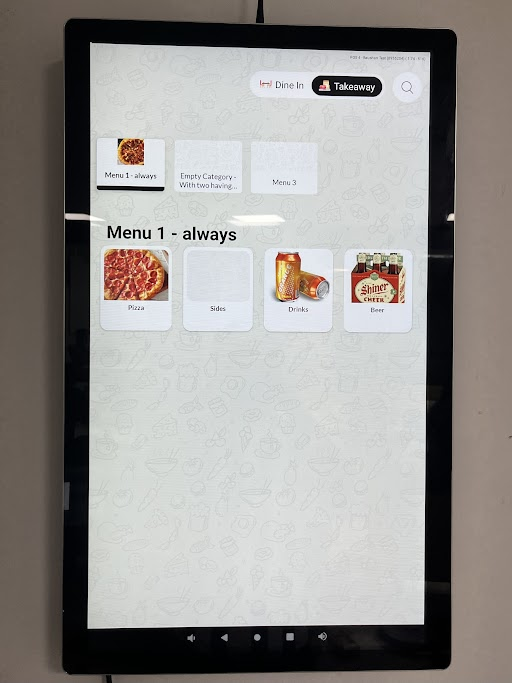
Enabled:
Enable Short Menu
- Displays all categories and items on the same page, skipping the category selection screen.
Enable Add Instructions
- Enables or disables the ability to add special instructions for items or the cart.
Order No.
- Enables or disables order numbers on printed receipts.
Show Card Terminal Locator
- Adds an arrow icon on the screen to indicate the location of the card terminal.
Show Second Language
- Currently unsupported with the Zuppler menu.
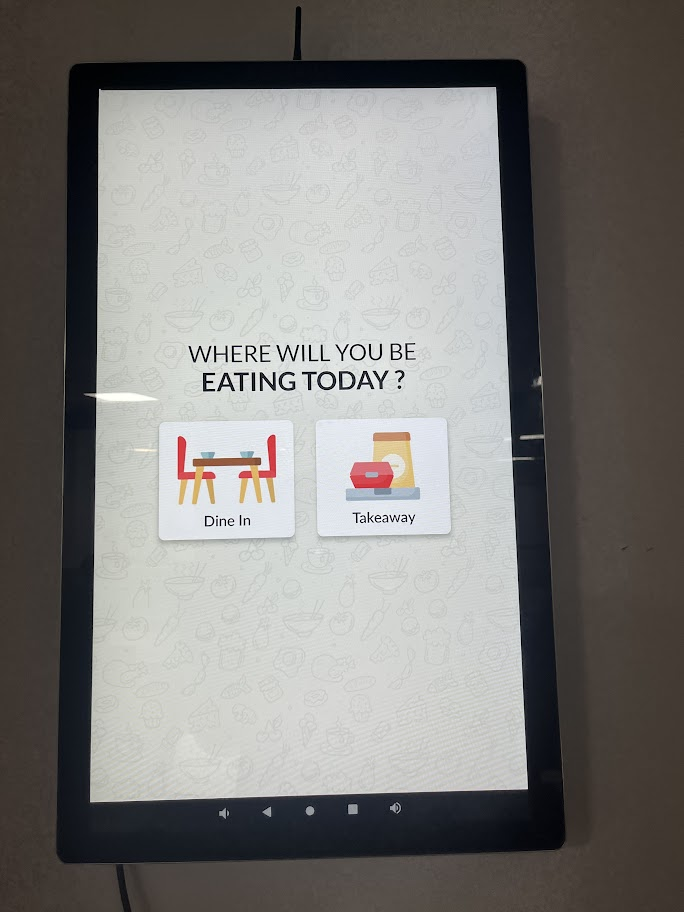
Dine-in
- Enables dine-in as an order type.
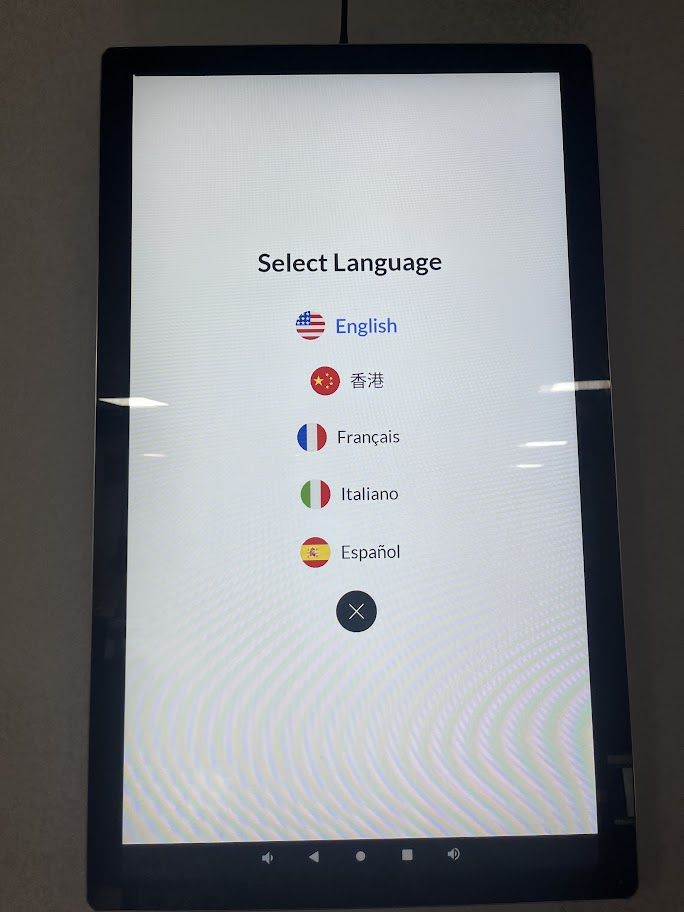
Enable Language Options
- Adds an option in the top left corner for switching between languages. Note that this changes the language of the interface, not the menu.
Get Customer Name
- Prompts customers to enter their name before proceeding to the cart.
Get Customer Phone
- Prompts customers to enter their phone number before proceeding to the cart.
Table Selection Text
- Allows customization of the table selection prompt, offering "Table Number" and "Table Name" as options.
Splash Screen Timeout
- Defines the time period of inactivity in a cart before the kiosk returns to the "Order Now" screen. Default is 150 seconds.
Splash Screen
- Provides six default options for splash screens. We can also assign a custom splash screen for restaurant branding, for that we will require a GIF file (720 x 1280, under 10 MB).