Menu message - Menu, Checkout and Order confirmation
Overview:
The Menu Message feature in Zuppler Chef allows users to set up custom text at various stages of the ordering process. It enables you to add personalized messages at three key levels: the Menu Page, Checkout Page, and Order Confirmation Page.
Menu Page Message: Customize your message to greet customers, highlight specials, or provide other relevant information while they browse the menu.
Checkout Page Message: Add messages that appear when customers are reviewing their order. This is a great place for last-minute reminders, promotional offers, or instructions before they finalize their purchase.
Order Confirmation Page Message: Display a message to thank the customer, provide delivery estimates, or share any additional information after the order is placed.
This feature offers a seamless way to enhance the customer experience at each step of the ordering journey.
To set this up, go to Zuppler Chef and select your store. Once there, you'll find the option to configure the Menu Message, as shown in the snapshot below:
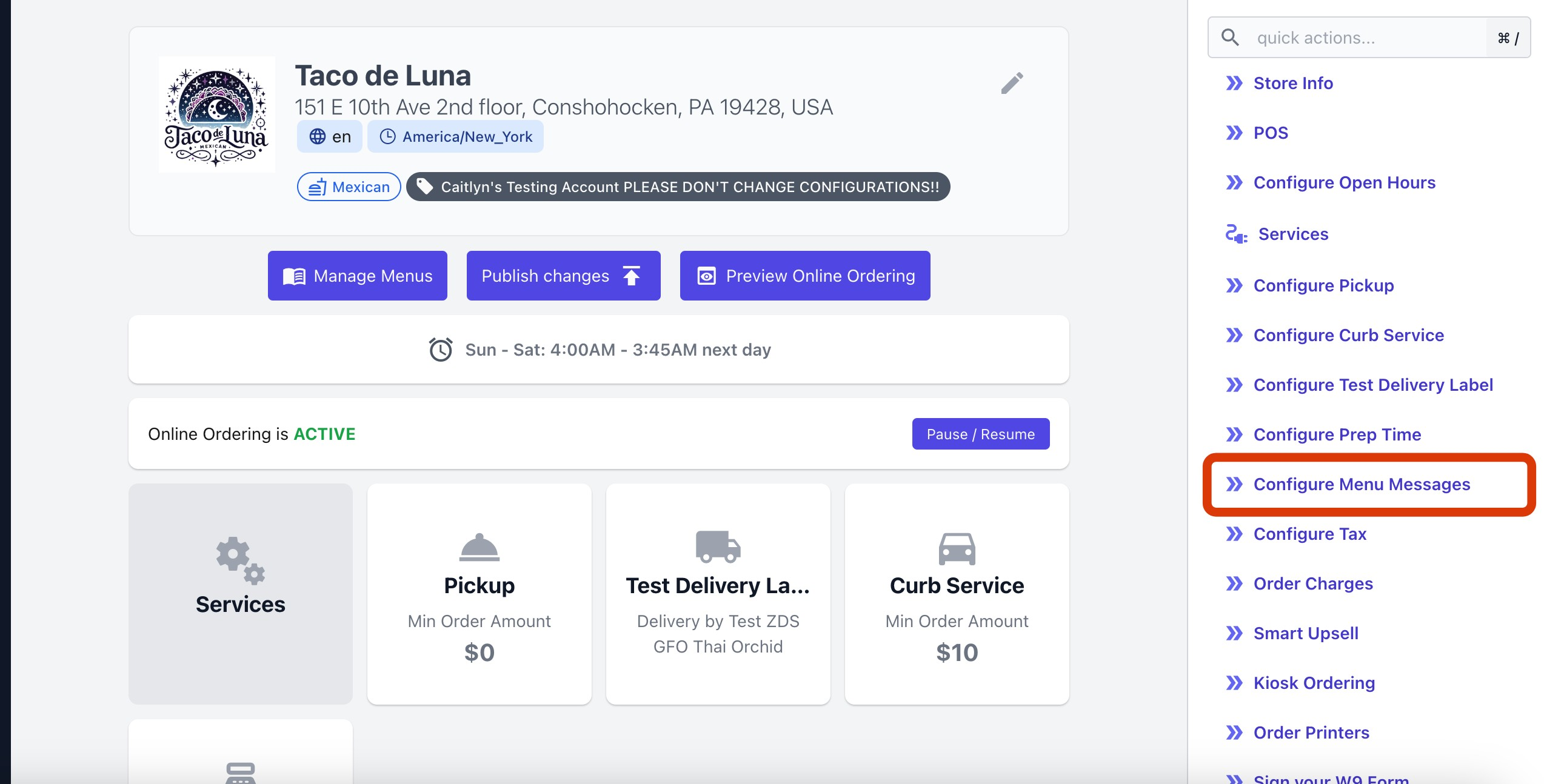
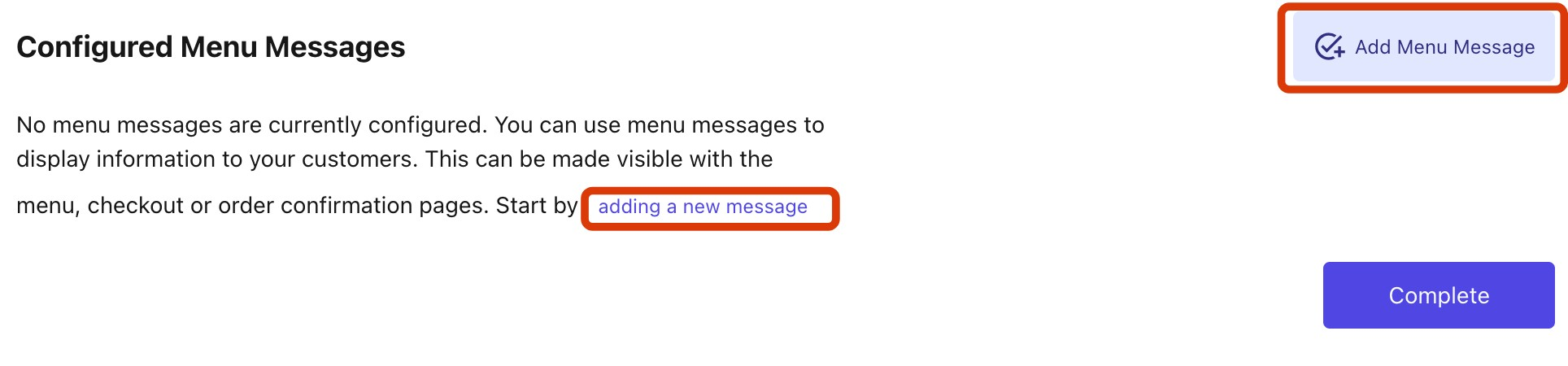
Once that page loads, you're going to click Configure Menu Message on the right hand side of the page and you'll be asked to Add Menu Message as highlighted in the snapshot below. You can click "Add Menu Message" or "adding a new message" to get started.
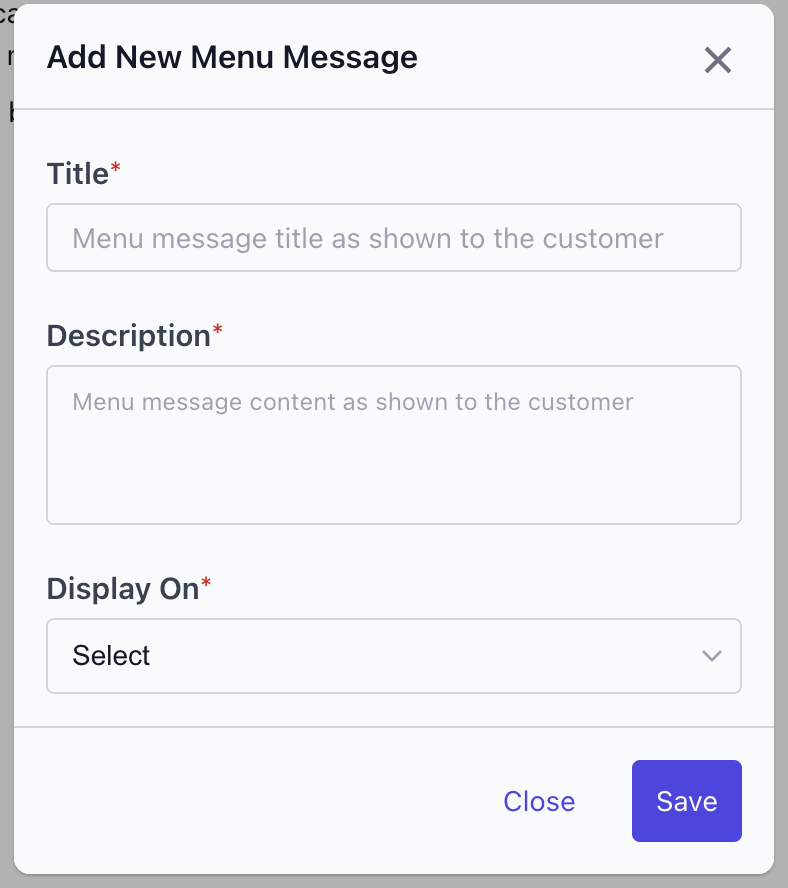
Once you click "Add Menu Message" or "adding a new message", a popup will appear allowing you to add your message, as shown in the snapshot below. First, enter a title in the Title field, then add a description for your message. Next, under Display On, you'll see three options: Menu, Checkout, and Order Confirmation. Choose where you'd like to display your message, and then click the "Save" button.
Once you’re finished, you’ll see your customised message successfully set up, as shown in the snapshot below. Similarly, you can add messages at all levels, and also you can have multiple messages for each selected level, such as the Menu, Checkout Page, and Order Confirmation Page!

Related Articles
How you can make your online ordering menu visual
Item Pictures Add pictures to each item to enhance the menu visually Featured Images Showcase a specific menu item by making the item featured and more prominent Category Images Shows in the background of the category you’ve chosen Category Spotlight ...Where is the refund for my canceled order ?
If your order was canceled, you'd expect to see the money returned as quickly as possible. Were you expecting to receive a refund and haven't seen it yet? In this case, it depends on how long after you ordered that the refund was applied. Orders that ...Setting up Curbside Service
Curbside: Zuppler also supports the ability for restaurants to allow guests to drive up to the storefront while staff brings the order out to the vehicle that was listed during the checkout process. How to enable Curbside Pickup: In the control panel ...Different options for your online cart
Inline Cart Edit and view the cart through the entirety of the order, without needing to leave the menu Category Sidebar Categories no longer display at the top of the menu, they will now show on the side of the menu for easy category picking.Setting Up Your Catering Concept
Managing Your Catering Cut Off Times Many catering companies require a certain amount of advance notice in order to prepare an order on time. These Cut Offs can be easily accommodated and established within the Control Panel. They can be updated at ...