Zuppler POS & Kiosk Onboarding Checklist
Please refer this checklist and execute the manual steps in BOB CRM when onboarding a restaurant with a Zuppler POS or Kiosk. Adding a Zuppler Tablet/Printer should be a one click setup, orders will flow to the tablet once the tablet is added from Chef and marked as shipped in the Device Management portal.
Automated Steps
These are the steps which will execute automatically once you add a POS or Kiosk to a restaurant in Chef:
- Account Creation: An account on BOB CRM will be automatically created with the Store name, address and owner contact details. The owner contact email and phone configured in Chef will receive the OTP to login on the device.
- HOP: We'll always be sending a 24/7 open hop configuration to BOB CRM.
- Services: The POS has Delivery, Pickup and Instore service types enabled by default. The Kiosk has instore service enabled by default, dine in can be enabled from the Kiosk settings for table orders if requested.
Manual Steps
These are the configuration which need to happen in BOB CRM:
- Table Orders (POS): For POS accounts, enable the table orders option. This exposes the 'Restaurant' section on the POS app, which helps the store in taking table orders.

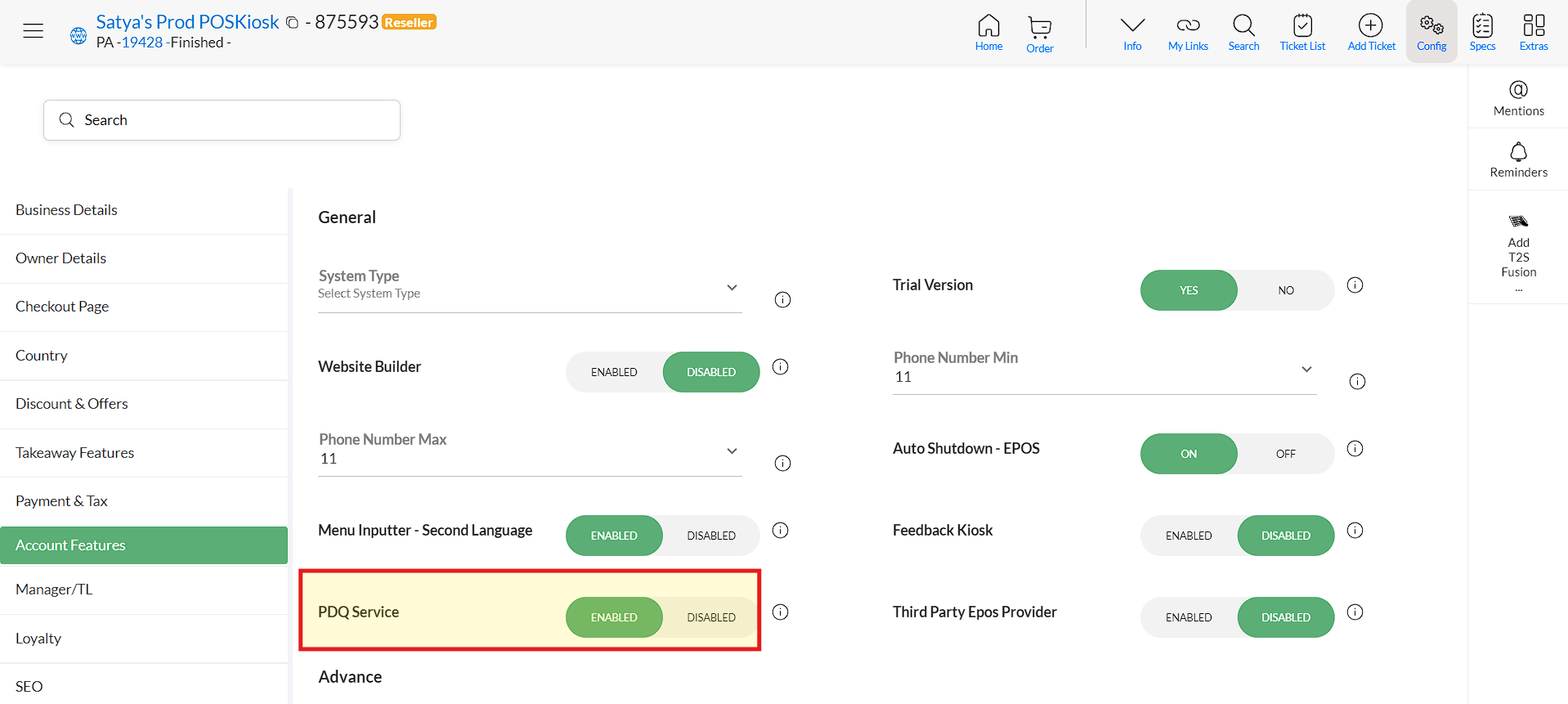
- Enable PDQ: We need to enable this option, so that the dejavoo terminal shows as an option in the devices. Navigate to Account Features tab in BOB CRM config and enable the highlighted option.
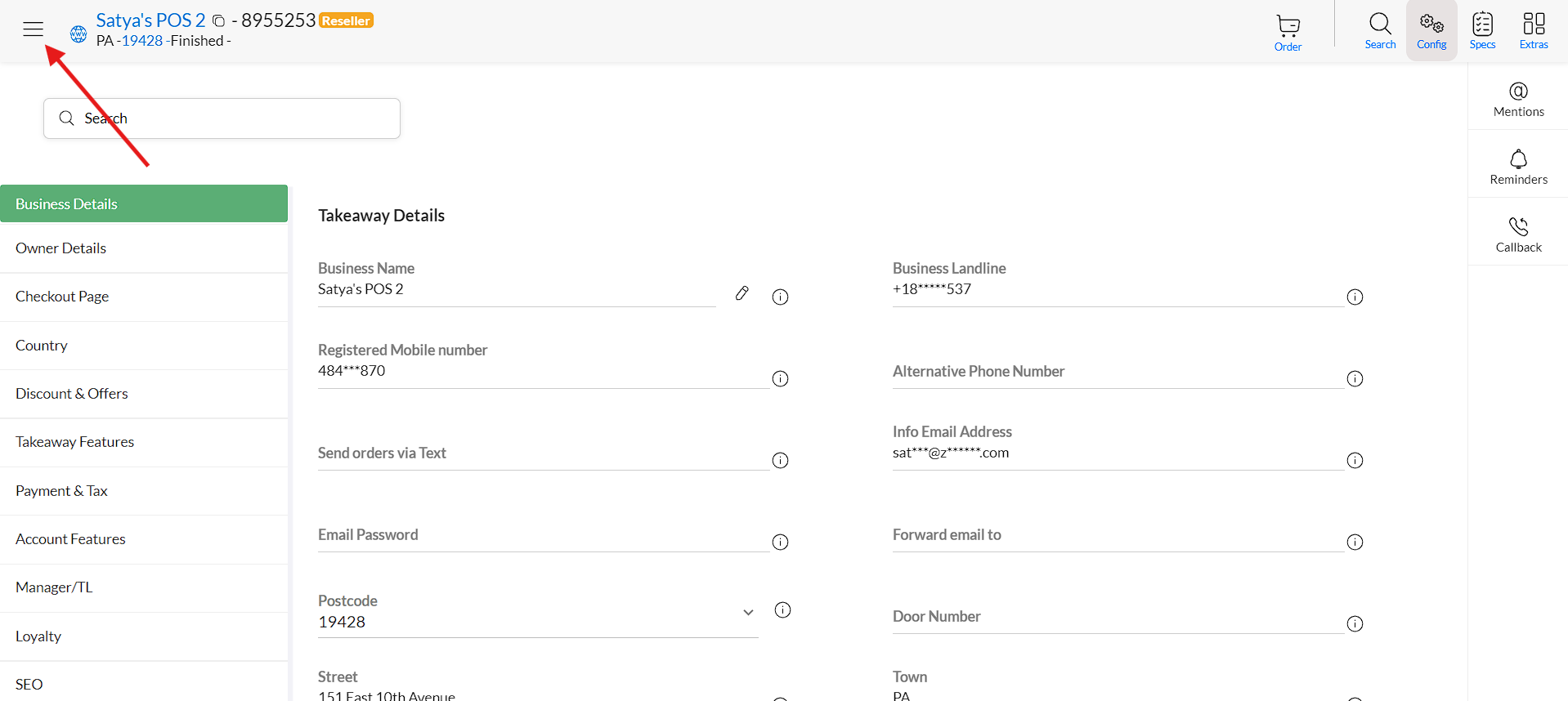
- Prep time: Prep time configured in chef won't pass over to BOB CRM. The pickup, instore and delivery prep times should be added and always update in BOB CRM or the POS device. This how you can update it in BOB CRM.
- Click on the hamburger icon in BOB CRM restaurant config
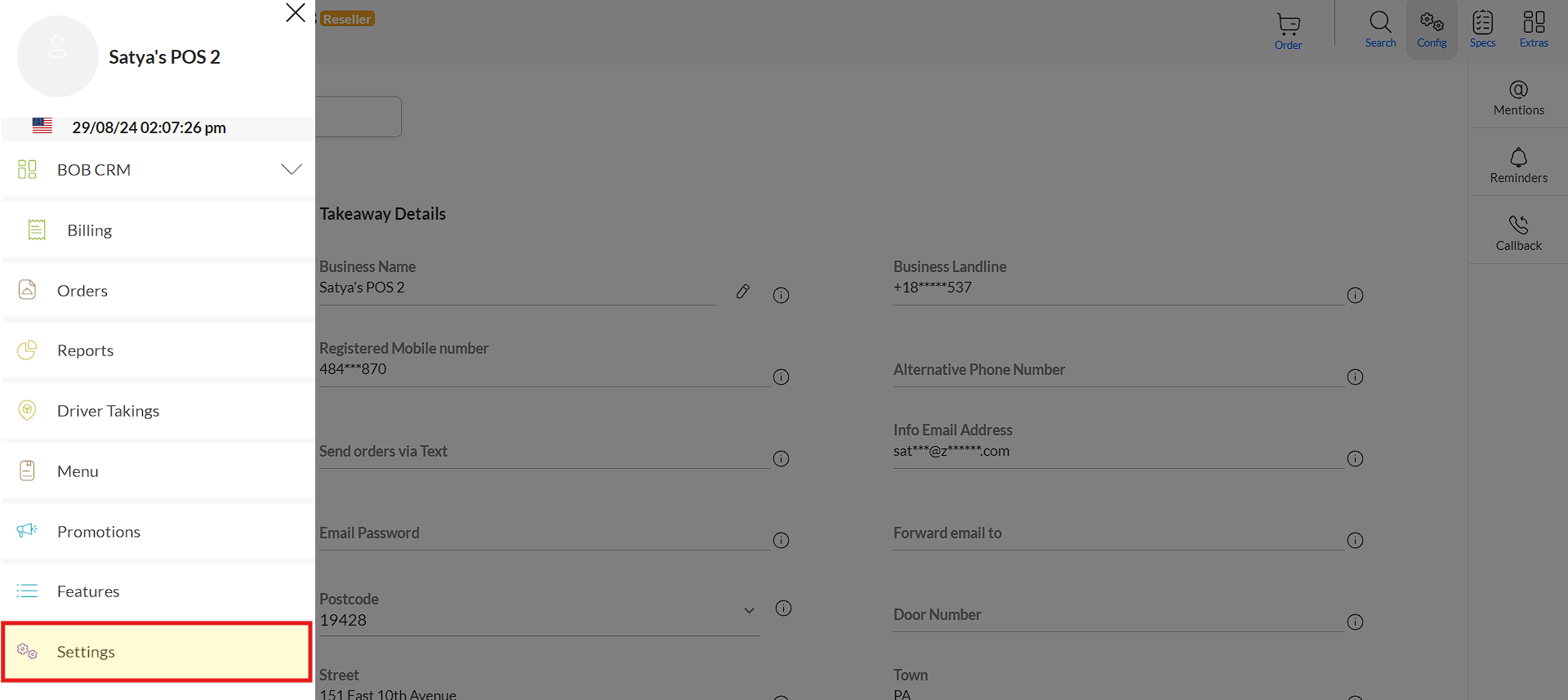
- Go to settings
- Then 'Store Settings'
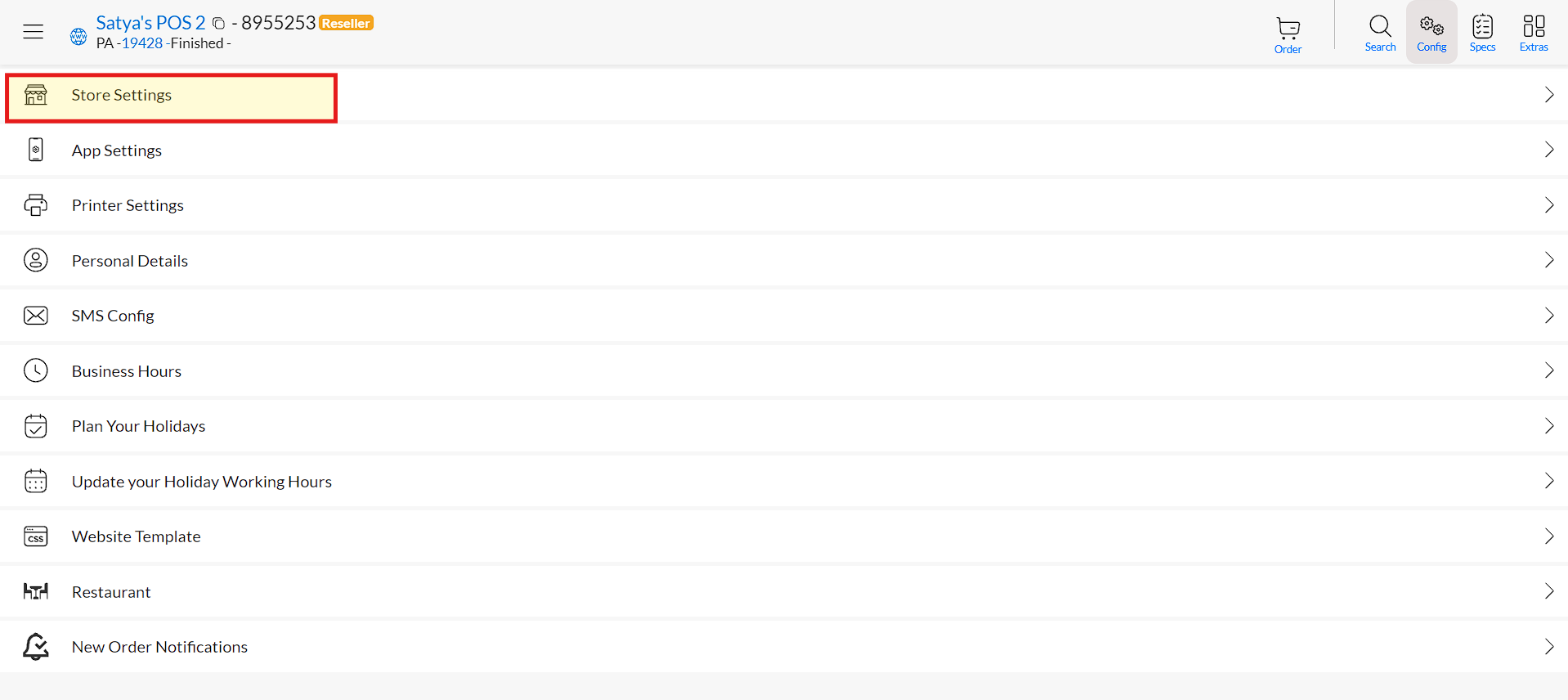
- This is where you can adjust different prep times as per the restaurant's requirements
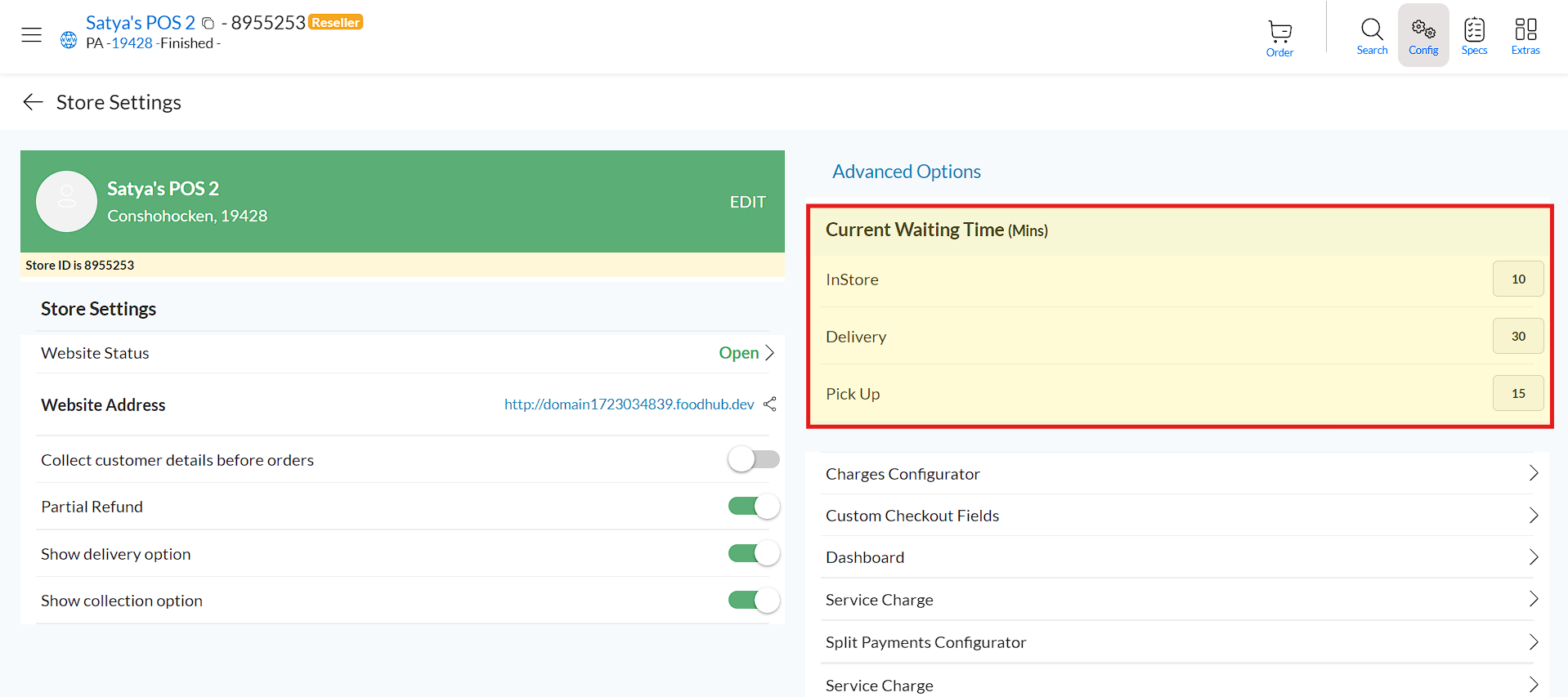
- Click on the hamburger icon in BOB CRM restaurant config
NOTE: Prep times in Chef and BOB CRM do not sync. So, online ordering and POS/Kiosk prep times would be managed in Chef and BOB CRM/POS separately vice versa.
- Tax rate: This information also does not sync automatically so, this is how you configure it in BOB CRM
- Define the tax rate in 'SALES TAX Percentage' field in BOB CRM Restaurant Config. Make sure the 'SALES TAX' option is enabled as well.
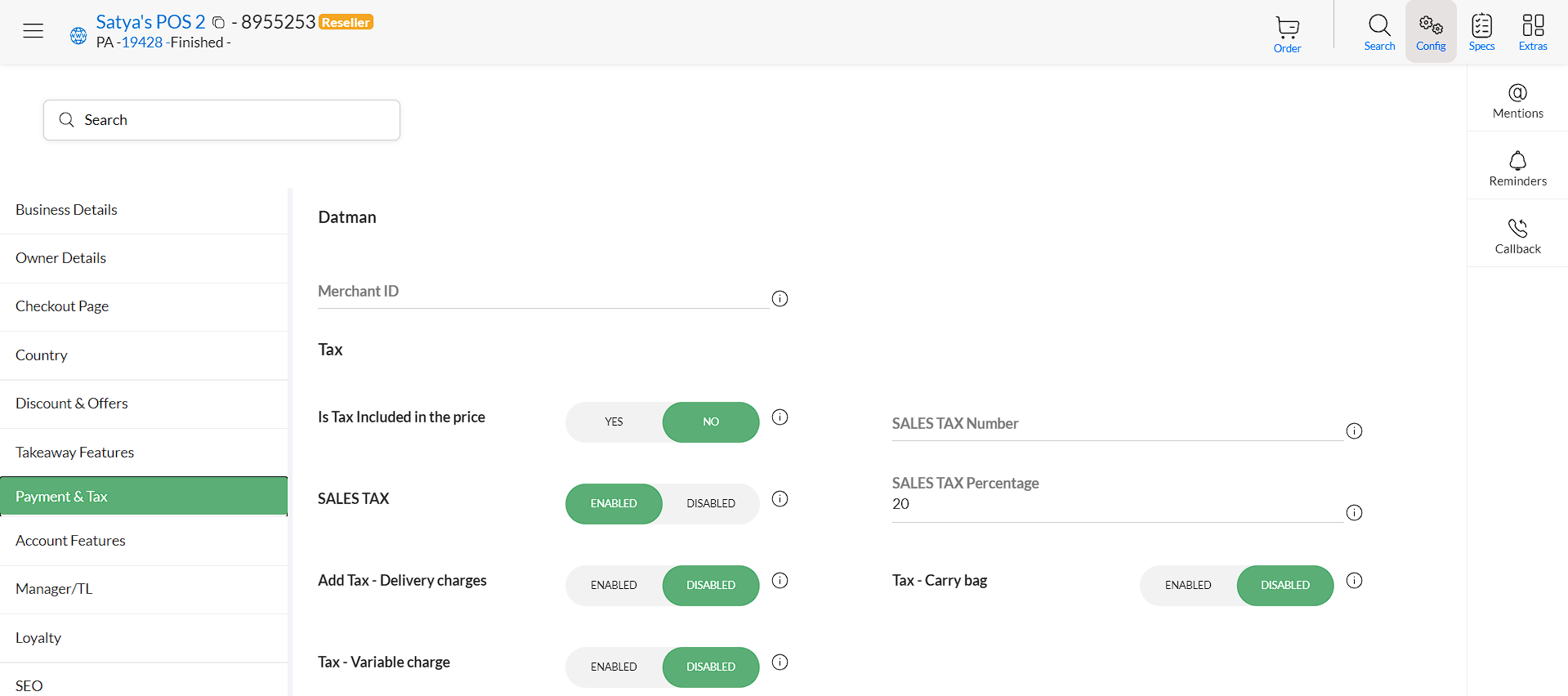
- Define the tax rate in 'SALES TAX Percentage' field in BOB CRM Restaurant Config. Make sure the 'SALES TAX' option is enabled as well.
- Delivery Rules/Delivery Time (only if store wants self delivery): We'll only support self delivery orders from POS. If a restaurant wants to use that we need to make sure delivery zone/s are created in BOB CRM. This is how you can do it.
- Go to restaurant specs in BOB CRM and search for delivery zones.
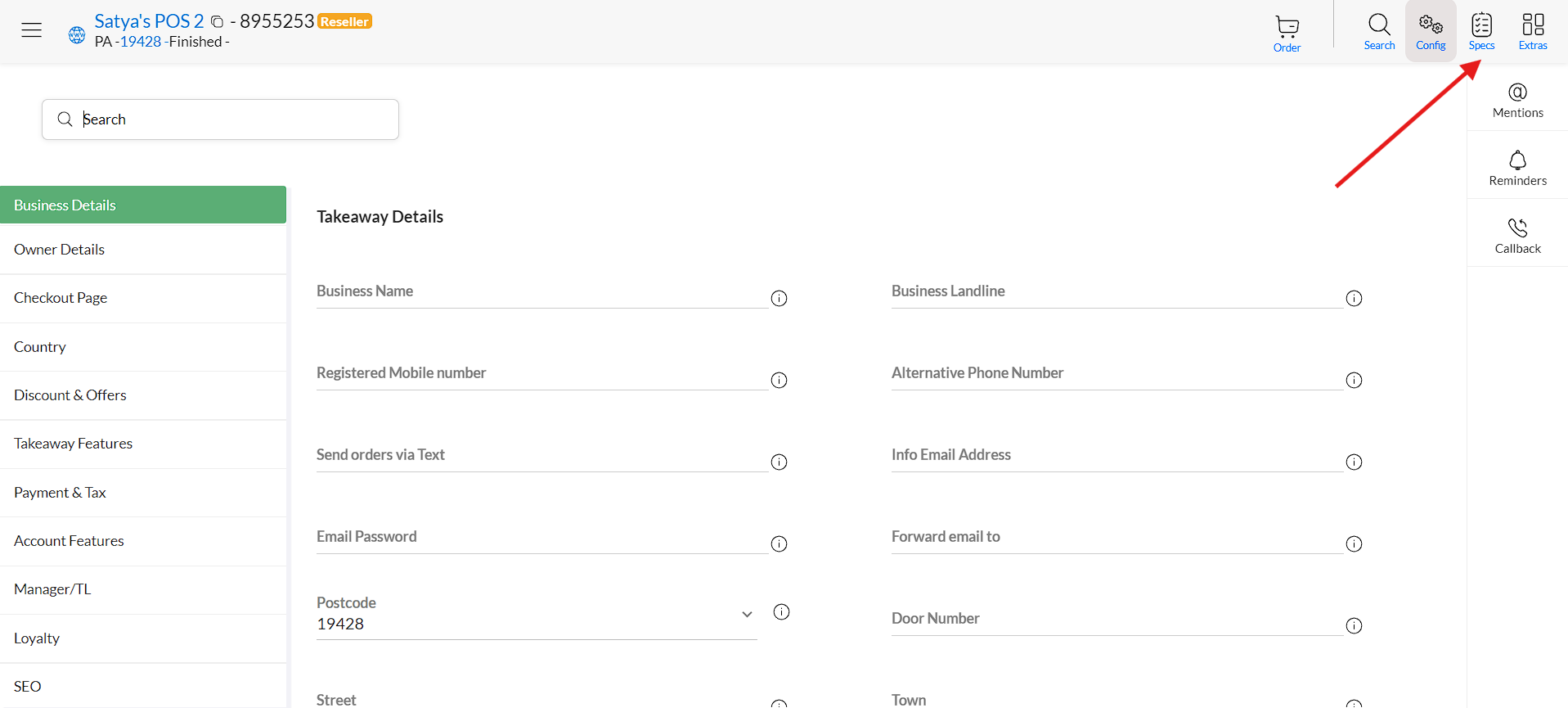
- Configure a delivery zone by specifying the details asked there. More than one delivery zones can be created.
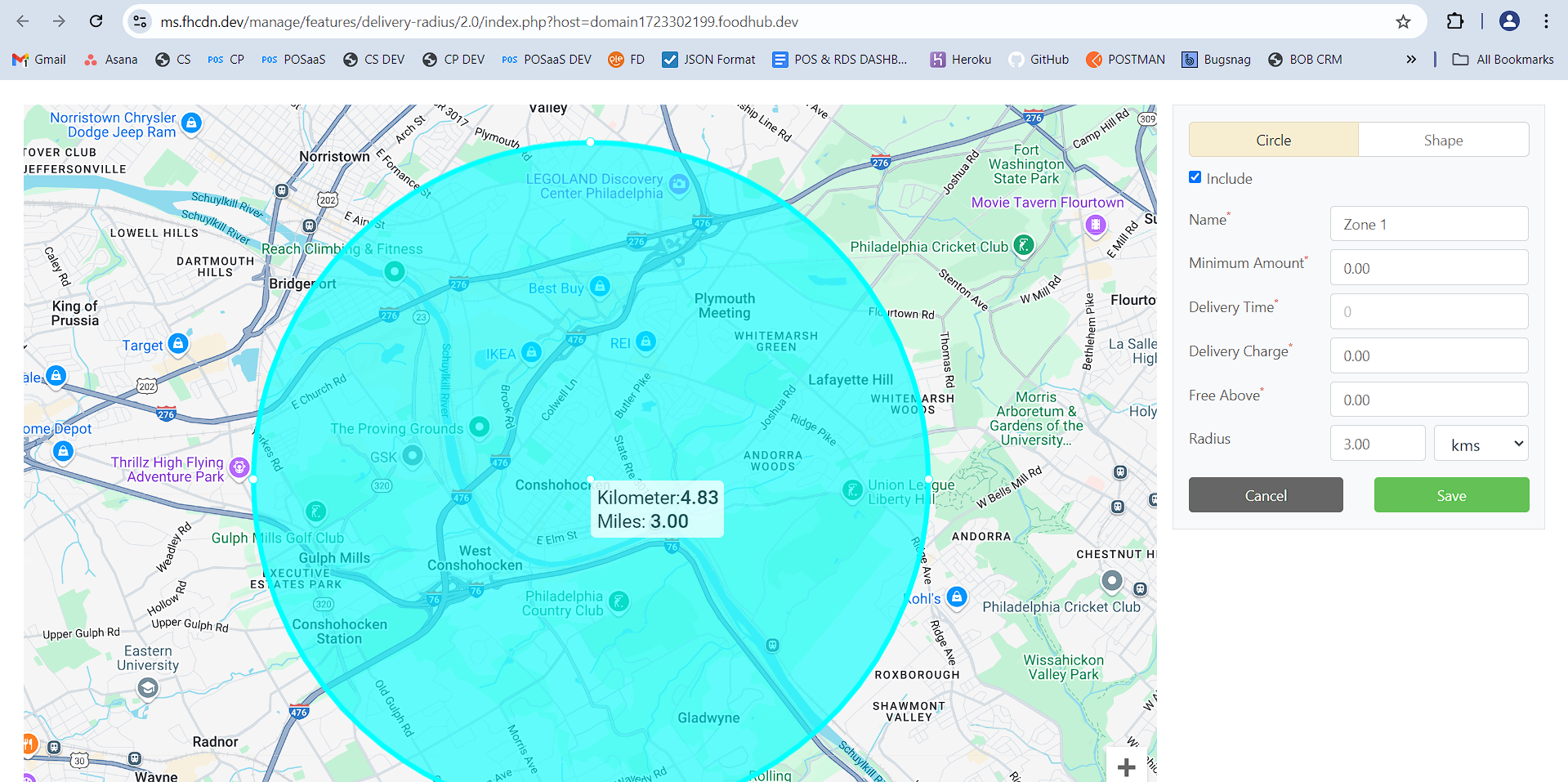
- Go to restaurant specs in BOB CRM and search for delivery zones.
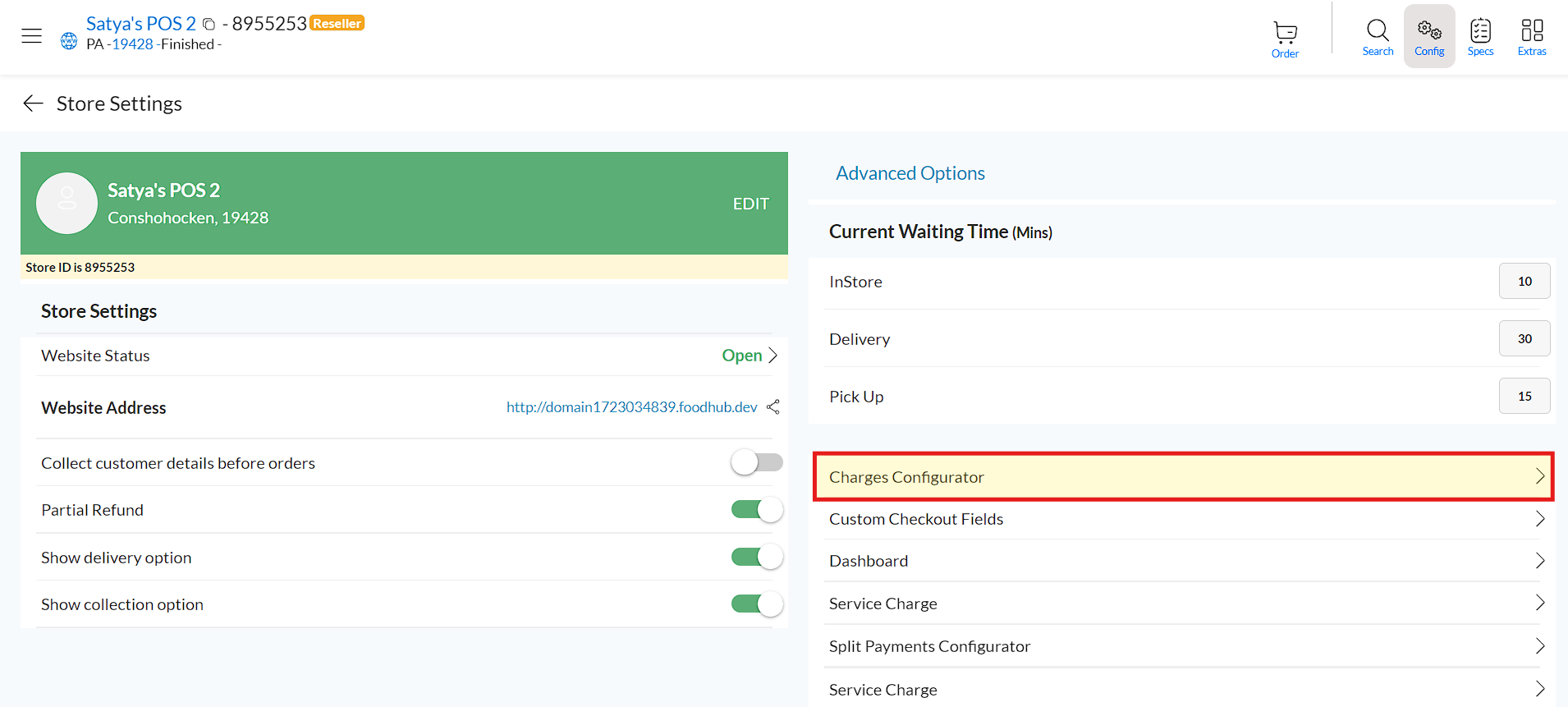
- Service Charges(only when a service charge : Service charges for online orders would be configured in CP while service charge for POS and Kiosk can be configured in BOB CRM
- Go to 'Store Settings' in BOB CRM, then select 'Charges Configurator'
- It's possible to configure a flat or percentage service charge. We can also choose if the charge should only be applied on Kiosk or POS orders
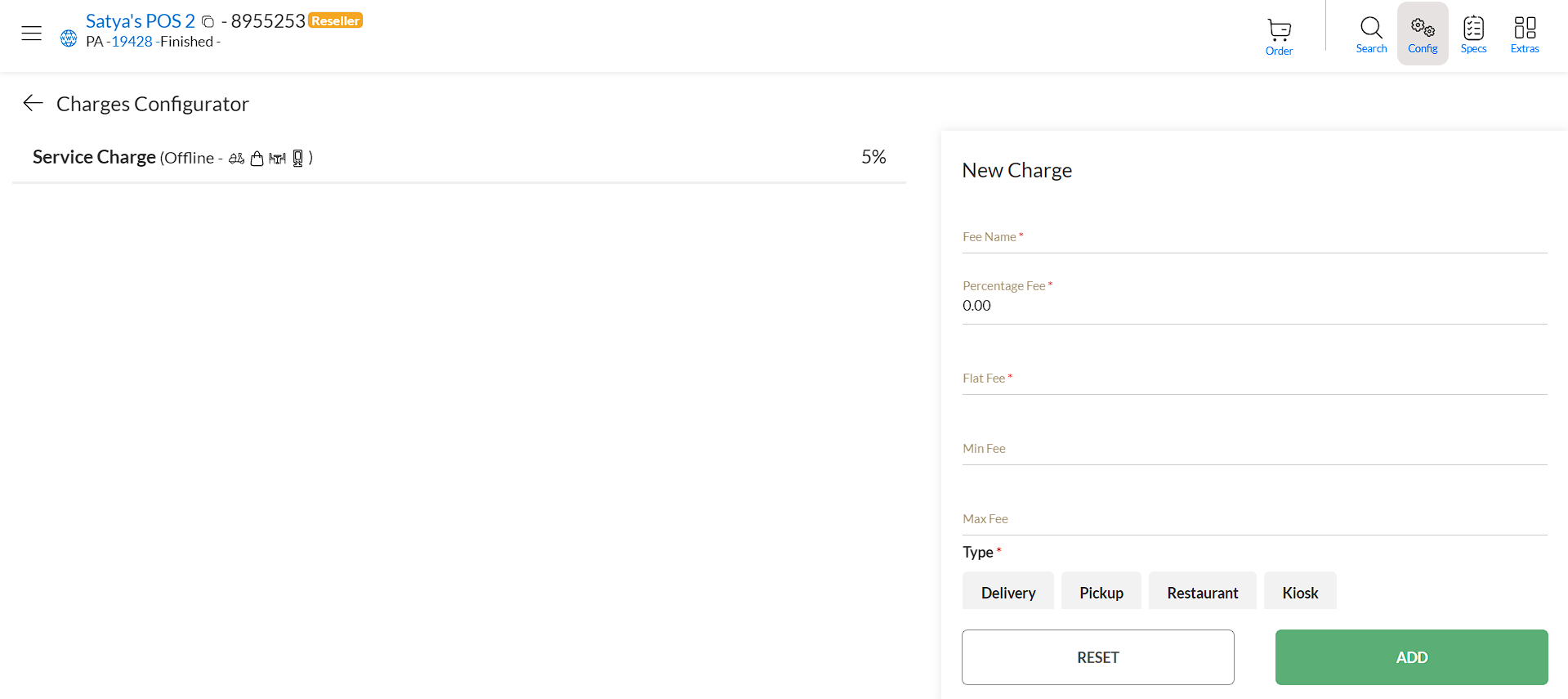
- Go to 'Store Settings' in BOB CRM, then select 'Charges Configurator'
- Publish Menu: Once the account is created in BOB CRM, publish the menu from Chef and make sure the menu is pushed successfully.
Unsupported Features
The are all the configurations which our online ordering supports but won't be supported with the POS or Kiosk for now:
- Additonal Prep Time
- Tax Rounding Strategies
- Order Throttling
- Kitchen Closed
- Delivery Min Tip %
- Default Tip
- Display SOLD OUT
- Extra Fields
- Peak Hours
- Cut Offs
- Additonal Cut Offs
- Discounts (POS has an option to enter a flat or a percentage discount in an order but discounts configured in Zuppler won't be applicable on the POS or Kiosk)
To be declared
- 3rd Party Delivery Integration: This is not supported with the POS for now. Only self delivery orders are possible.
- Instore Loyalty: This is work in progress and will be supported with the POS and Kiosk soon.