Automatic Sync Scheduler for POS Menus.
Some of our integrated POS systems do not currently support webhooks for menu updates. This limitation means that any changes made to the POS menu—such as price adjustments, new items, or discontinued items—do not automatically sync to the online menu. As a result, this leads to:
Order injection failures
Discrepancies between POS and online menus
To resolve this, we've introduced a flexible Automatic Menu Sync Scheduler that ensures the online menu stays up-to-date, even when webhooks are not supported by the POS. With this update, you can now configure:
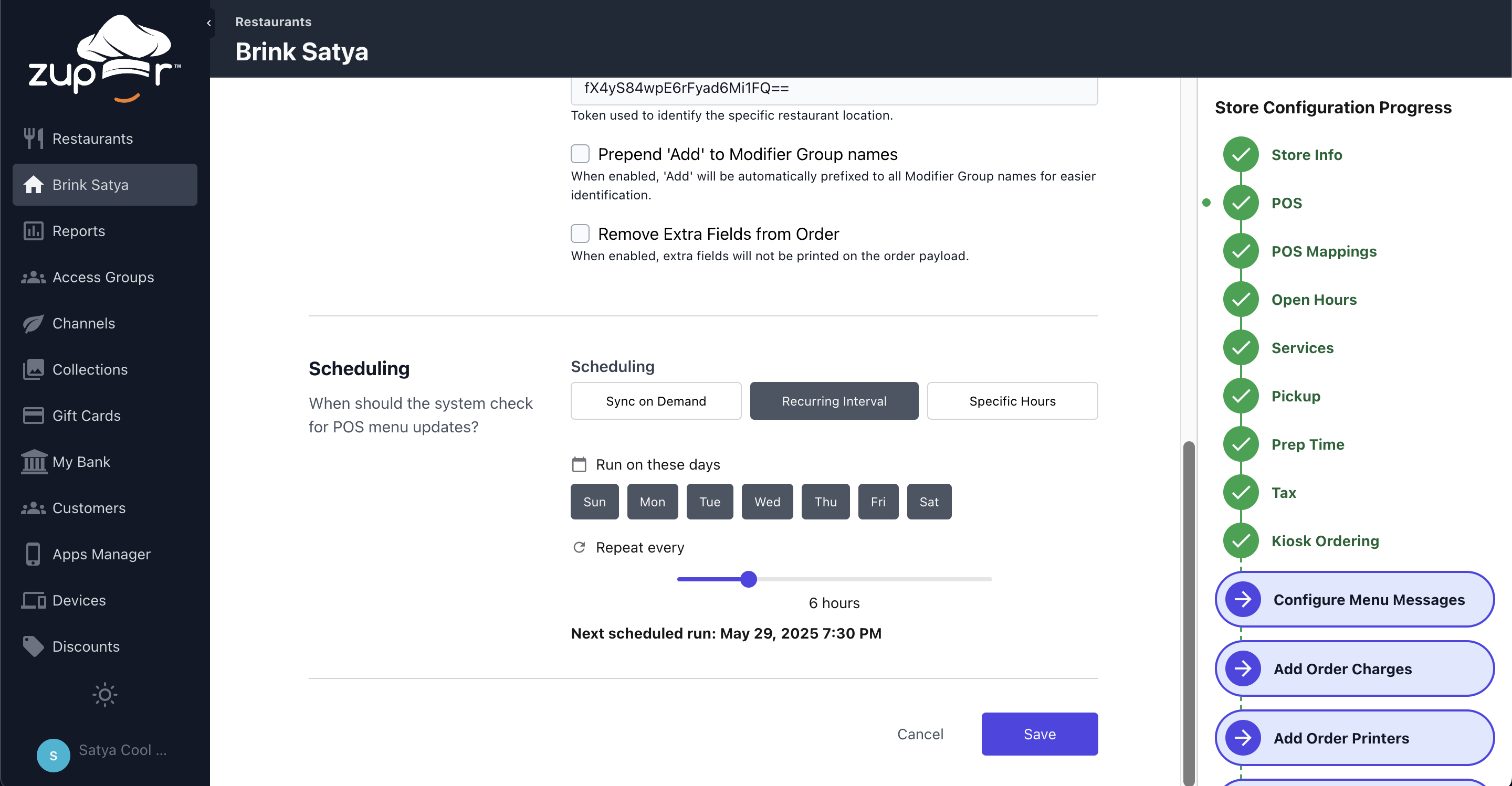
Days of the week to run syncs
Specific hours throughout the day for regular sync checks
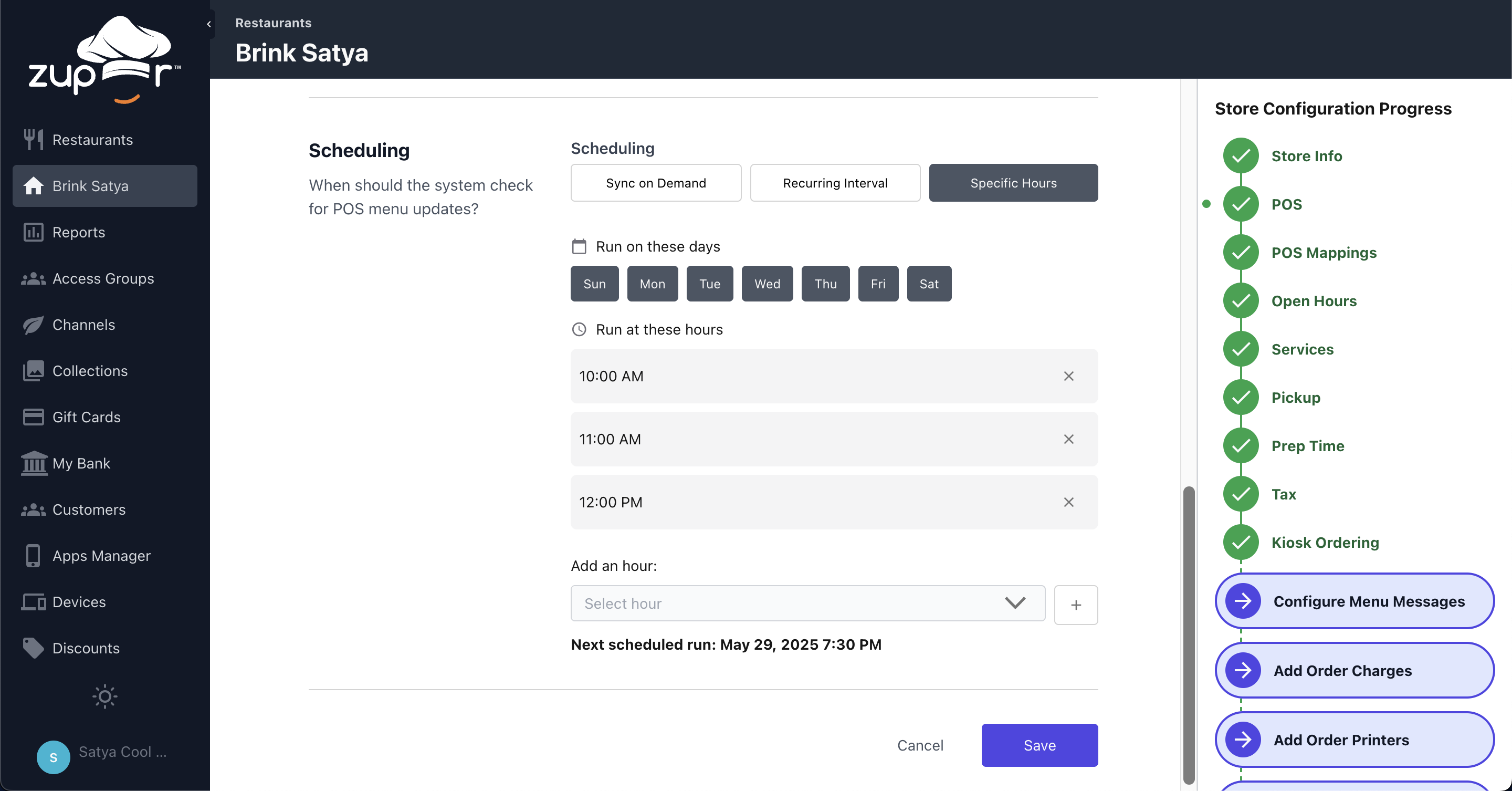
Recurring syncs every 'n' hour
How to Set It Up?
Navigate to your store in Chef.
Open the POS connection page.
Under the Scheduling section, select "Recurring Interval" or “Specific Hours”.
Choose the days and exact hours you want the system to check for updates.
Click Save—and you’re all set!
You can also see when the next scheduled sync is set to run, right from this interface and the POS Dashboard.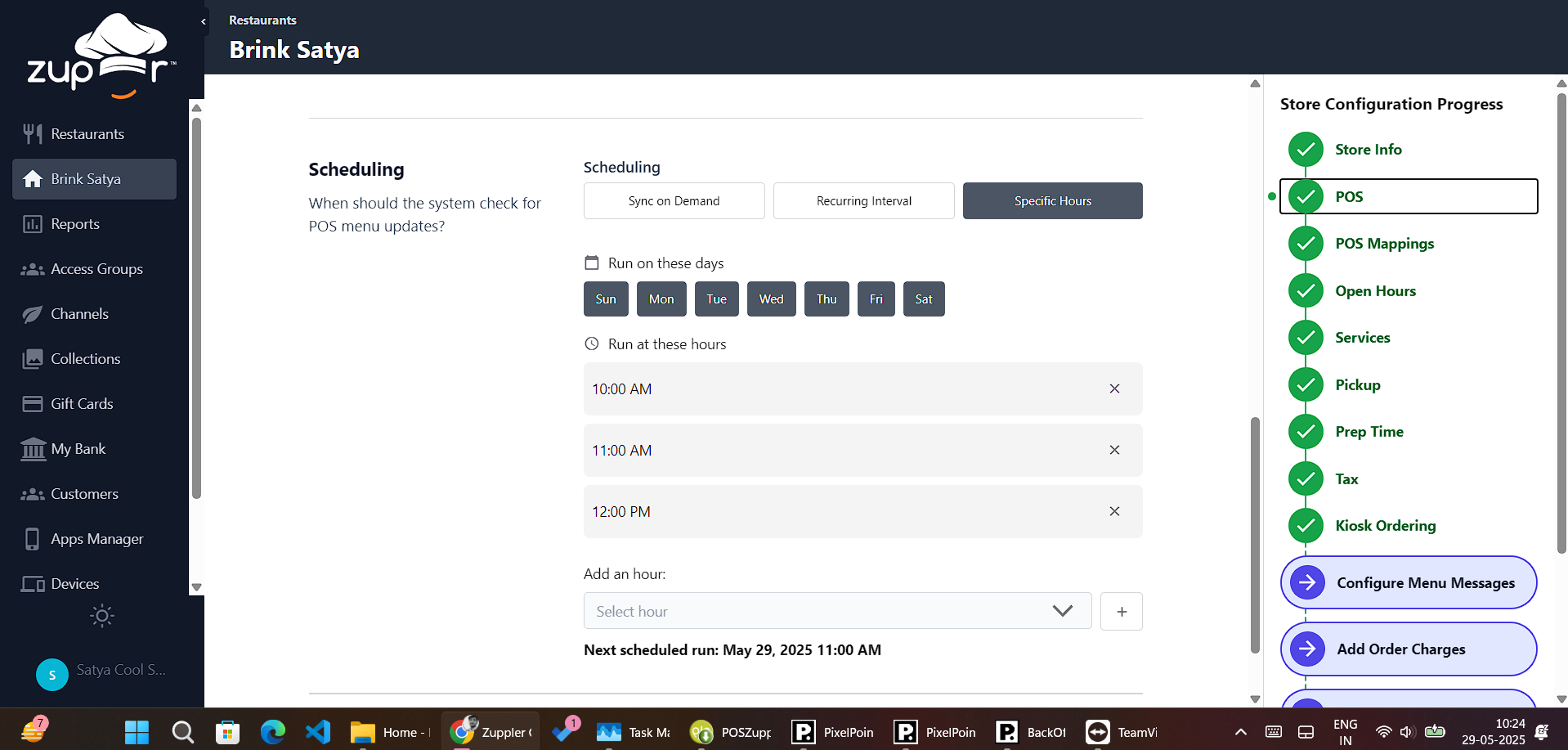
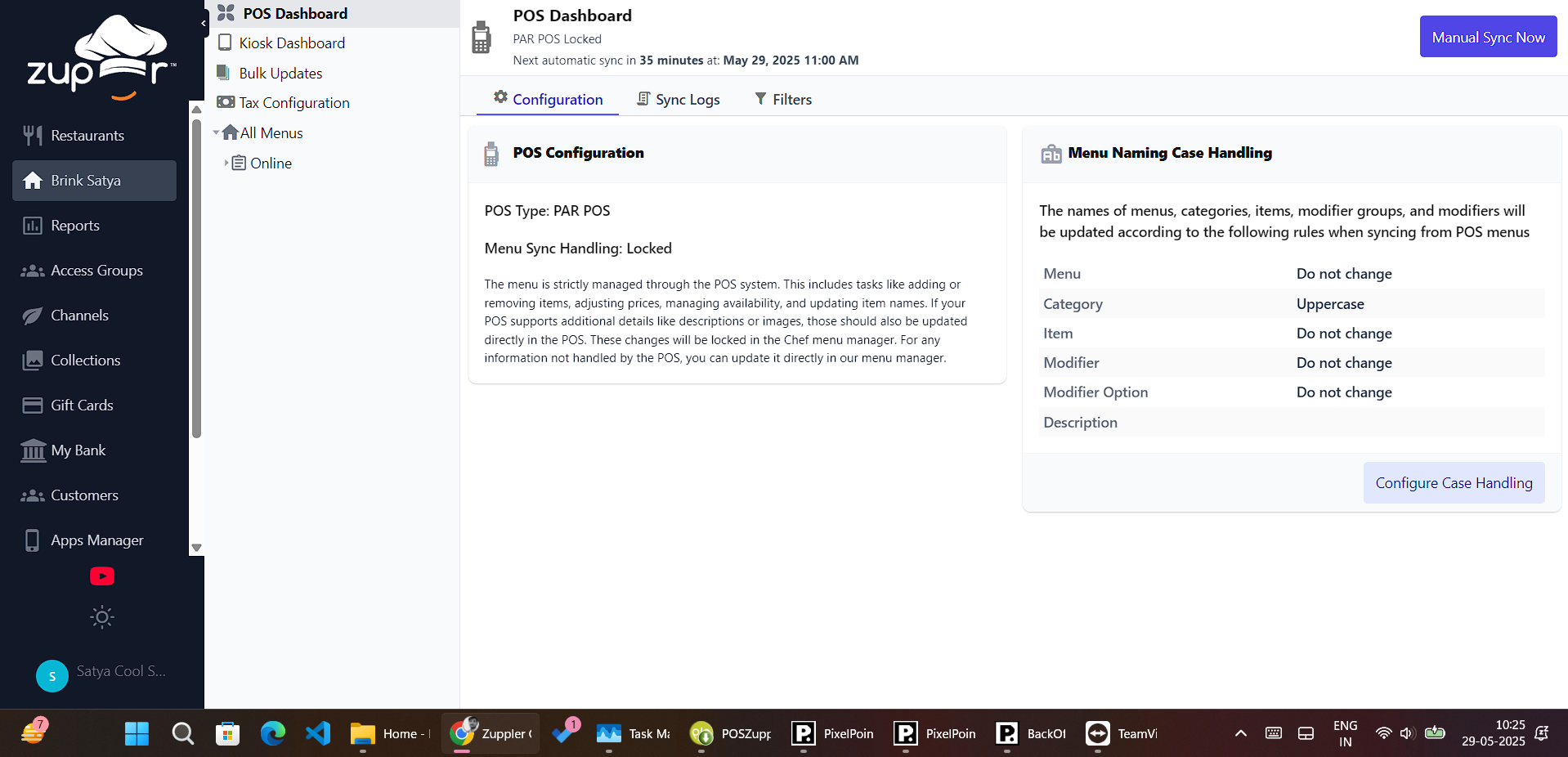
NOTE: Syncs are scheduled based on the store’s local time zone. However, the “Next Scheduled Run” time displayed in the interface will reflect as per your browser or device’s local time zone.
Best Practices
Schedule syncs shortly after typical menu update times.
Avoid overloading the system with too frequent syncs unless your POS is updated often.
Don't setup scheduled syncs for a store integrated with a POS that supports menu update webhooks.
Related Articles
Menu Sync and Modes
The menu sync modes are crucial in determining how the system interacts with the menu data that we fetch from the Point of Sale (POS) system. These modes decide what all you can update in the Chef menu manager and what you should be updating on the ...How to link your Clover POS with Zuppler.
This article guides you through the steps to connect your Clover POS to Zuppler. Follow the steps mentioned below to get started with the integration: Step 1: Login to your Clover mechant account Step 2: Install the Zuppler Chef app Step 3: Setup ...How to link your Pixelpoint POS with Zuppler?
This article guides you through the steps to connect your Pixelpoint POS to Zuppler. Follow the steps mentioned below to get started with the integration: Step 1: Complete the required configurations in Pixelpoint BackOffice Step 2: Install the ...Brink POS Connection & Troubleshooting
This guide will show you how to connect Zuppler and Brink to communicate for online ordering and troubleshoot in case of order rejections. TABLE OF CONTENTS Requesting Zuppler access to locations Brink Setup Menu Tenders Destinations Future Ordering ...How to link your Toast POS with Zuppler.
To connect your Toast account with Zuppler, you need to add the Zuppler integration in the Toast portal. This article also contains some troubleshooting steps that you can follow in case you are not able to connect your Toast account even after ...