How to link your Pixelpoint POS with Zuppler?
This article guides you through the steps to connect your Pixelpoint POS to Zuppler. Follow the steps mentioned below to get started with the integration:
- Step 1: Complete the required configurations in Pixelpoint BackOffice
- Step 2: Install the Zuppler POS Integrator executable
- Step 3: Setup Pixelpoint as the POS in Zuppler Chef
- Step 4: Configure the Integrator and Push Menu Data
- Step 5: Import the menu and mappings
- Step 6: Complete POS mappings
Step 1: Complete the required configurations in Pixelpoint BackOffice
- There are some configurations that are required to be in place in Pixelpoint BackOffice before Zuppler could be connected to your Pixelpoint POS. Please follow this step by step guide and make sure all the listed configurations are completed before moving to the next step: Pixelpoint BackOffice Setup
Step 2: Install the Zuppler POS Integrator executable
- We recommend using the latest version of the Zuppler POS Integrator. Here's the drive link to the installer with the release notes:
Drive link with the installer file: https://drive.google.com/drive/folders/16mBJY5dALMTugSc7TGzc5FbxIDooZMWA?usp=sharing

Changes:
- added TLS1.2 and 100-Continue support for TLS1.2 requirement for Windows 10.
- extensive logging/document certain error cases
- in case of a database error, an analysis of misconfigurations/non-default values of connection string
- if found, display them along with the database subsystem exceptions
- minor: display application name+version in caption, and the startup name+ver+start time

Side note:
TLS 1.2 may cause trouble to possible customers having unupgraded Windows 7 machines (hopefully this is not the case, but it is still worth mentioning).
To be 100% sure, the TLS can be parametrized using a checkbox in Settings (on/off, default on) so that users having trouble with HTTP using TLS 1.2 can revert back to the previous behavior if needed.

There is a small annoyance (not new) regarding the installer, for example if you already have 1.19.1.3 installed and try to run 1.19.1.4 installer, it will report that another application already exists.
So to install one should
- back up at least the restaurant URL, the Station number and the EOI caption
- uninstall the previous version
- install the new version
- on the 1st start of the app, enter restaurant URL; then change in settings the Station number and EOI caption if needed
- close and reopen the application
Step 3: Setup Pixelpoint as the POS in Zuppler Chef
- Search for your account in Zuppler Chef that you want to integrate with Pixelpoint.
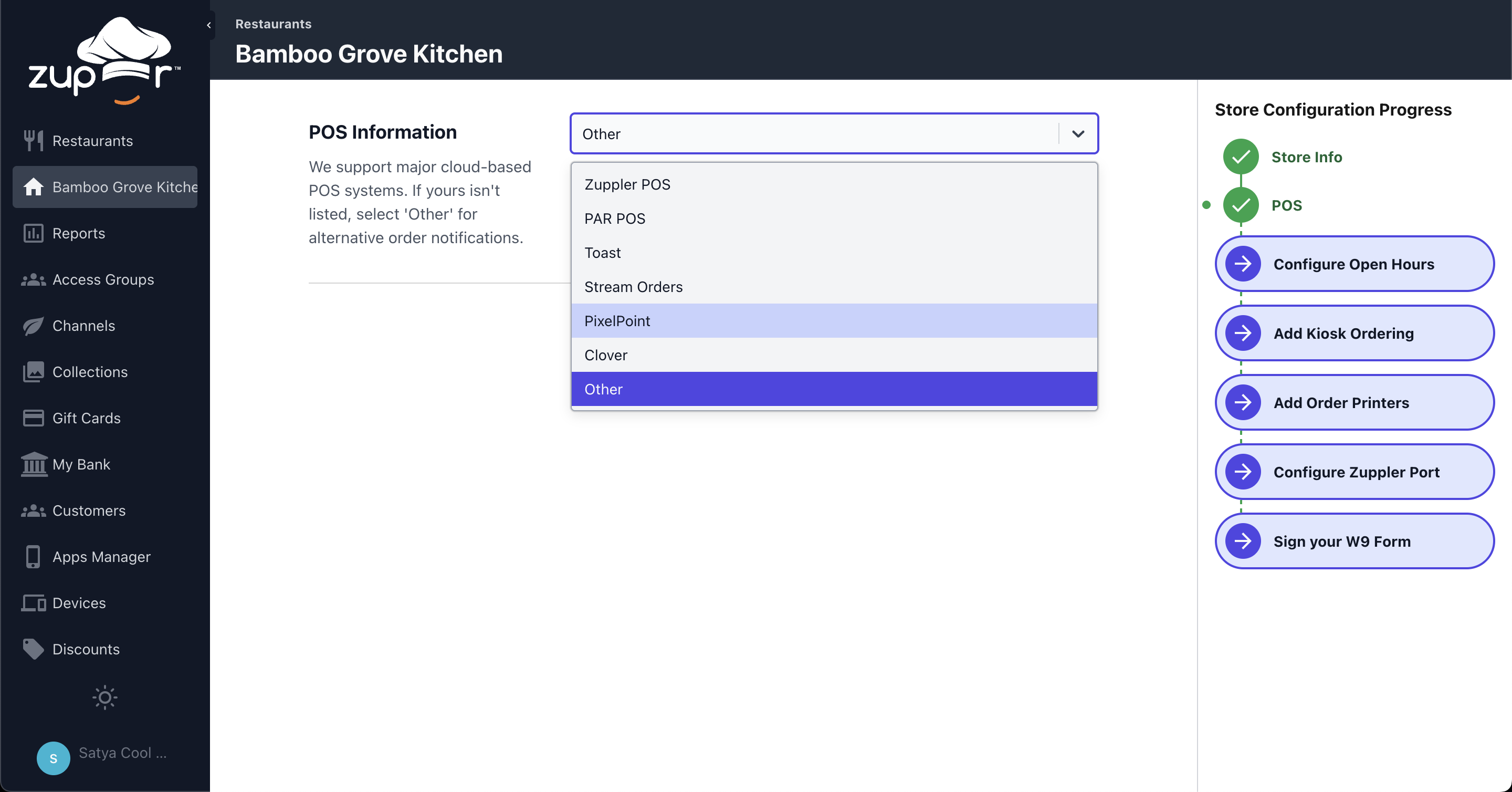
- Select 'Pixelpoint' from the options available in Configure POS section.
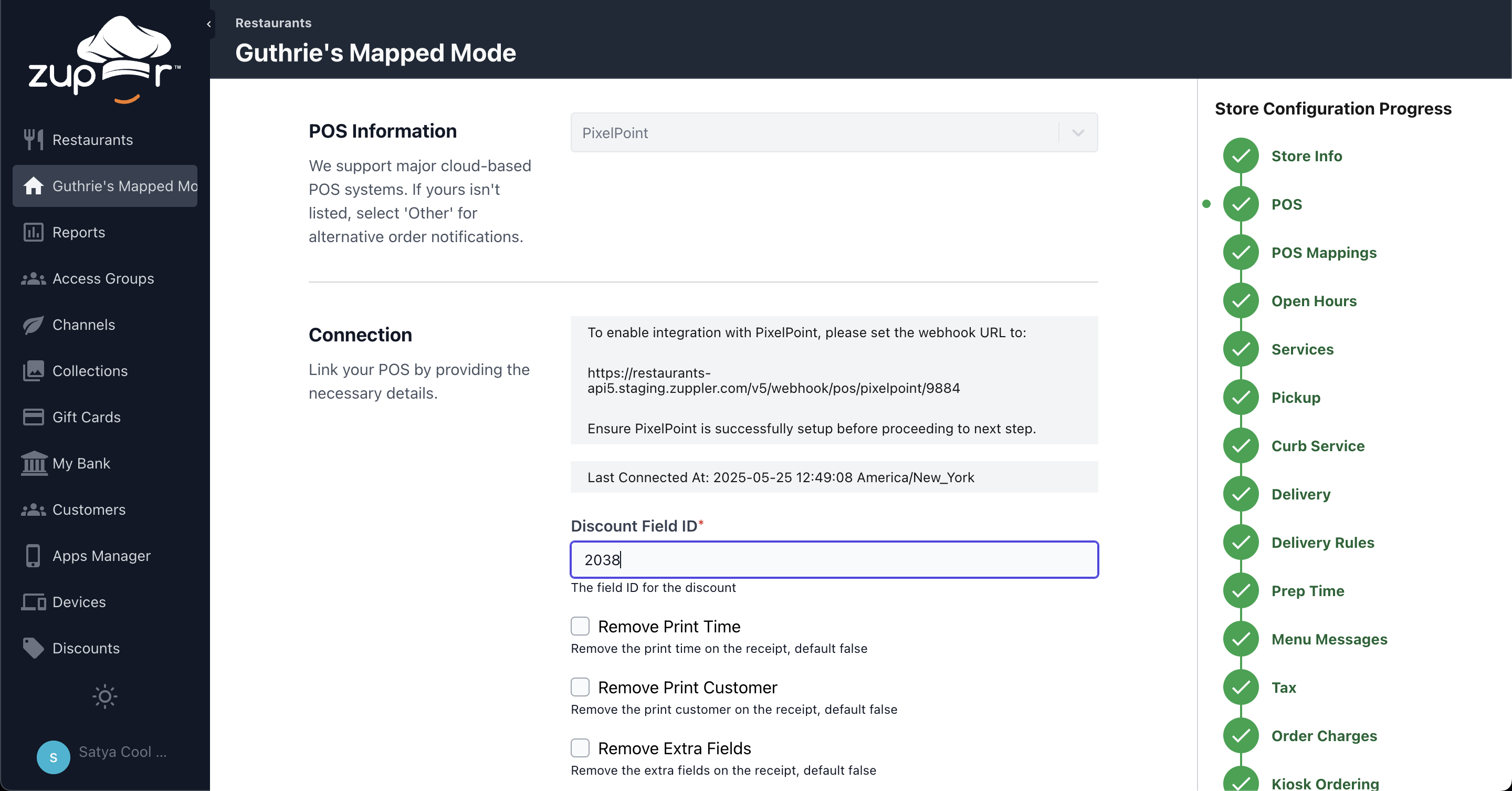
- Enter the ID of the coupon that was created in Pixelpoint Backoffice during the first step(Coupon Setup for Online Discounts):
- Check the relevant 'Remove Print' button in case you want certain order information to not print on the POS receipt.
- Keep the scheduling to 'Sync on Demand' as the menu will be built in Zuppler Chef and sync will only be needed to map items.
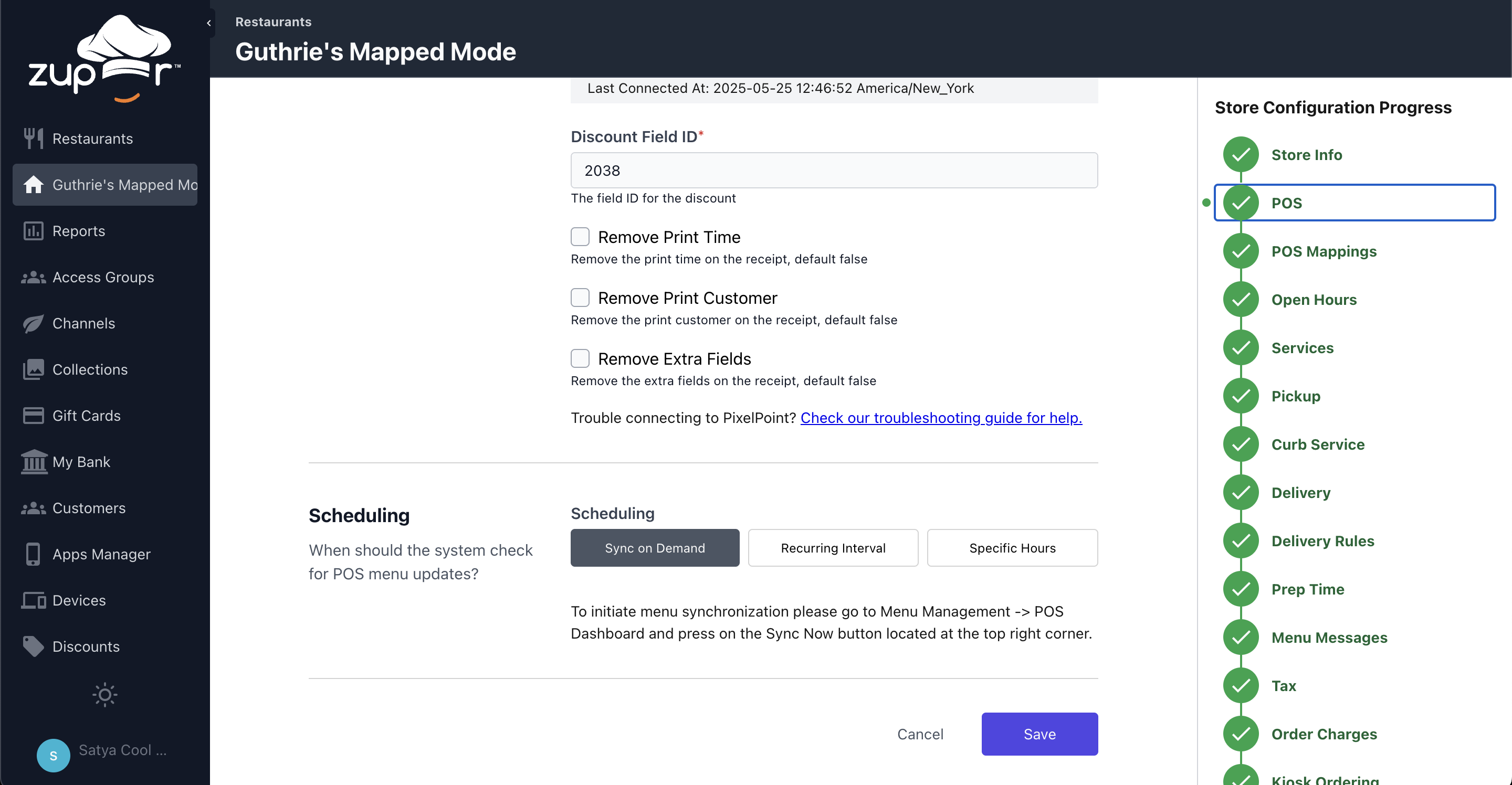
- Make sure to click on the save button at last.
Step 4: Configure the Integrator and Push Menu Data
- Copy the webhook URL from the Zuppler Chef POS page
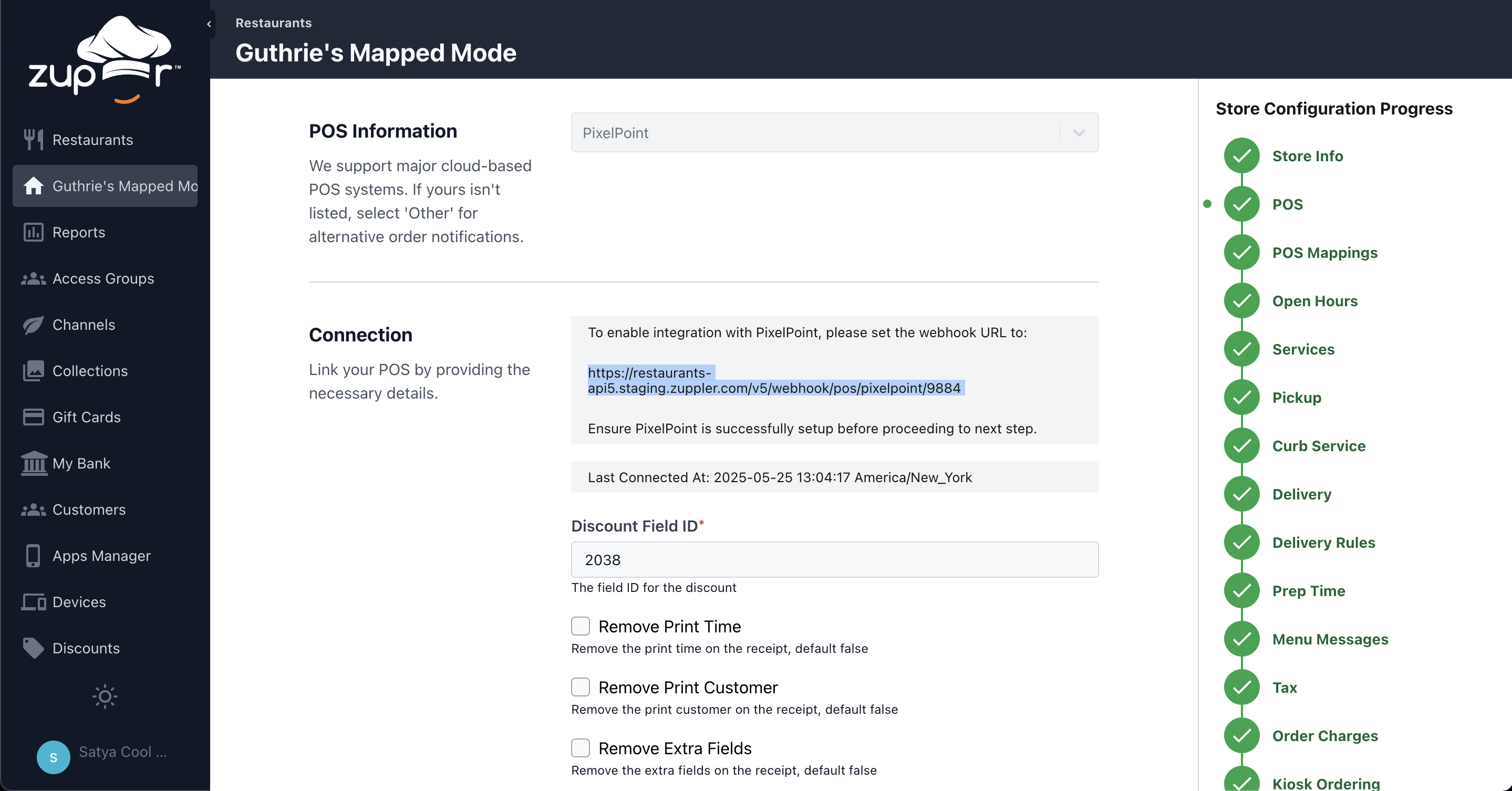
- Paste this url in 'Restaurant URL' field of the POS Integrator settings

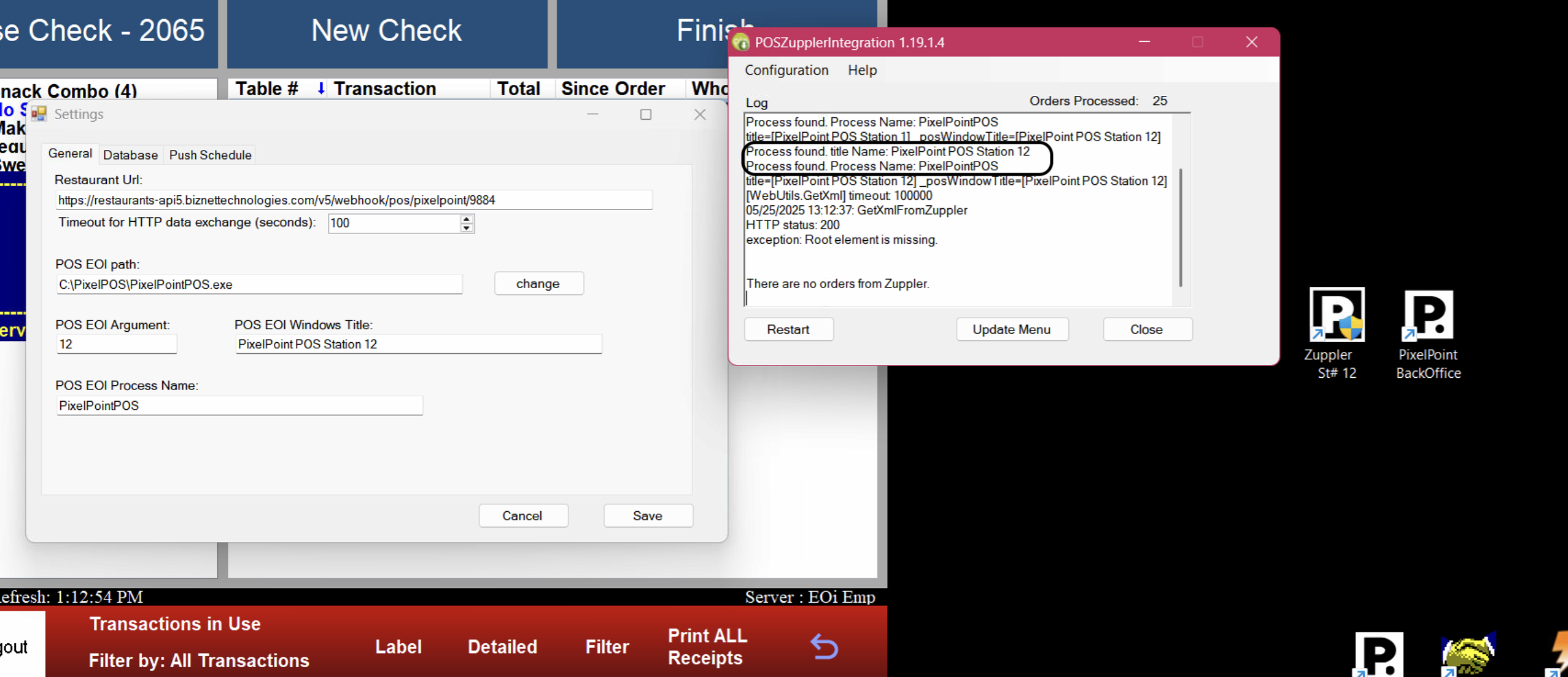
- To connect the integrator with Pixel software, we need to make sure the EOI details are correctly configured in the integrator settings. The integrator automatically pulls these details when it is first run on the machine.
- The EOI argument should be the EOI station number.
- The EOI Windows title and Process name may change when you update the station number. The latest version of the integrator captures logs extensively, it would display the correct title and process name in the logs. The correct information would show up something like this in the integrator logs.
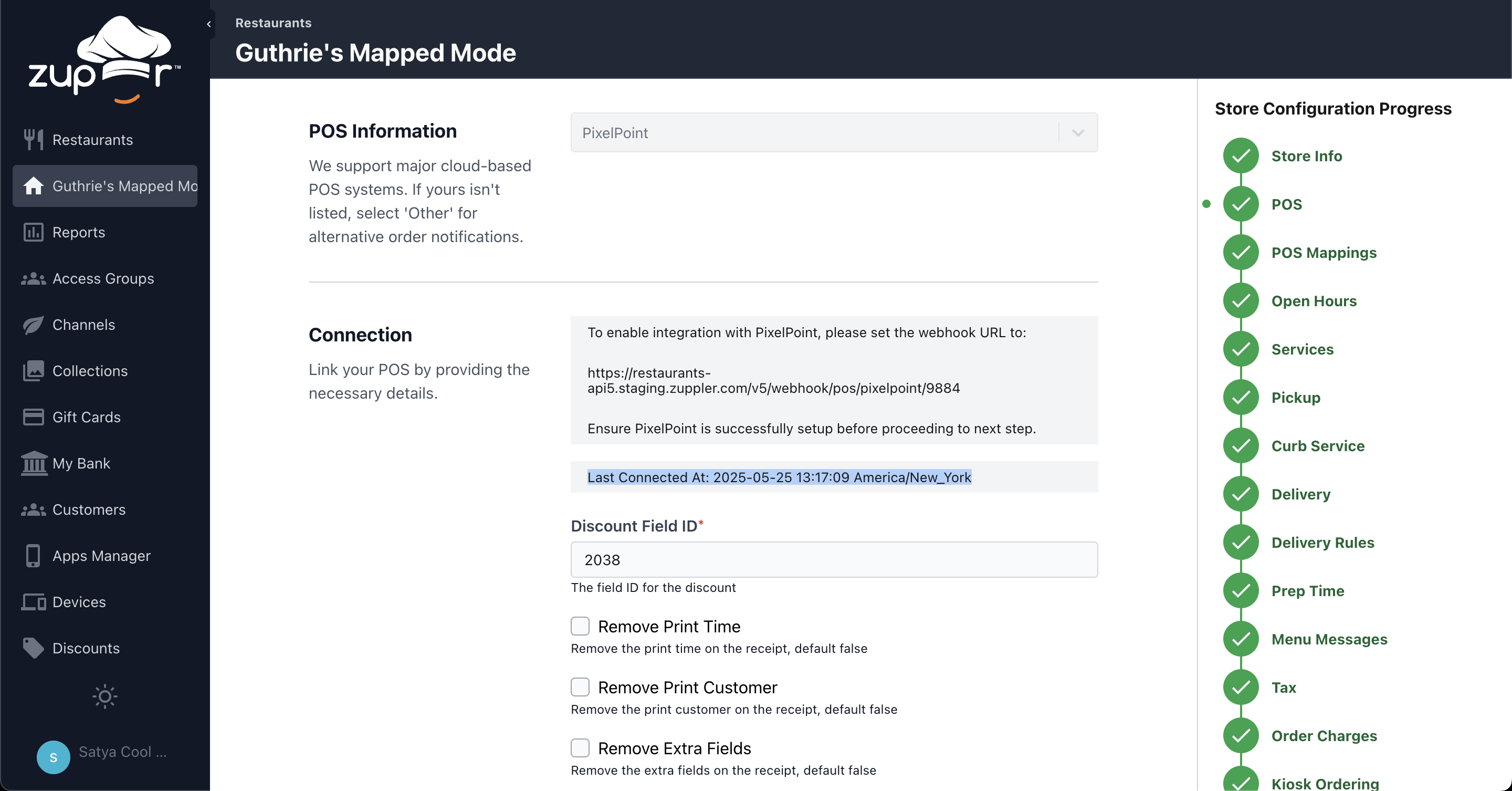
- Once the connection between Zuppler<>Integrator<>Pixel is established and secured, you'll see a message on bottom of the integrator screen saying 'There are no orders from Zuppler.' Also, the last connected at time on the Zuppler Chef POS page will start showing the store's current time.
- At last push the menu and store data to Zuppler by clicking the 'Update Menu' button on the Integrator.
Step 5: Import the menu and mappings
- Pushing the menu data from the Integrator will trigger an automatic sync on Zuppler Chef. This sync job will import all the sales type, payment method, charges and open items used for mapping.
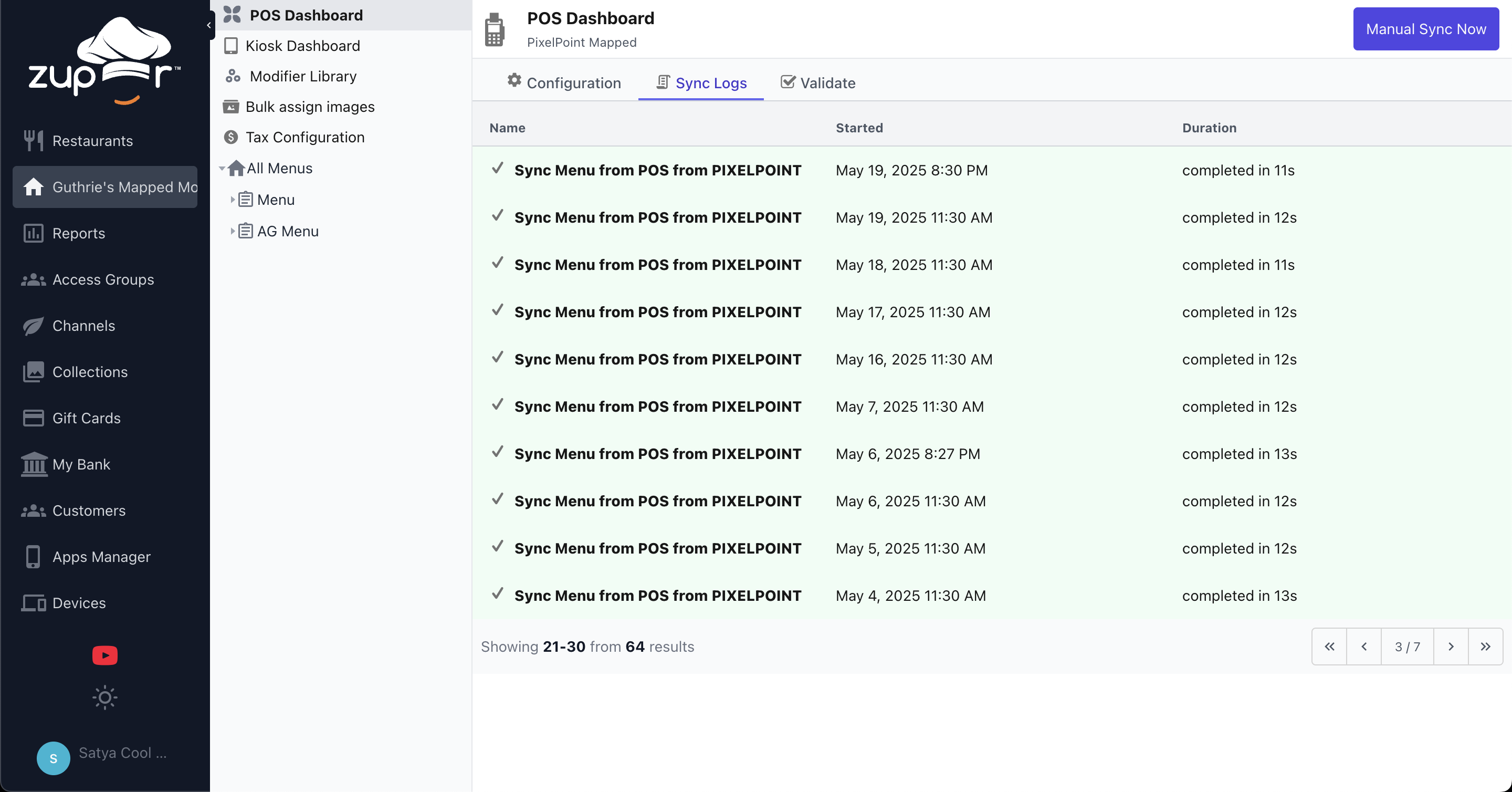
- Menu will be created in Zuppler Chef, once the menu is created and ready to go live, click on the sync button. The sync job will trigger the system to find matching items in the Pixelpoint menu data and map the matching Zuppler items with Pixel IDs so orders can be pushed to the POS. More info on the menu management with Pixelpoint here: (Pixelpoint<>Zuppler Menu Management)
Step 6: Complete POS mappings
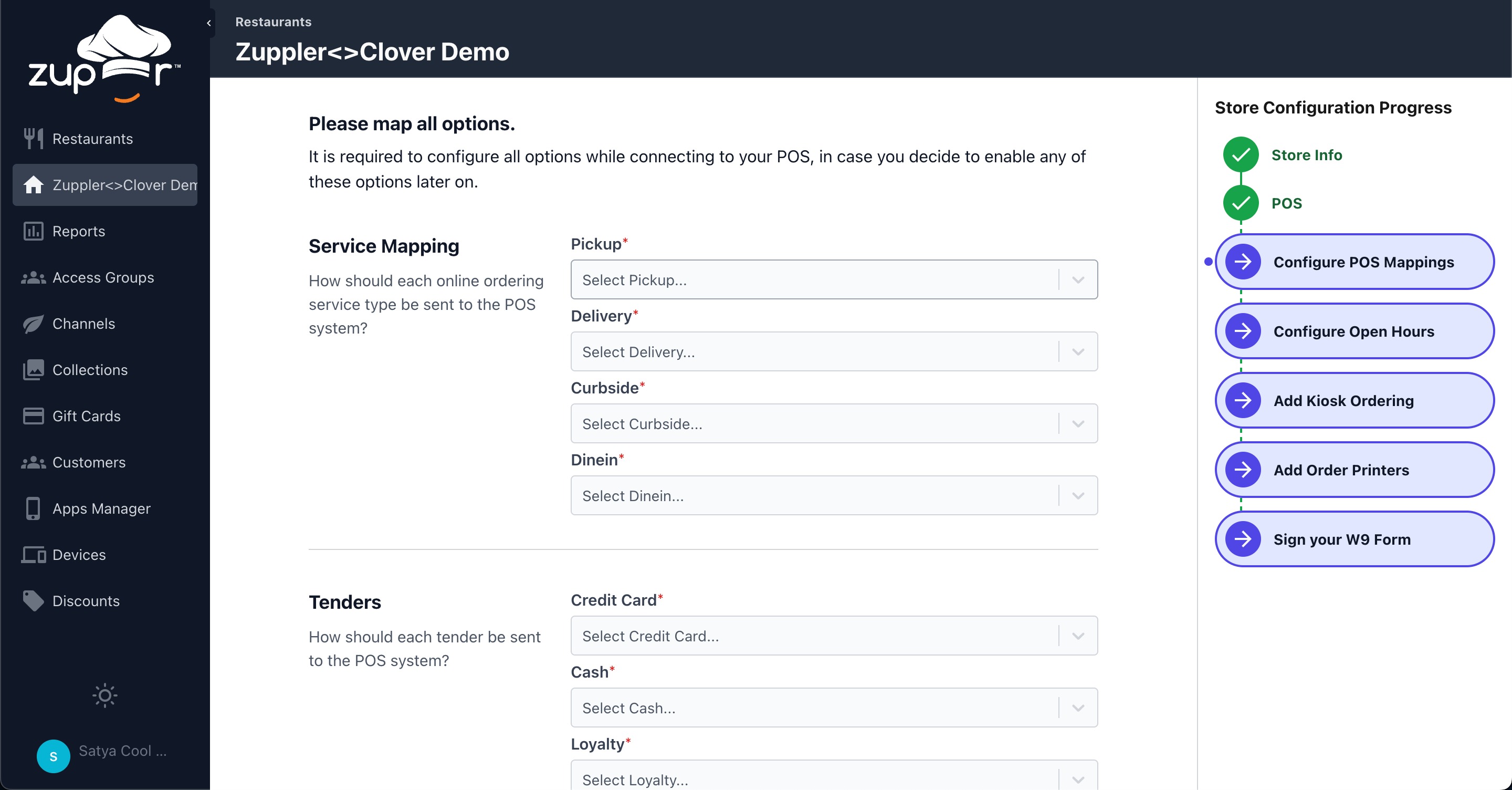
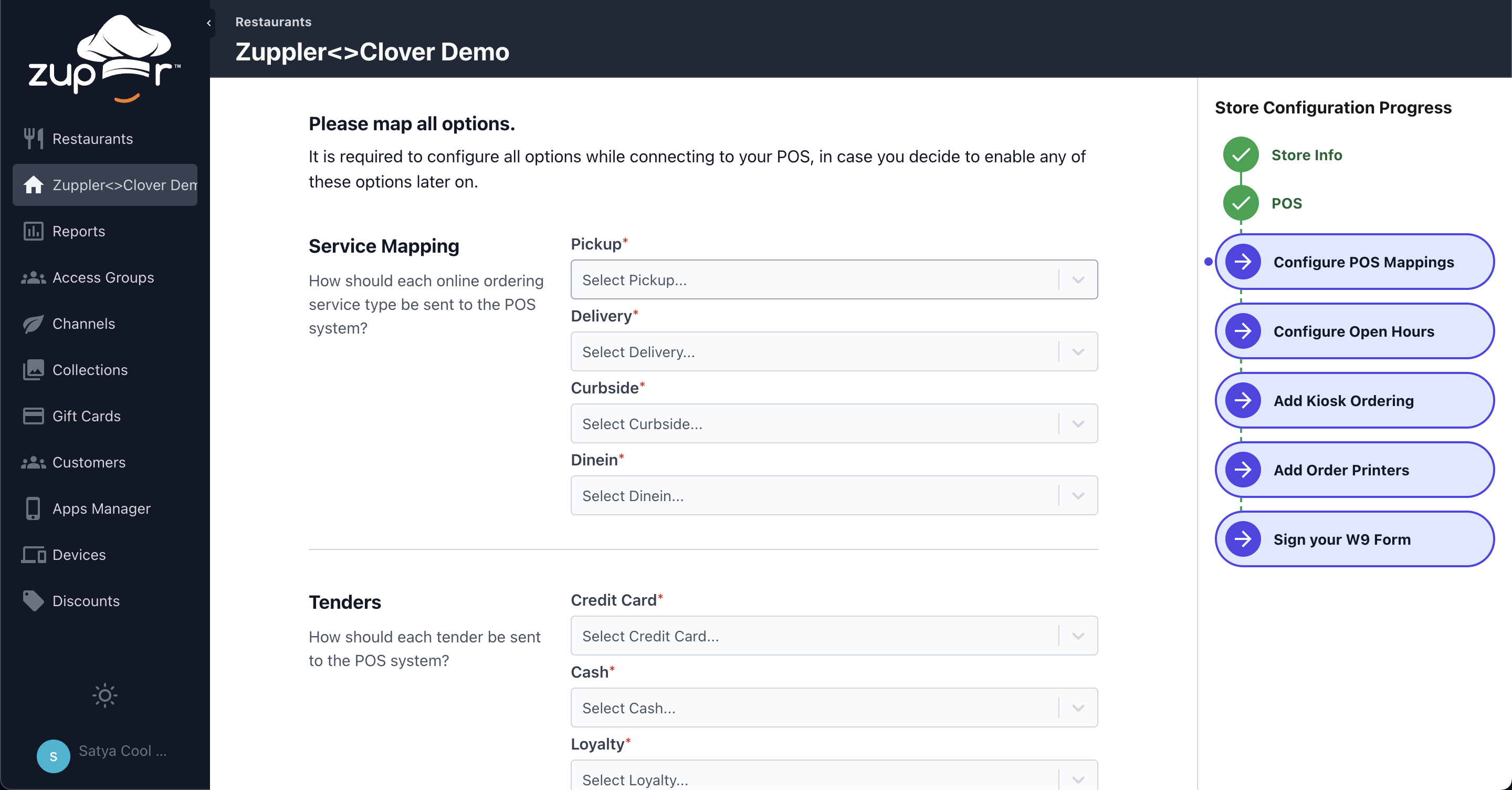
- Go to the 'Configure POS Mappings' page in Zuppler Chef and map all the options listed there. The Sales Type, Payment Methods, Charges and Open Items created during the first step will be used to map these options.
Related Articles
Pixelpoint-Zuppler Menu Management
Pixelpoint POS integration is setup with the 'Mapped' menu sync mode where the online ordering menu is built and managed completely in the Zuppler Chef menu manager. The system tries to automatically map the items to the item IDs defined in the POS, ...How to link your Clover POS with Zuppler.
This article guides you through the steps to connect your Clover POS to Zuppler. Follow the steps mentioned below to get started with the integration: Step 1: Login to your Clover mechant account Step 2: Install the Zuppler Chef app Step 3: Setup ...How to link your Toast POS with Zuppler.
To connect your Toast account with Zuppler, you need to add the Zuppler integration in the Toast portal. This article also contains some troubleshooting steps that you can follow in case you are not able to connect your Toast account even after ...Pixelpoint BackOffice Setup.
This document outlines the configuration steps required in Pixelpoint Backoffice for the integration of Zuppler Online Ordering with Pixelpoint. Minimum Requirements Pixel32.ini EOI Employee Configuring an EOI Station Payment Method Setup Sales Type ...Setting up the Zuppler-Stream integration
This article guides you through the steps to connect your POS to Zuppler and other delivery service providers via Stream. Follow the steps mentioned below to get started with the integration: Step 1: Setup Stream Orders as the POS in Zuppler Chef ...