Pixelpoint-Zuppler Menu Management
Pixelpoint POS integration is setup with the 'Mapped' menu sync mode where the online ordering menu is built and managed completely in the Zuppler Chef menu manager. The system tries to automatically map the items to the item IDs defined in the POS, we can also manually map the POS item IDs with the items defined in Zuppler Chef. Here's how it all works:
Creating Menu in Zuppler Chef
With the Pixelpoint integration on Chef, we now have the ability to create and structure the online ordering menu as we want. We can define the images, descriptions, prices and everything directly in Chef, the restaurant does not need to structure the menu in Pixelpoint to make it look better online. To create and manage the online ordering menu go to the 'Manage Menus' option in Zuppler Chef.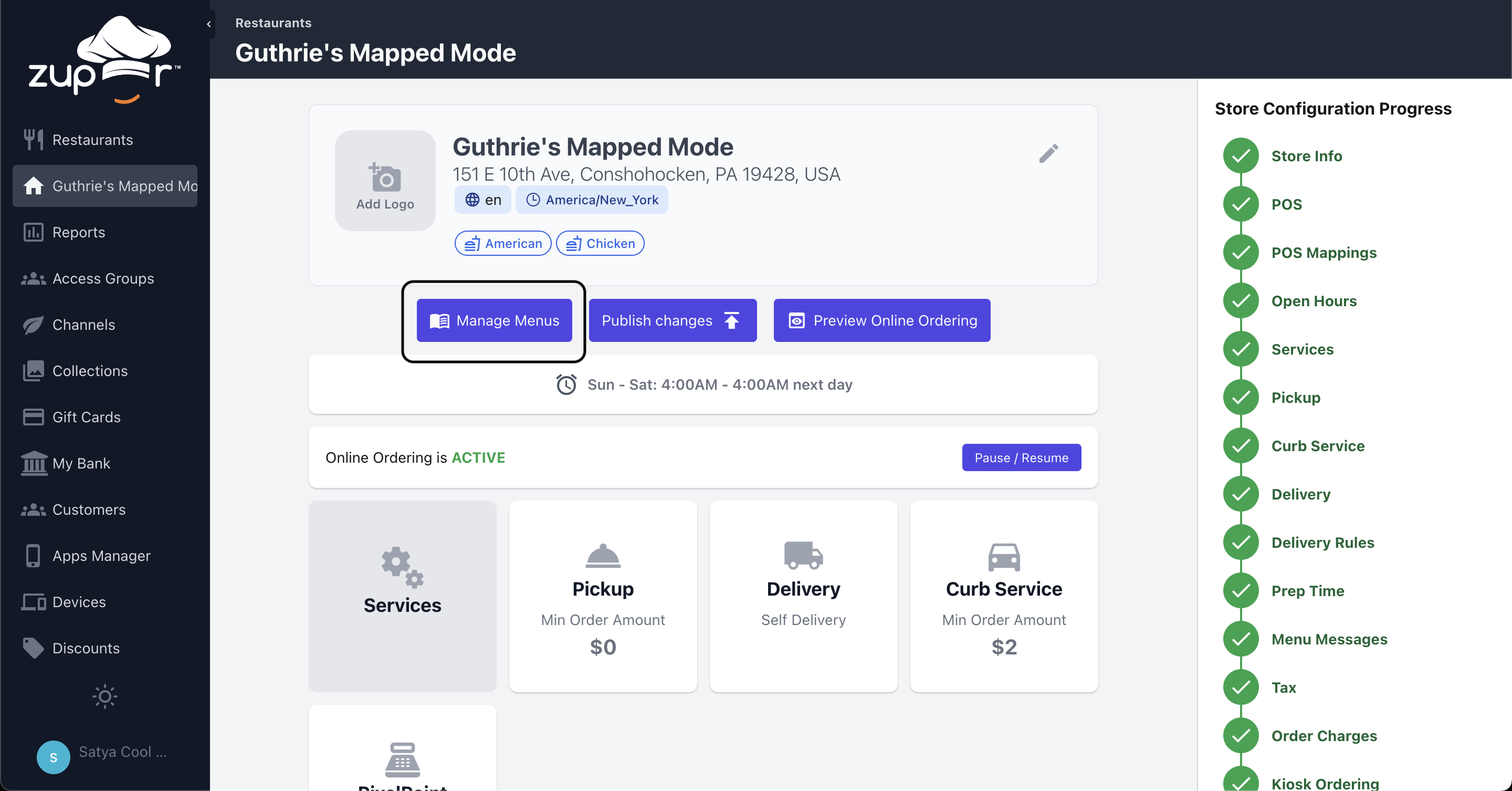
Syncing and Automatic Mapping
Once the menu is built and ready to go live, initiate a menu sync by going to Menu Management -> POS Dashboard and press on the Sync Now button located at the top right corner.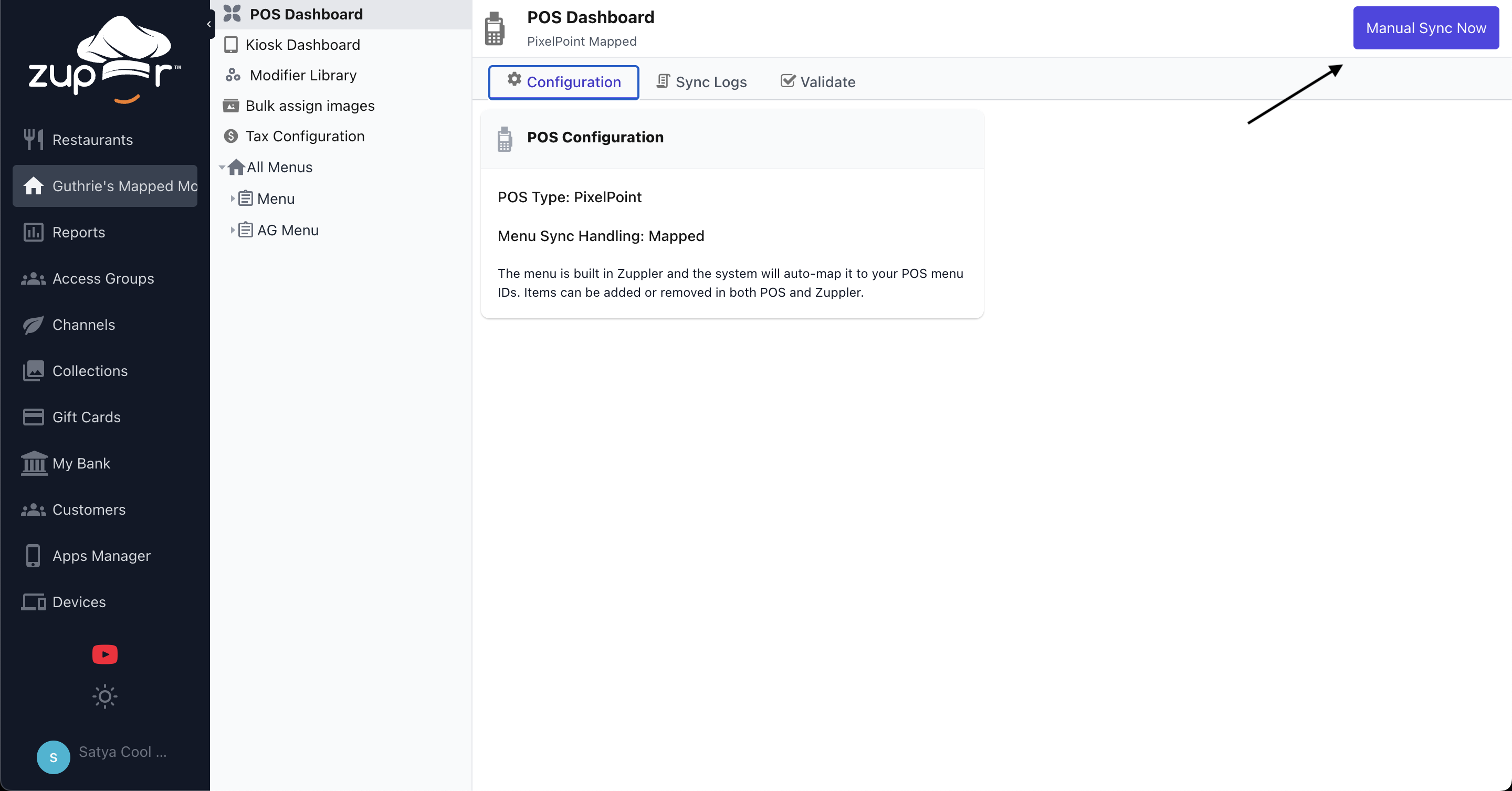
The sync job leverages AI-driven fuzzy matching to automatically align items and modifiers defined in Zuppler with those imported from the POS menu data. Using intelligent pattern recognition, the system matches similar entries—even when names slightly differ—and maps them to their corresponding Pixel item IDs. For example, the item 'SpartanBurger' was automatically matched with the Pixel product 'Spartan Burger' and linked to its correct POS ID '2382'. Ensuring accurate POS ID mapping is essential for seamlessly pushing order details to the POS with precise item information.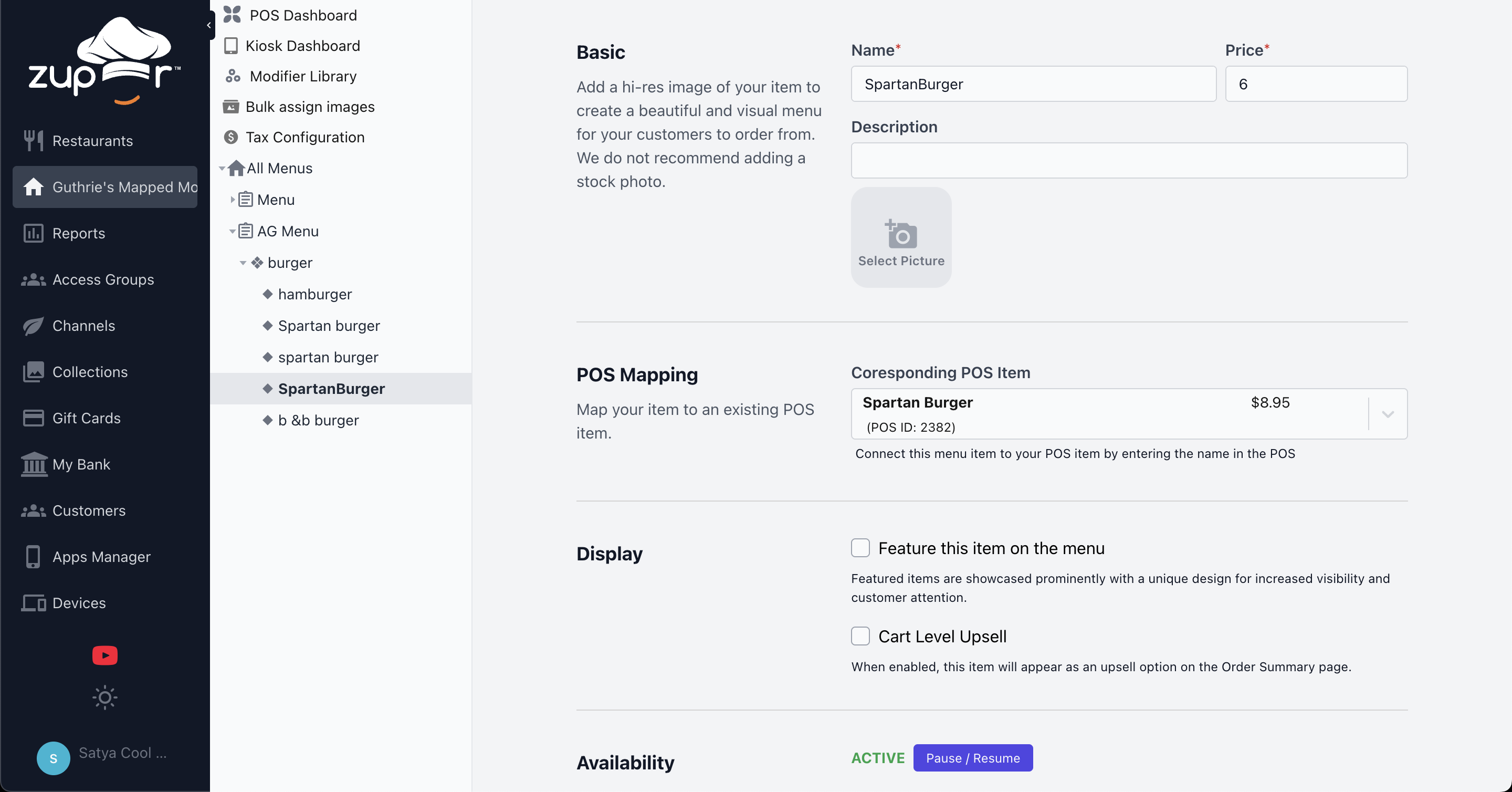
NOTE: The price showing in the 'POS Mapping' section is the price of the item defined in POS. The price defined in Chef in the 'Basic' section will be the online price of that item. This is the price the customer would be charged for and the POS will show for that item when we push the order to Pixel.
Menu Validation and Manual Mapping
It can be possible that not all the items defined in Chef will be mapped automatically with their POS counterpart and showing unmapped items online can cause order injection failures because if we pass an order with an incorrect POS ID it will fail to inject to the POS. Thus, the system does not show any unmapped item/modifier on the live menu. If there are items and modifiers left unmapped after a sync, the system sends out an email to the user who triggered the sync job. This email contains the link to the Validator page of the menu which can also be reached by navigating to Menu Management -> POS Dashboard -> Validate.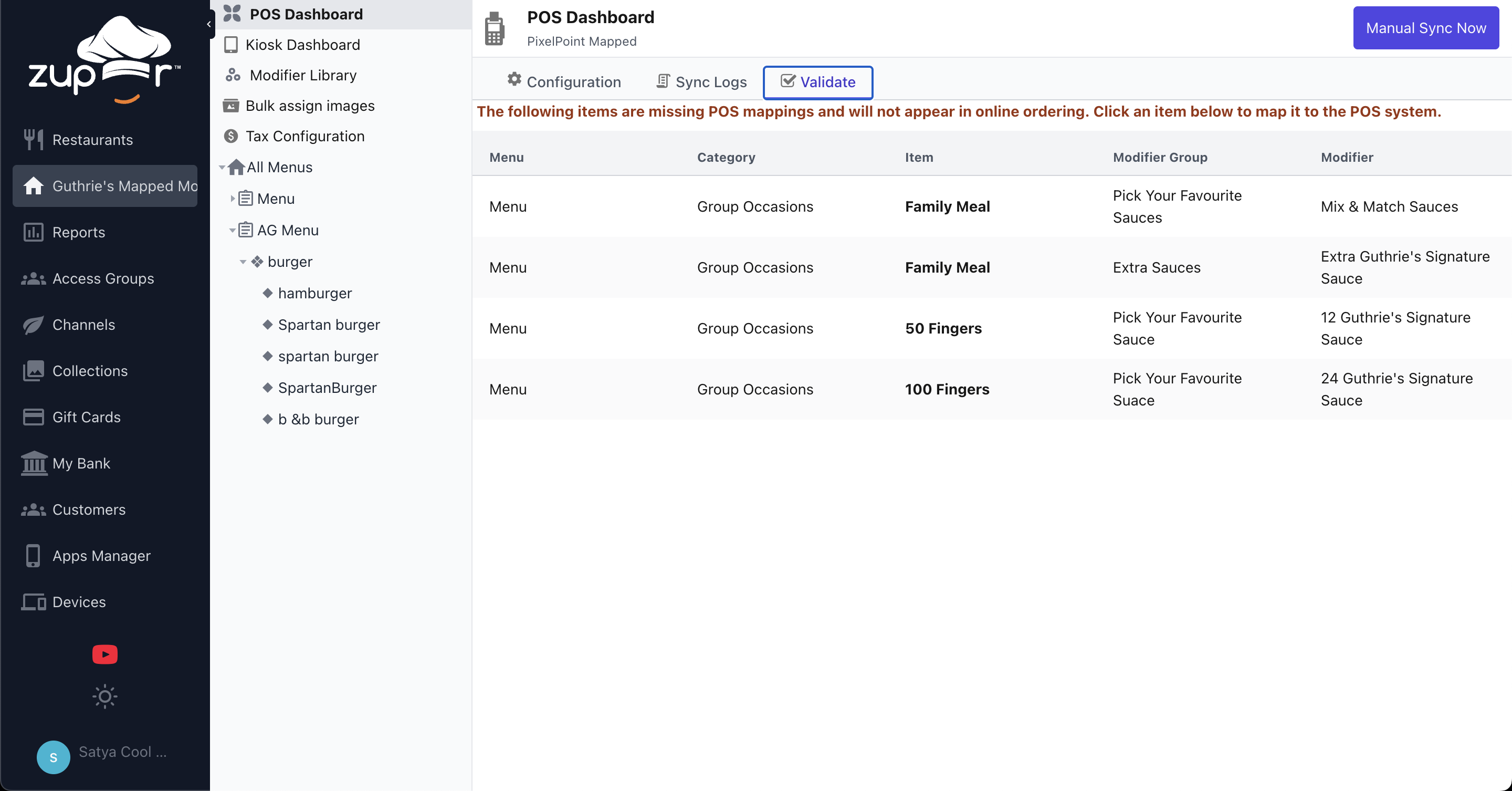
This page will display all the items and modifiers which couldn't be automatically mapped. Clicking on an item will take you to that item/mod's setting page where you can manually map the POS ID. For instance, the modifier 'Extra Guthrie's Signature Sauce' is named 'Xtra Guthrie's Signature Sauce' in Pixelpoint. To map it with the correct Pixelpoint product, start typing the POS name of the item/modifier in the search box and click on the result you want to map the item to.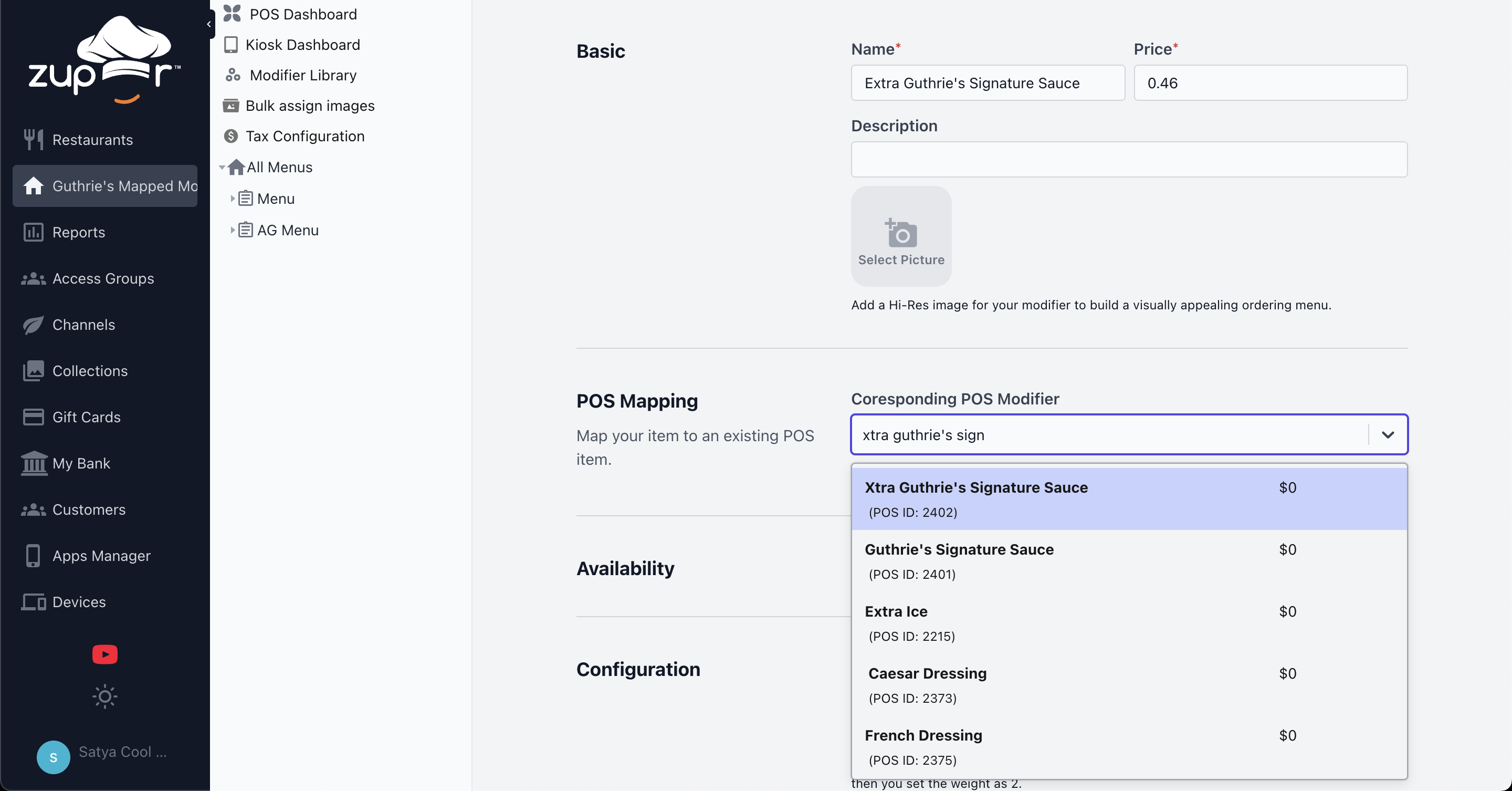
Adding a new item or modifier
To add and show a new item or modifier on the online ordering menu, we need to make sure the new item is created in both Zuppler and Pixelpoint.
Please reach out to help@zuppler.com in case of any questions
Related Articles
How to link your Pixelpoint POS with Zuppler?
This article guides you through the steps to connect your Pixelpoint POS to Zuppler. Follow the steps mentioned below to get started with the integration: Step 1: Complete the required configurations in Pixelpoint BackOffice Step 2: Install the ...Pixelpoint BackOffice Setup.
This document outlines the configuration steps required in Pixelpoint Backoffice for the integration of Zuppler Online Ordering with Pixelpoint. Minimum Requirements Pixel32.ini EOI Employee Configuring an EOI Station Payment Method Setup Sales Type ...How to Make Your Toast Menu Appear Exclusively on Zuppler
If you want to ensure a menu from your Toast POS exclusively shows on Zuppler and not on any other online ordering platforms, follow these steps in Toast Menu Builder to configure visibility settings. Step 1: Access the Menu Builder Log in to Toast ...Menu Sync and Modes
The menu sync modes are crucial in determining how the system interacts with the menu data that we fetch from the Point of Sale (POS) system. These modes decide what all you can update in the Chef menu manager and what you should be updating on the ...Regular menu and Specials menu.
Learn what is Regular menu and the Specials menu. How you can manage your menu on the online ordering page from the Control Panel. (This Menu topic is divided into a series of 18 articles that cover different features of the Standard text-only menu. ...