How to Make Your Toast Menu Appear Exclusively on Zuppler
If you want to ensure a menu from your Toast POS exclusively shows on Zuppler and not on any other online ordering platforms, follow these steps in Toast Menu Builder to configure visibility settings.
Step 1: Access the Menu Builder
- Log in to Toast Web.
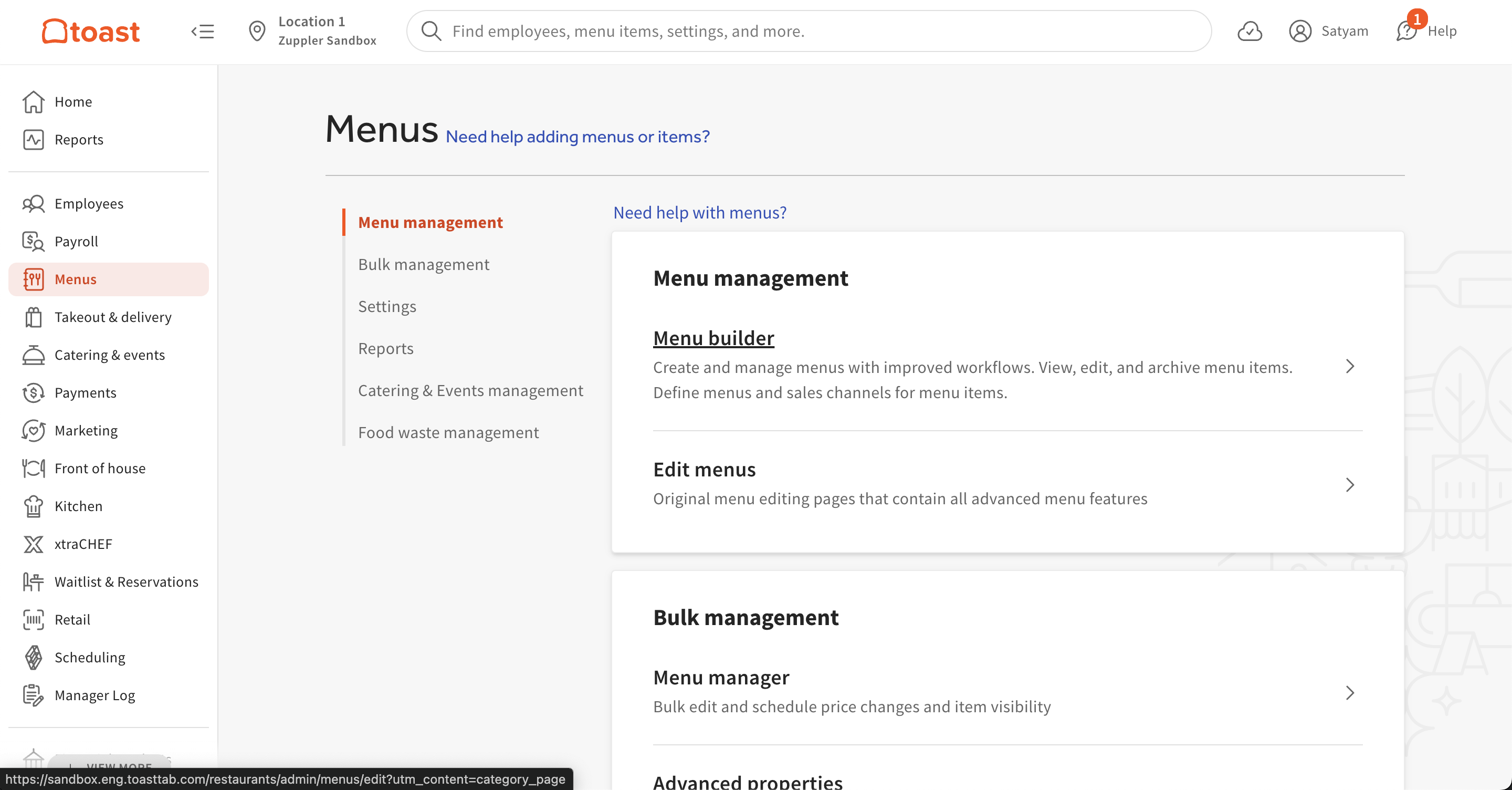
- Navigate to Menus > Menu Management > Menu Builder.
Step 2: Select the Desired Menu
- Locate and select the menu you want to configure for Zuppler.
Step 3: Adjust Channel Visibility
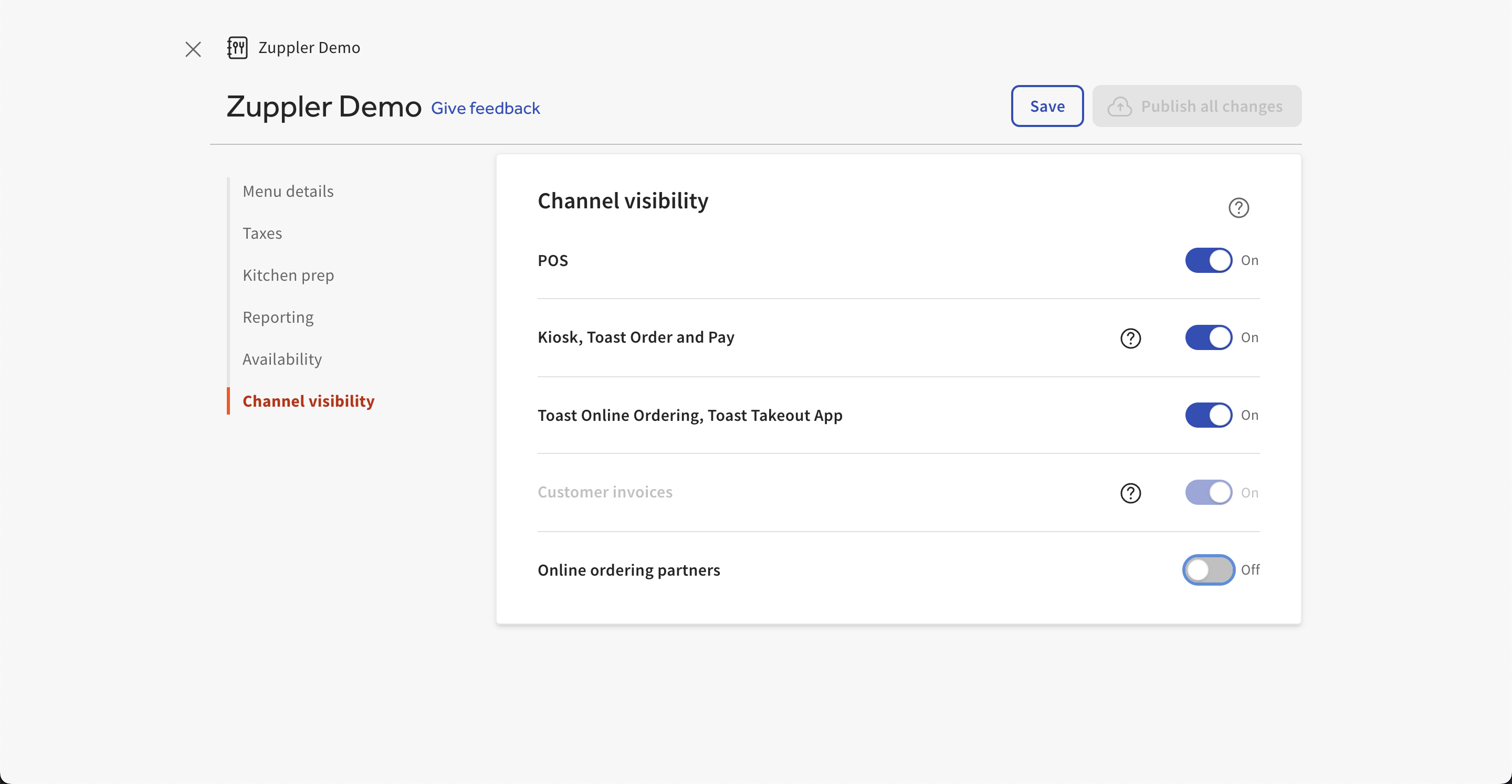
- Find the Channel Visibility section within the Menu Builder.
- Enable the Online Ordering Partners option to access the list of integrated partners.
Step 4: Set Zuppler as the Exclusive Platform
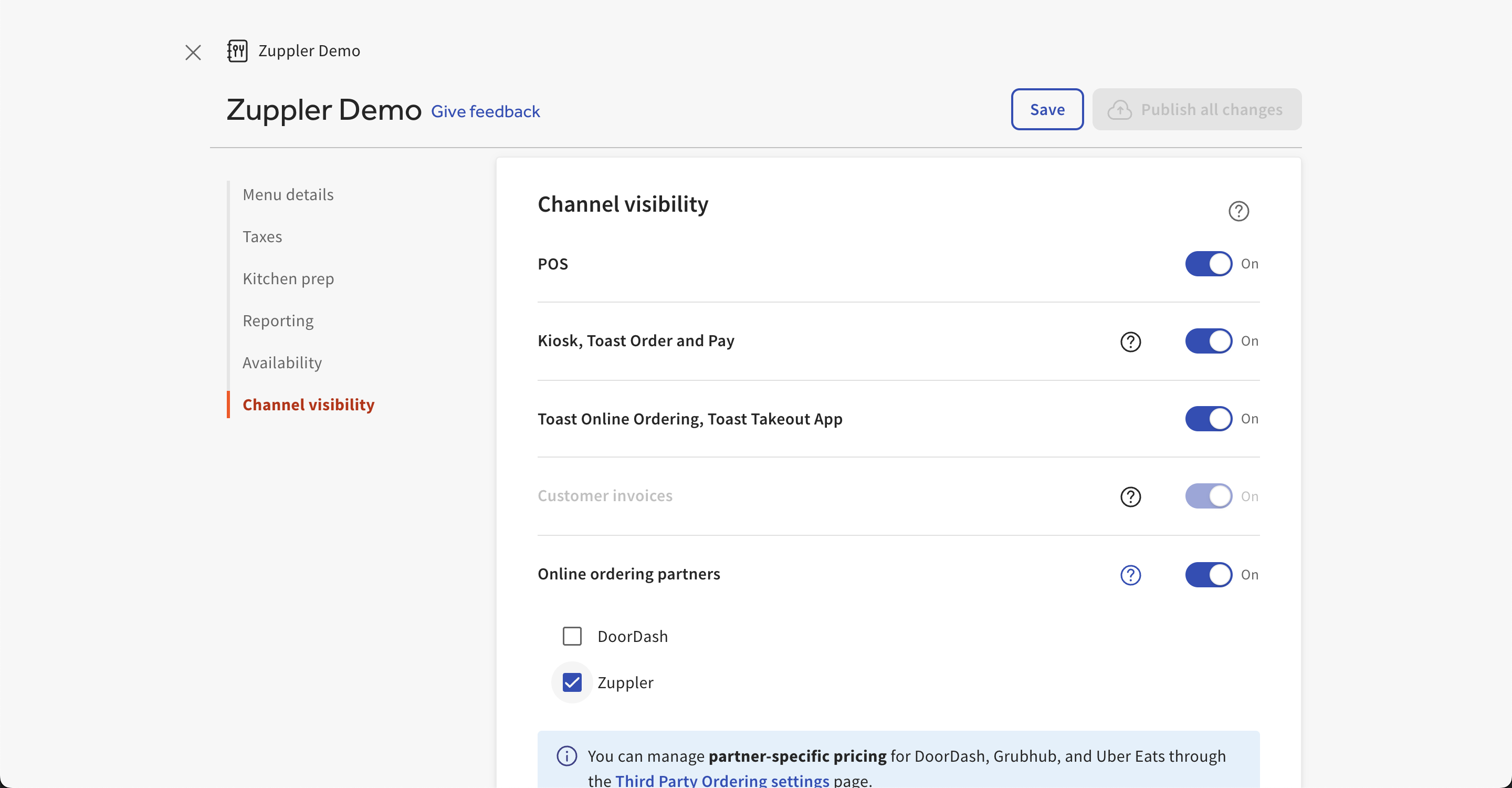
- In the list of Online Ordering Partners, uncheck all platforms except Zuppler.
- This ensures that your menu is only available on Zuppler and does not appear on any other integrated partner platforms.
Step 5: Save and Publish
- Click Save to store your changes.
- Select Publish to make the updates live.
Your menu is now set to appear exclusively on Zuppler, ensuring that online customers can only place orders through this platform.
Related Articles
Connecting Toast to the Zuppler-Stream integration.
This article guides you through the steps to connect your Toast POS to Zuppler and other delivery service providers. Please make sure to follow up until Step 2 from this guide before continuing with the steps mentioned below: Step 1: Add Stream ...How to link your Toast POS with Zuppler.
To connect your Toast account with Zuppler, you need to add the Zuppler integration in the Toast portal. This article also contains some troubleshooting steps that you can follow in case you are not able to connect your Toast account even after ...Pixelpoint-Zuppler Menu Management
Pixelpoint POS integration is setup with the 'Mapped' menu sync mode where the online ordering menu is built and managed completely in the Zuppler Chef menu manager. The system tries to automatically map the items to the item IDs defined in the POS, ...Regular menu and Specials menu.
Learn what is Regular menu and the Specials menu. How you can manage your menu on the online ordering page from the Control Panel. (This Menu topic is divided into a series of 18 articles that cover different features of the Standard text-only menu. ...Connecting Square to the Zuppler-Stream integration.
This article guides you through the steps to connect your Toast POS to Zuppler and other delivery service providers. Please make sure to follow up until Step 2 from this guide before continuing with the steps mentioned below: 1. Click Connect POS ...