Brink POS Connection & Troubleshooting
This guide will show you how to connect Zuppler and Brink to communicate for online ordering and troubleshoot in case of order rejections.
TABLE OF CONTENTS
Requesting Zuppler access to locations
Before Zuppler starts the POS setup, the store will need to request that PAR Brink give Zuppler access to all POS Data and receive the location tokens for the store's locations (this allows Zuppler to pull in the menu and settings from Brink). This request needs to come from the store to the Brink token request team. The following template should be used by the store owner to request access:
Subject:
<<Store Name>> – Location Token Request for ZUPPLER

Body:
Tech Support,

I <<Owner First & Last Name>>, as an authorized representative of <<Store Name>>, authorize ZUPPLER API access to the locations listed below and ParTech to issue location tokens and access information on our behalf.

<<List Stores Here>>

Thank you,
Once the Brink team acknowledges the request they will share the API URL and Location Token with the Zuppler team
We then need to enter the API URL and Location Token on the POS connection page in Zuppler chef portal.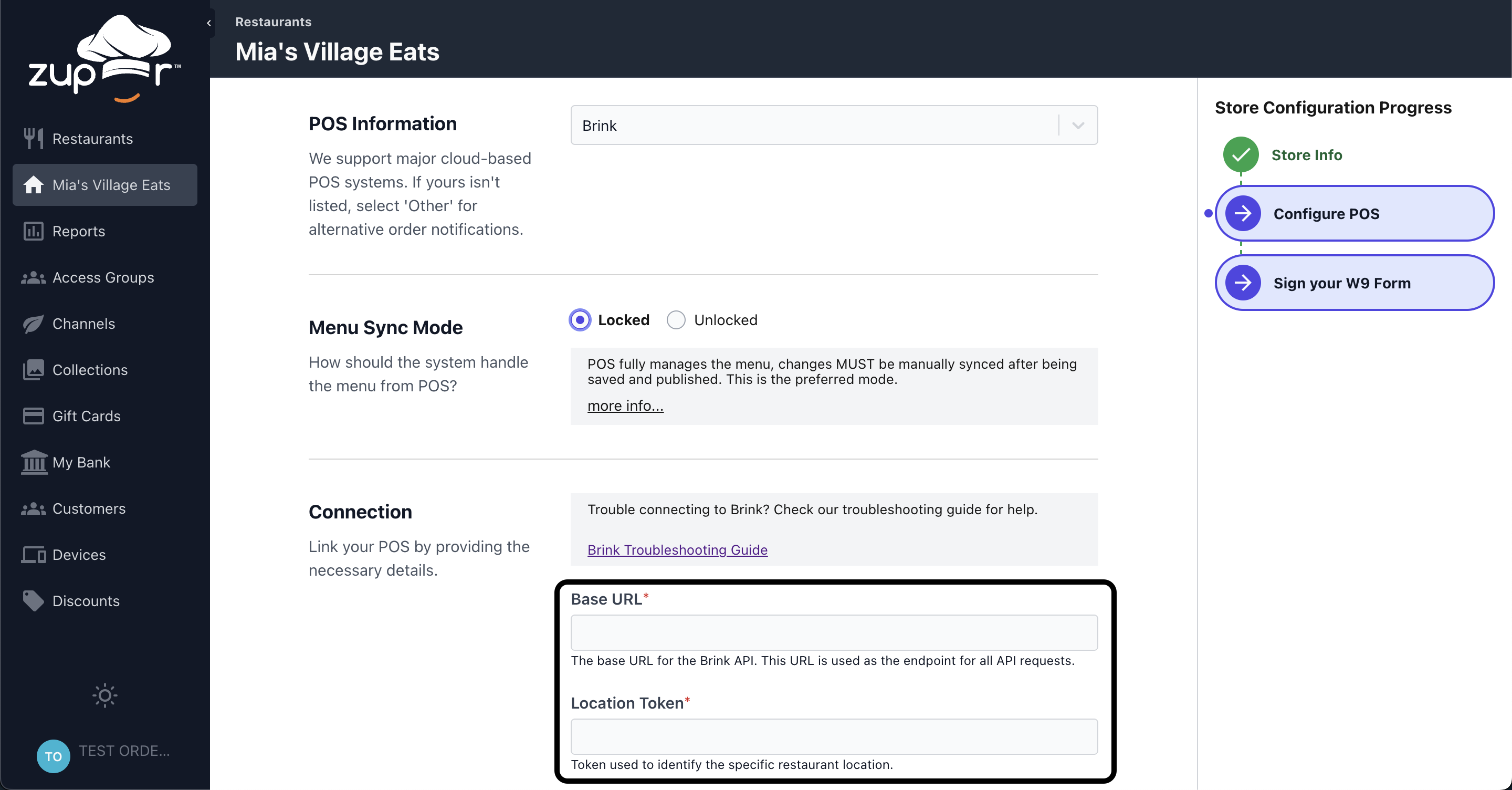
Brink Setup
- Menu
In order for Zuppler to pull the menus from the Brink POS, the menus should be setup within Brink settings editor. Zuppler can pull all the menus configured in your Brink database and has the ability to show only the ones on your website that you want to show for online ordering. Please make sure all the menus have the relevant categories assigned to them. Similarly the categories should have the relevant items inside them.
- TendersYou can create a Tender Type in Brink for each Payment Type that you wish to differentiate for online ordering for reporting purposes. If you already have a generic Credit Card/Online Order tender defined in Brink and want your online orders to show in Brink associated to that tender, we can use it. You can also create a new one named "Zuppler Online" or whatever you want it to say. These are the steps you can follow to create a tender in Brink which Zuppler can use to map your orders to:
- Log in to the Brink Admin Portal
- Click on Configuration and then open the Settings Editor
- Click on Tenders in the lefthand menu
- Click on Add New Tender option
- Name the tender
- Select External in the Tender Type dropdown. Zuppler only shows external tenders for mapping
- Make sure Active, Available for Deposit and Allow Tips option is checked before saving
- Don't forget to save and publish changes at last

- DestinationsDestinations are order types offered by your store. You can create a Destination in Brink for each Service Type that you plan to offer online. These could include Online Ordering Pick-up, Online Ordering Catering Pick-up, Online Ordering Delivery. If you already have some generic order types defined in Brink we can use them to map your orders. If not you can create new destinations by following these steps in the Brink settings editor:
Log in to the Brink Admin Portal
Click on Configuration and then open the Settings Editor
Click on Destinations in the lefthand menu
Click on Add New Destination
Name the destination
Make sure Active option is checked before saving
There should be a destination for pickup and one for delivery
Don't forget to save and publish changes at last

Note: For delivery destination make sure the delivery checkbox is checked in the delivery section of the destination page. If it's not done, delivery orders will be rejected by Brink.

- Future OrderingIf the store wish to accept future/scheduled online orders, please make sure the following configurations are setup within Brink settings editor
In the Brink Admin Portal, click on Configuration and then open the Settings Editor
Click on Options in the lefthand menu
Select the Future Orders Tab, then the General sub-tab
Make sure Enable Future Orders and Allow Orders Upto boxes are checked
Enter the number of days you'll be accepting scheduled orders upto. We recommend keeping it atleast 30 days. If you offer catering then you might need to increase the number

Then go to the Destinations sub-tab and make sure the online ordering destinations are added there

Don't forget to save and publish the changes at last
Charges
In order for Zuppler to pass down a Delivery or Service Fee to your POS, you must create a Delivery Charge and Service Charge in Brink or the orders having these charges won't submit to your POS. You can follow these steps to create these charges:
In the Brink Admin Portal, click on Configuration and then open the Settings Editor
Click on Surcharges in the lefthand menu
Click ‘Add New Surcharge’
Setup a new Surcharge with the following, as shown in screenshot:
Name: Delivery Charge/Service Charge
Automatically Apply: leave unchecked
Surcharge Style: Service Charge
Method: Fixed Per Order
Prompt: checked (While mapping charges Zuppler only shows charges where 'Prompt' is true)

None of the other settings need to be checked or enabled
Don't forget to save and publish the changes at last
Troubleshooting
These can be the reasons behind some of the order rejection errors Brink returns when some config is missing or incorrect in the Brink Settings Editor.
Order Errors
- ‘pickup_destination_id’ or 'invalid_destination'- Please confirm the following:
- Error Code 104 - Invalid payment type - Please confirm the following:
- Error Code 104 - Invalid tip amount specified for payment - Please confirm the following:
- Error Code 104 - Delivery details required - This could be due to:
- Delivery destination being mapped in a non delivery order
- Error Code 104 - Delivery details provided for non-delivery destination - Please confirm the following
- Delivery destination been mapped to the delivery service
- Delivery destination has the delivery checkbox checked in Brink
- Error Code 103 - Future date ordering not allowed - Please confirm the following
- Future Orders option is enabled in Brink
- The order is within the advanced date range configured within Brink. If needed increase allow orders upto number in Brink
- Error Code 103 - Tender not available for deposits - Please confirm the following
- Error Code 103 - 1 more item needed for 'XYZ' group. - Please confirm the following
- The modifier group mentioned in the error is coming over to Zuppler in the menu. If not, ask the store to make the modifier group non required in Brink by updating it's min qty to 0
Related Articles
How to link your Toast POS with Zuppler.
To connect your Toast account with Zuppler, you need to add the Zuppler integration in the Toast portal. This article also contains some troubleshooting steps that you can follow in case you are not able to connect your Toast account even after ...Automatic Sync Scheduler for POS Menus.
Some of our integrated POS systems do not currently support webhooks for menu updates. This limitation means that any changes made to the POS menu—such as price adjustments, new items, or discontinued items—do not automatically sync to the online ...How to link your Clover POS with Zuppler.
This article guides you through the steps to connect your Clover POS to Zuppler. Follow the steps mentioned below to get started with the integration: Step 1: Login to your Clover mechant account Step 2: Install the Zuppler Chef app Step 3: Setup ...How to link your Pixelpoint POS with Zuppler?
This article guides you through the steps to connect your Pixelpoint POS to Zuppler. Follow the steps mentioned below to get started with the integration: Step 1: Complete the required configurations in Pixelpoint BackOffice Step 2: Install the ...Connecting Toast to the Zuppler-Stream integration.
This article guides you through the steps to connect your Toast POS to Zuppler and other delivery service providers. Please make sure to follow up until Step 2 from this guide before continuing with the steps mentioned below: Step 1: Add Stream ...