Manage your delivery settings.
This is the basic setup of your restaurant’s business hours along with the different working shifts.
With the Restaurant Hour of Operations settings, you can specify 3 time slots for a given day. Here, you have 3 different time windows for your hours of operation to specify your breakfast, lunch, and dinner hours.
The small green colored rectangular boxes show the breakfast, orange shows the lunch, and blue shows the dinner time slots. The greyed boxes are the closed days.
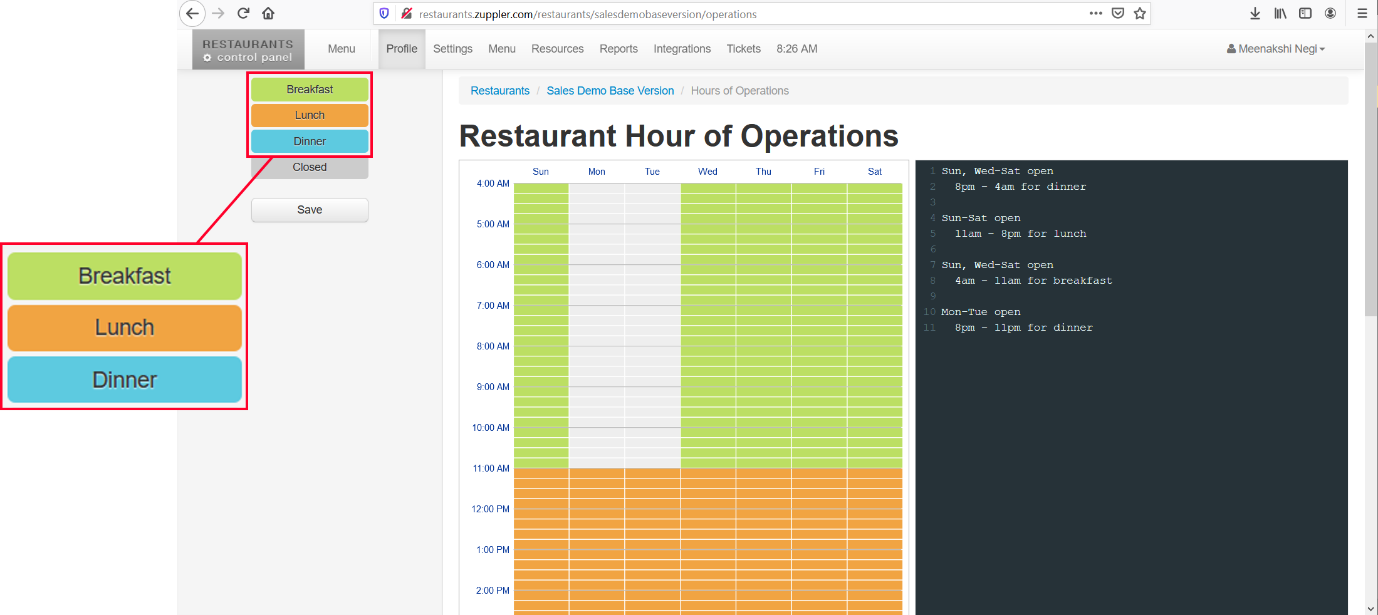
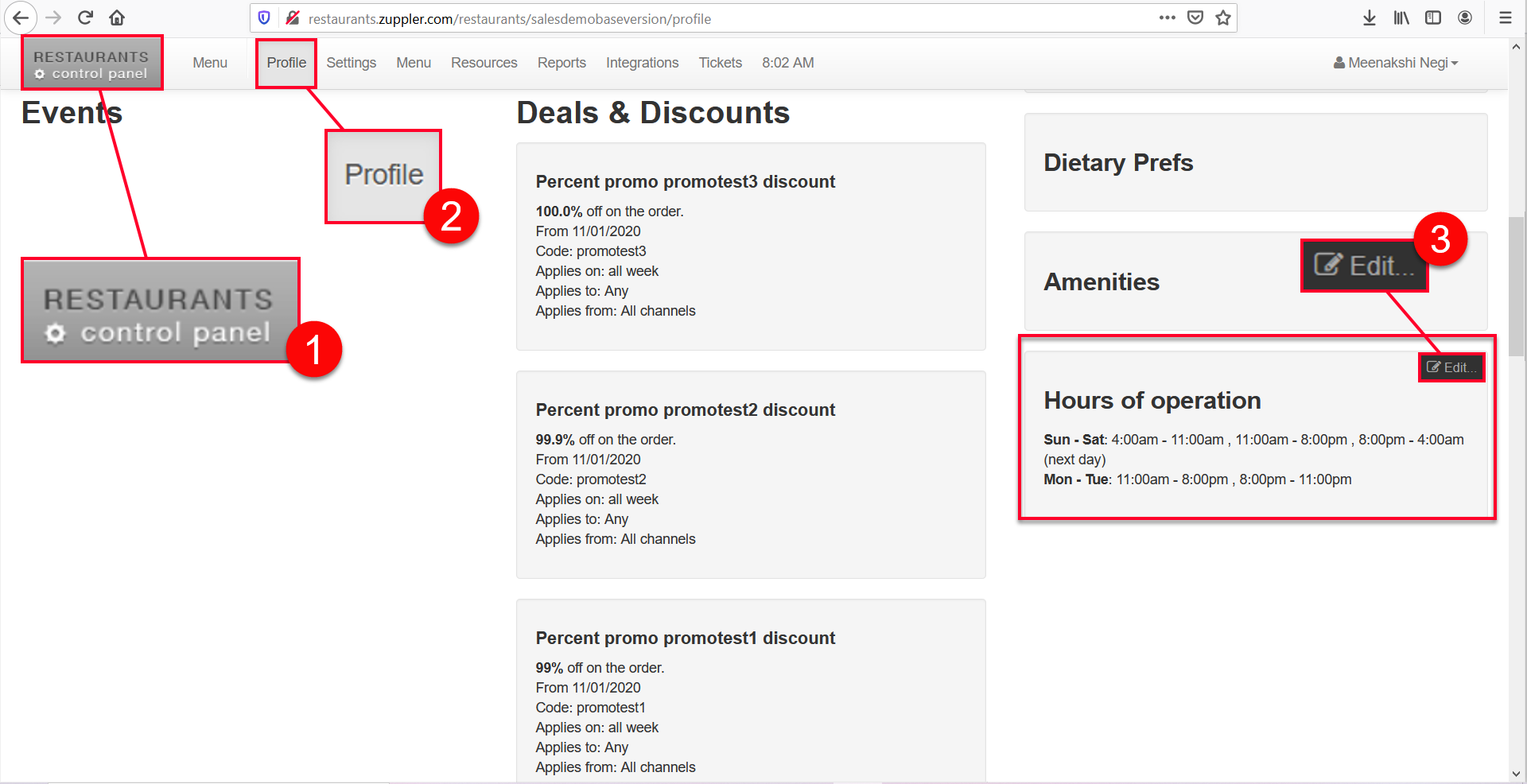
Take the following steps to open this Restaurant Hour of Operations panel:
1. Be on the Control panel,
2. Go to Profile,
3. Scroll down and find Hours of operation on the right side of the screen, then click on the Edit button.
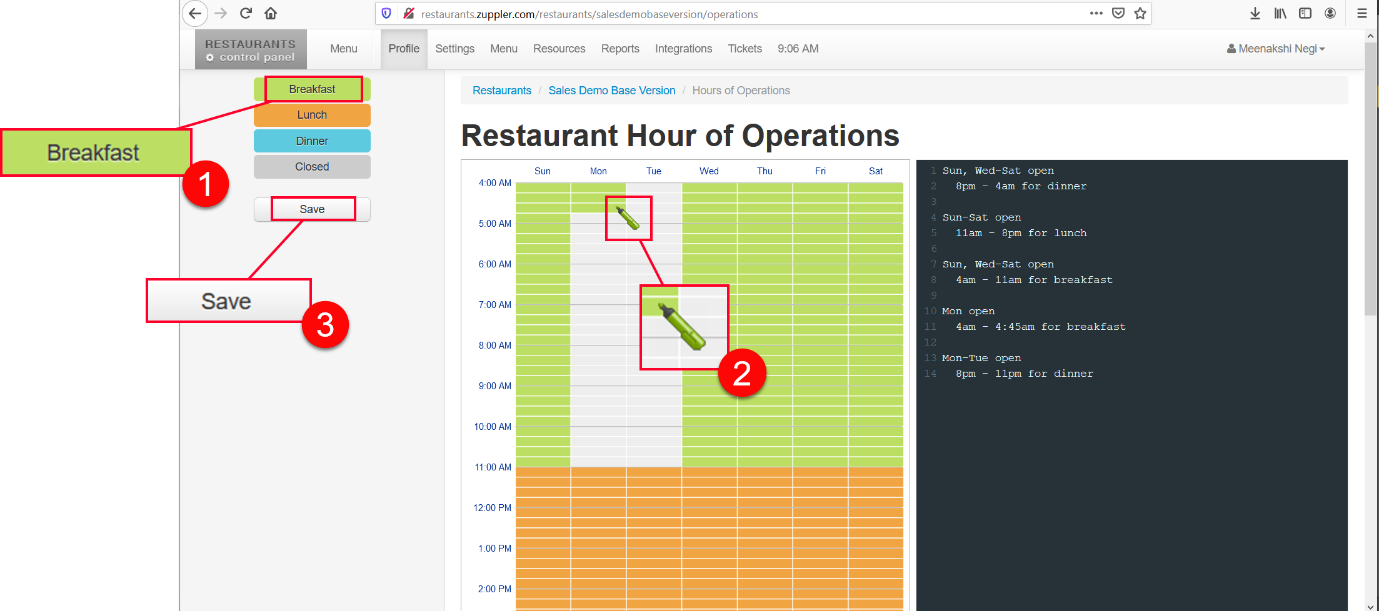
Follow these steps to edit the time settings:
1. Click on the meal type on the left (for example, Breakfast),
2. Click and drag to fill the small rectangular boxes (each rectangular box equals to 15 mins for a specific day) and
3. Save the changes.
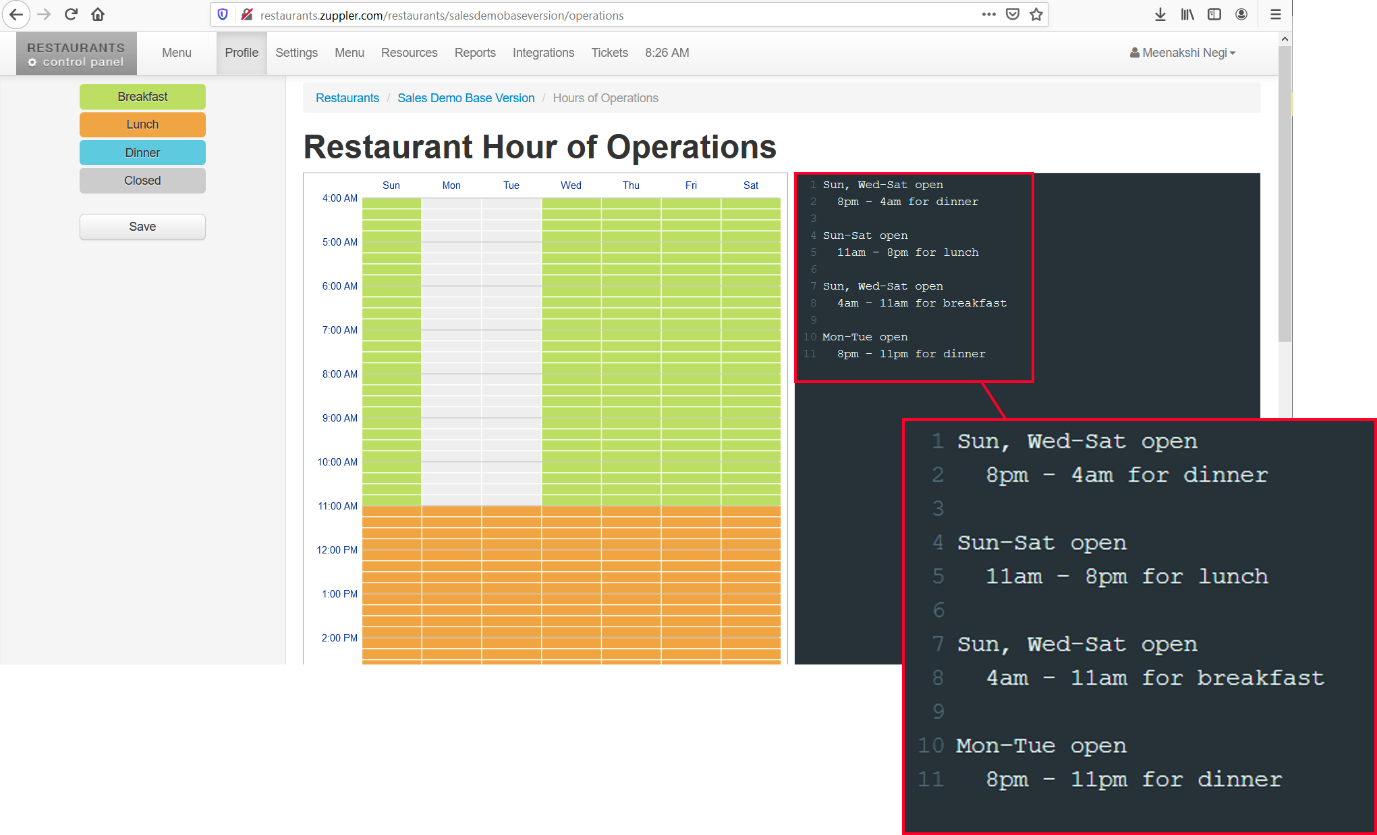
Or you can use the editor to define the days and time intervals then hit Save to save the changes.
Managing your Delivery Periods
- Delivery days settings
After setting up your hours of operation, you can setup days for your delivery orders.
Go to Settings > Delivery > Edit delivery
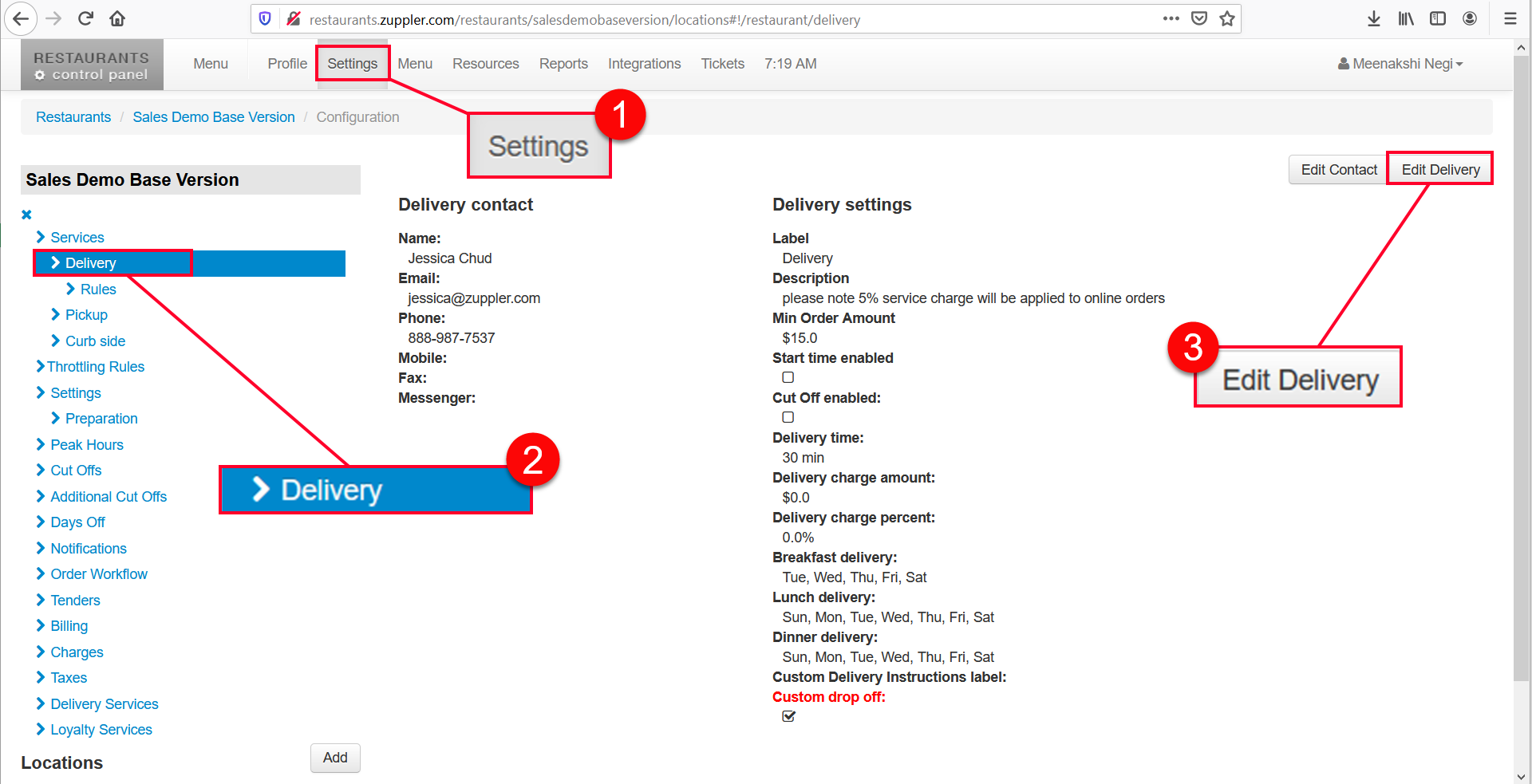
(This opens up the Delivery settings properties window on the right side of the screen. See the following screenshot.)
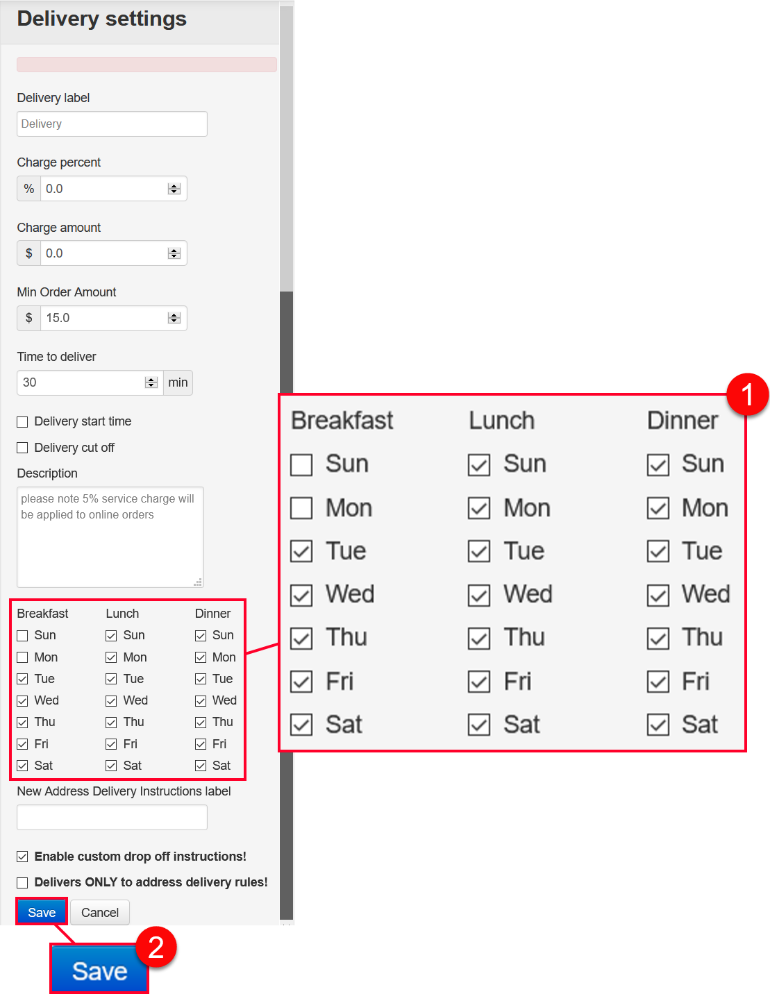
Here, you can manage what days of the week and time slots (using hours of operation), you want to take your delivery orders.
For example, say you don’t deliver Breakfast on Sundays and Mondays.
1. You can un-check the checkboxes of these days and
2. Save the changes.
- Delivery start and end time
Regardless of the hours of operation, you can specify your delivery start and end time for your delivery services.
For example, let’s say you start your delivery service at 11 am in the morning and end at 9 pm. So you can keep your restaurant opened after 9 pm (as per to your restaurant’s business hours) but the users won’t be able to place delivery orders after 9 pm.
To enable this,
1. Check-in the Delivery start time and Delivery cut off checkboxes,
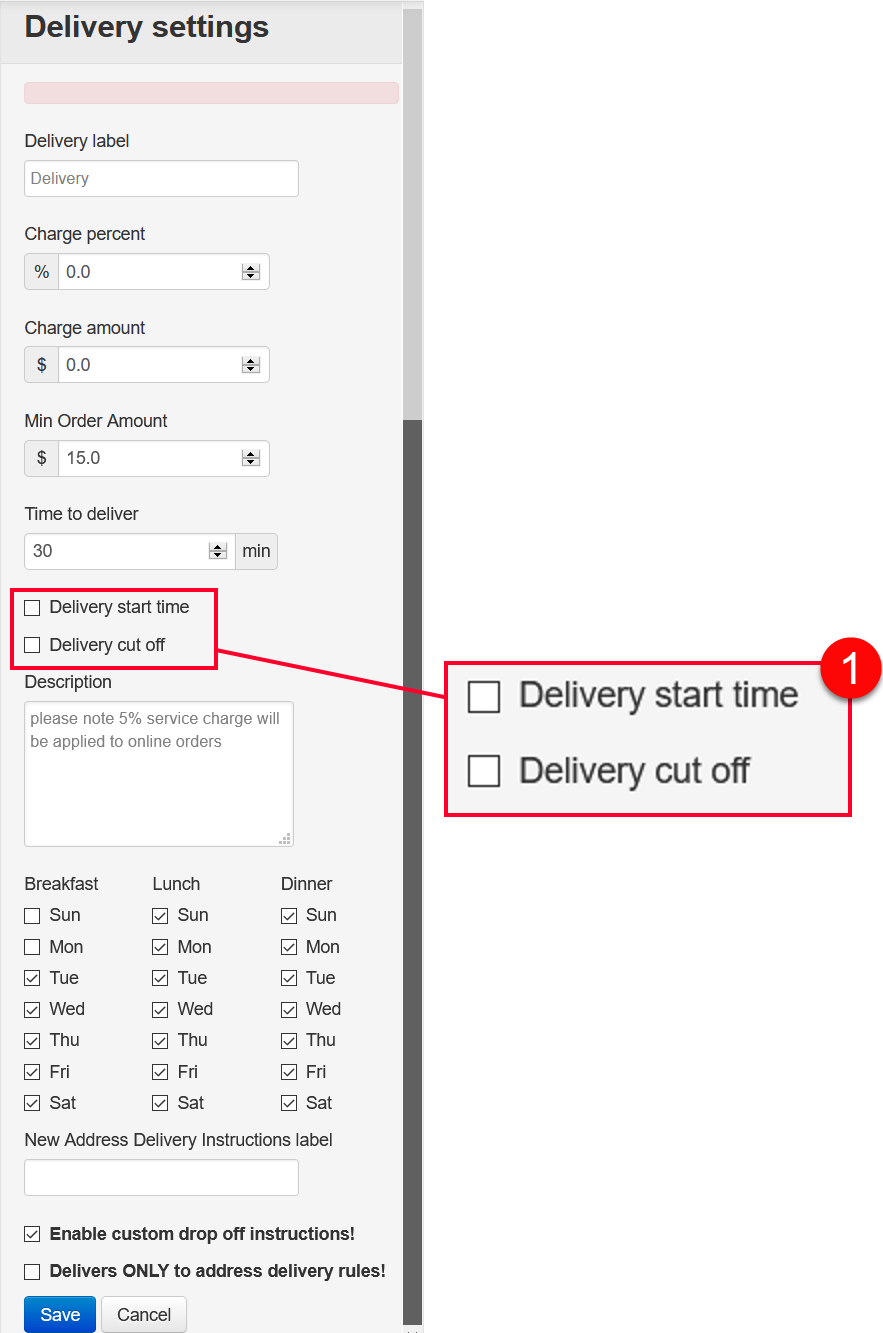
2. Click the drop-down arrow button to select the time, and
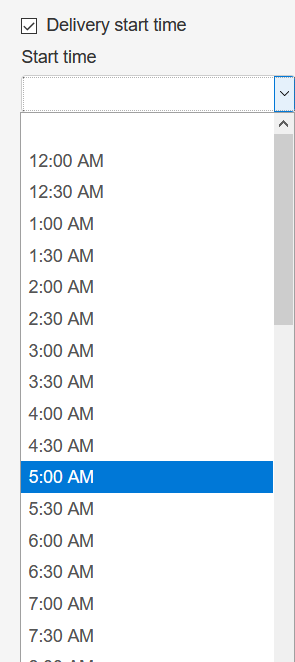
3. Hit Save to save changes.
Override Delivery Settings
Let’s say, you want to set additional delivery time for orders above a certain amount.
So to do that, go to Rules under Delivery and for a particular type of rule you can specify your delivery time.
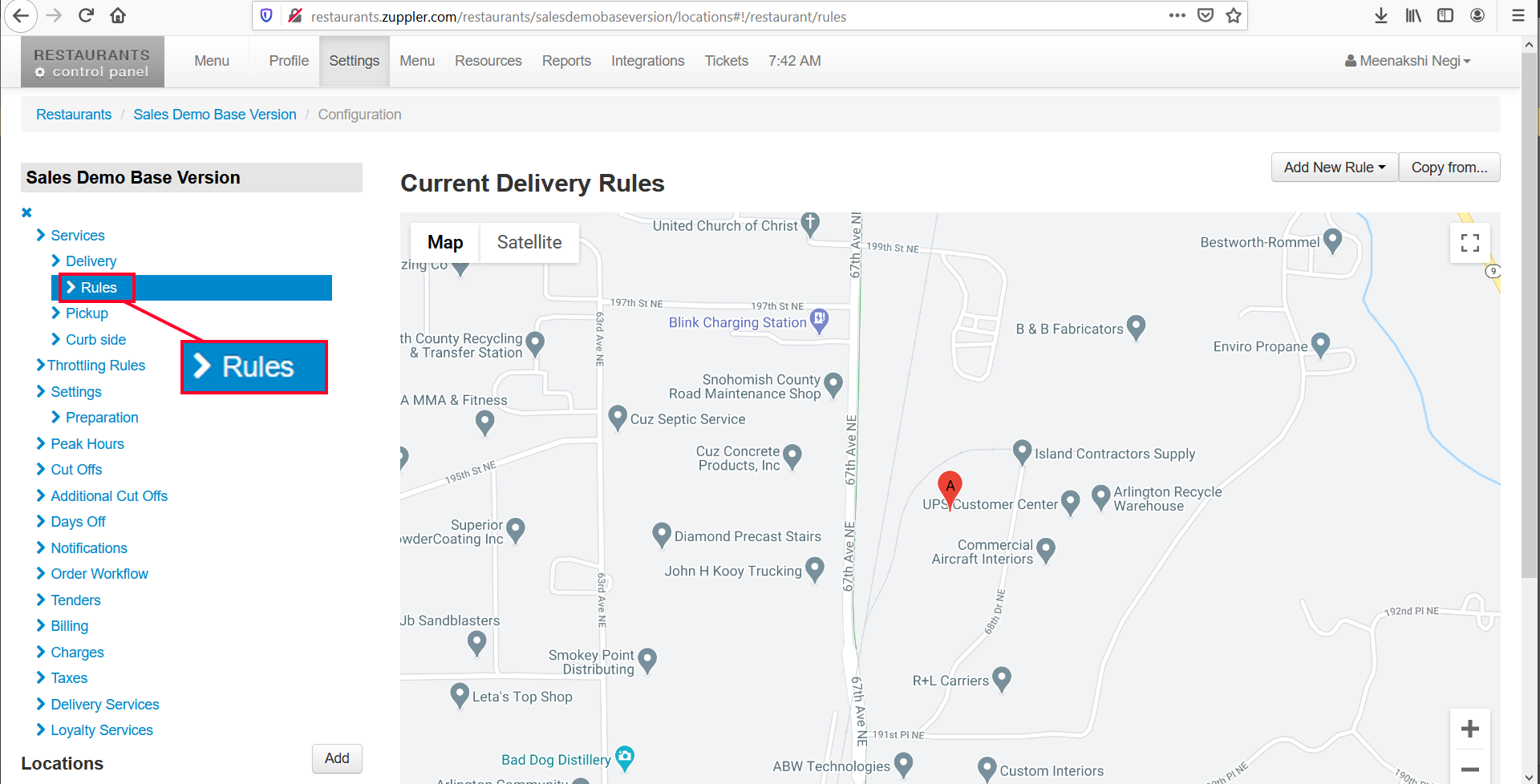
Scroll down and go to the delivery rules settings.
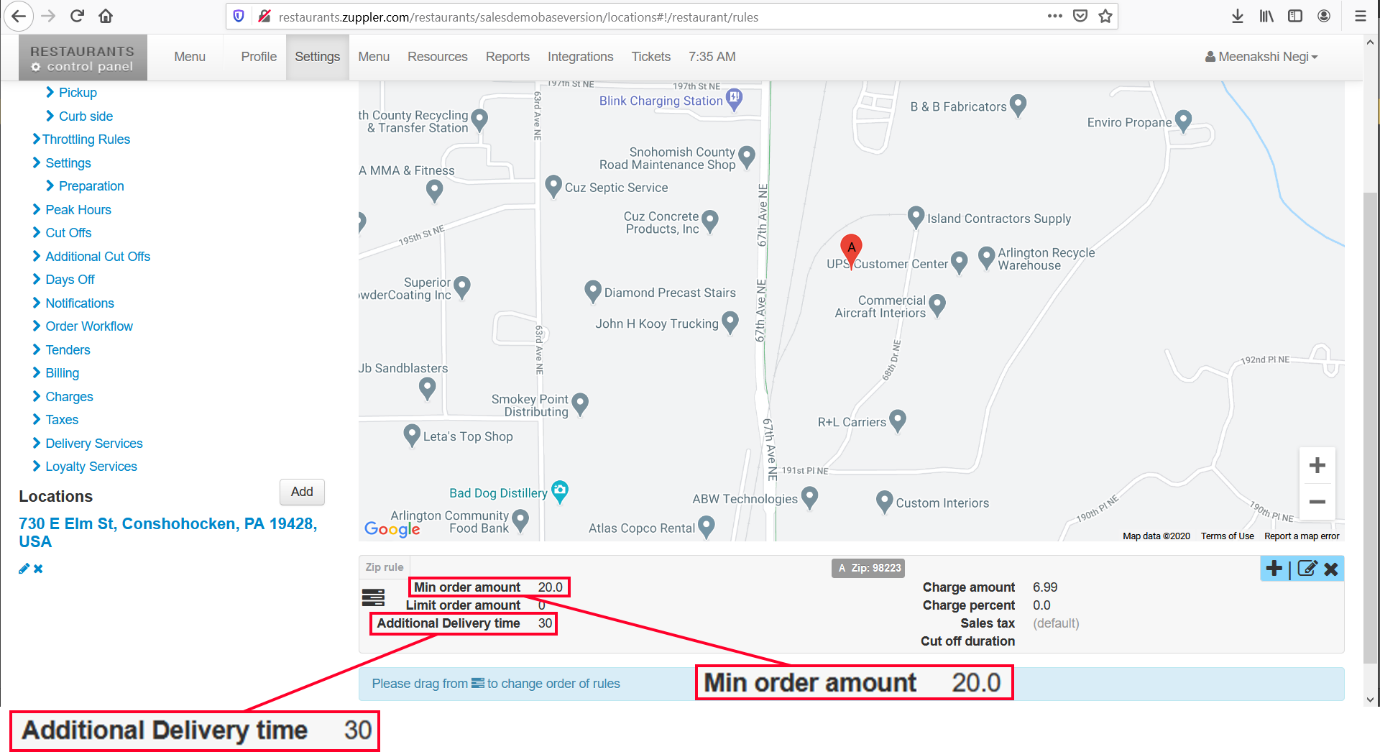
Here, for the min order amount to be 20 dollars, you require 30 mins delivery time.
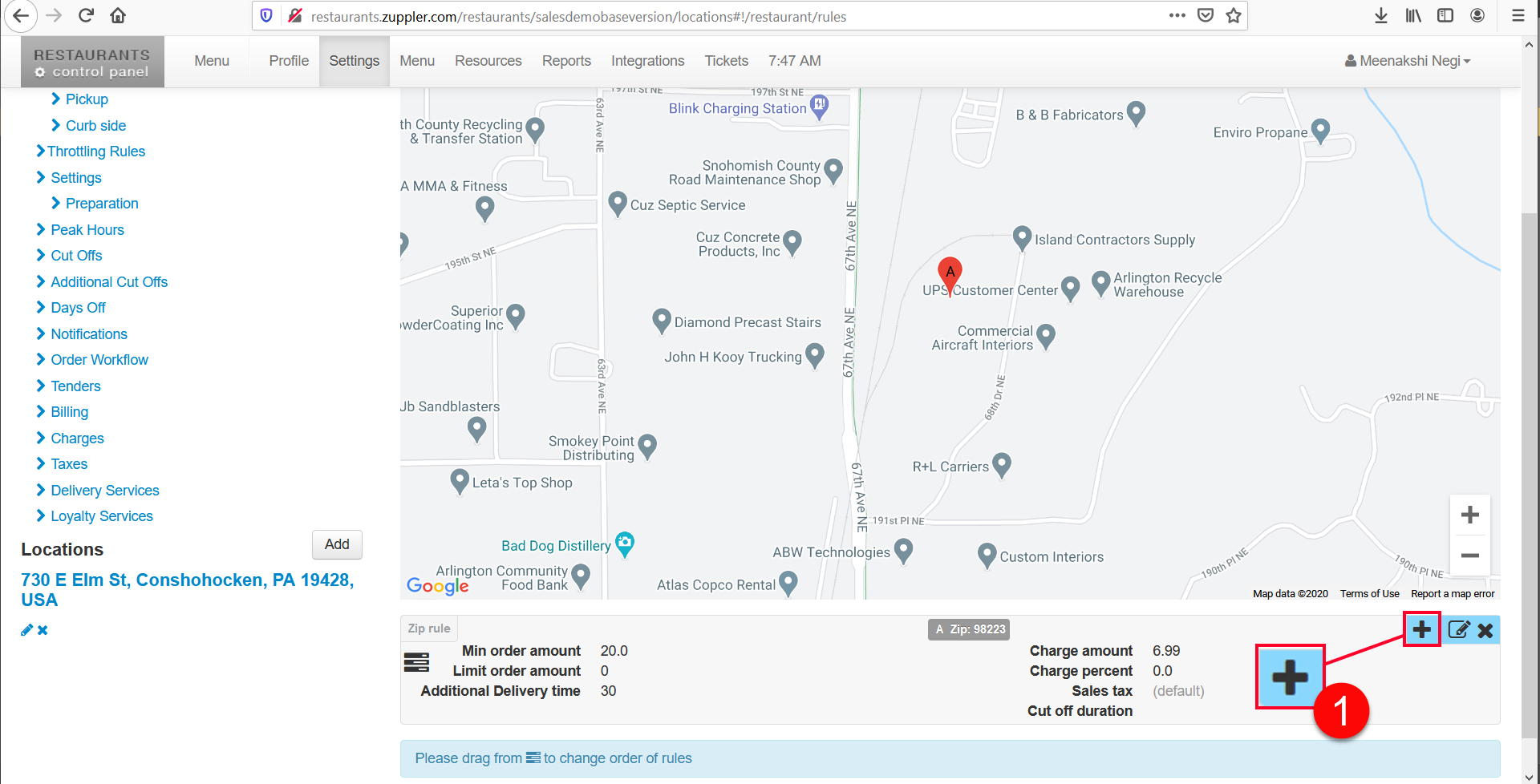
So let’s say, you want to add additional 30 minutes time for the orders equal to or above 75 dollars. So to do this, go the delivery rule, then press add + icon.
2. Now add the Min Order Amount,
3. Add Additional Delivery Time, and
4. Save the changes.
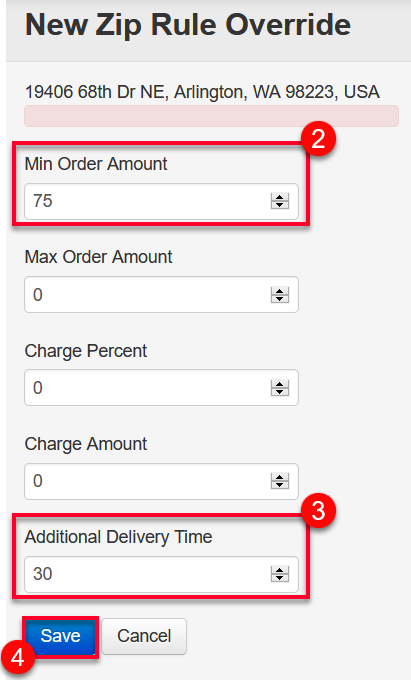
This is how you’re telling the system that you need 30 min for orders upto 75 dollars but for orders to and over 75 dollars, you need an additional 30 min to the 30 min delivery time. See the screenshot below:
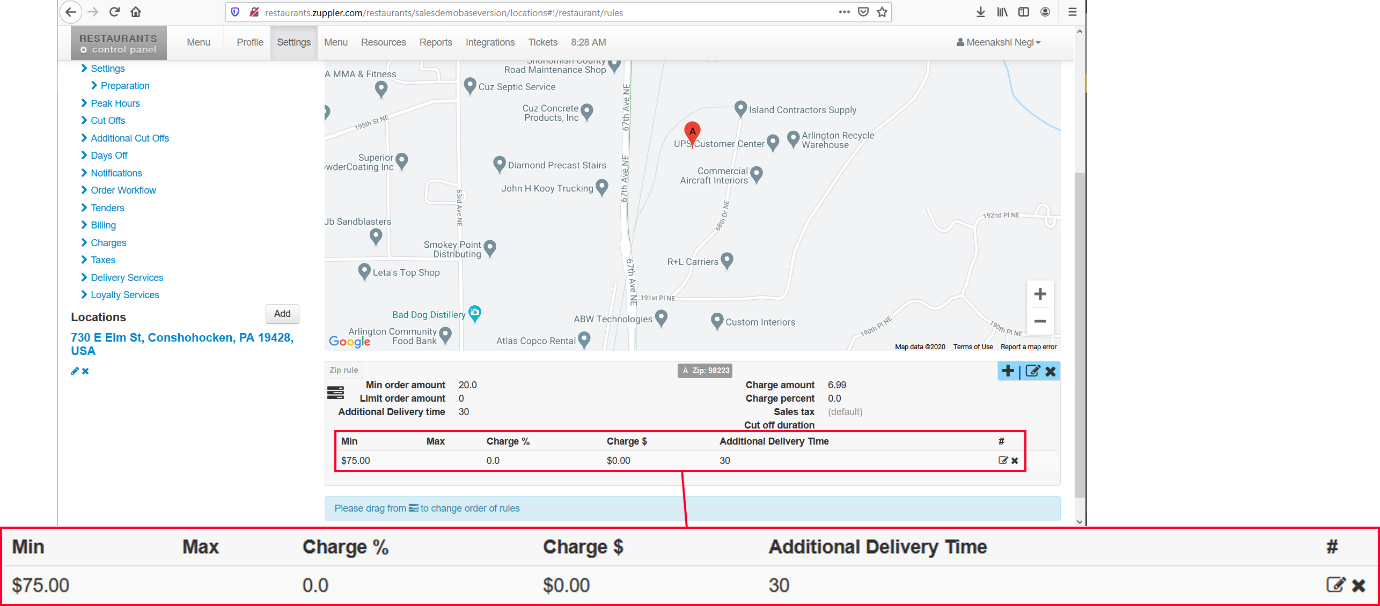
Hence, this implies that the total delivery time would be Time to deliver + Additional delivery time + preparation time.
Related Articles
Managing Your Delivery Window & Delivery Time.
Specifying your hours of operation:- Go to Control panel >Profile >Hours of operation. The following will show up on the screen, There will be 3 choices to divide your hours of operation in, 1) 2) 3) The above three types divide the hours of ...Cut Off Settings.
Setup You can find the Cut Off’s setting under the Configuration tab > Cut Offs, in the control panel. NOTE: Cut Off’s is used for catering menus where the store would need additional time to be notified for the order. Configuration Explained Cut Off ...Default and Minimum Tips
Setup You can find defaults and minimum tips setting under the Configuration tab > Settings > Edit Settings, in the control panel. Go to Edit settings Configuration Explained Delivery Min Tip Percent this is the minimum tip value in % that the user ...Brink POS Connection & Troubleshooting
This guide will show you how to connect Zuppler and Brink to communicate for online ordering and troubleshoot in case of order rejections. TABLE OF CONTENTS Requesting Zuppler access to locations Brink Setup Menu Tenders Destinations Future Ordering ...Connecting Toast to the Zuppler-Stream integration.
This article guides you through the steps to connect your Toast POS to Zuppler and other delivery service providers. Please make sure to follow up until Step 2 from this guide before continuing with the steps mentioned below: Step 1: Add Stream ...