How to Set Up a PDQ (Payment Terminal) on BOB CRM
This guide explains how to configure a Dejavoo PDQ terminal within BOB CRM and link it with your POS system for seamless payment processing. Follow the steps below to ensure a successful setup and integration with iPOS.
Step 1: Navigate to PDQ Settings in BOB CRM
Open BOB CRM.
Go to the menu:
Info > PDQ > PDQ Legacy View > Add PDQ
(Refer to screenshots below for guidance)
Step 2: Add PDQ Details
After clicking Add PDQ, a form will appear. Complete each field as outlined below:
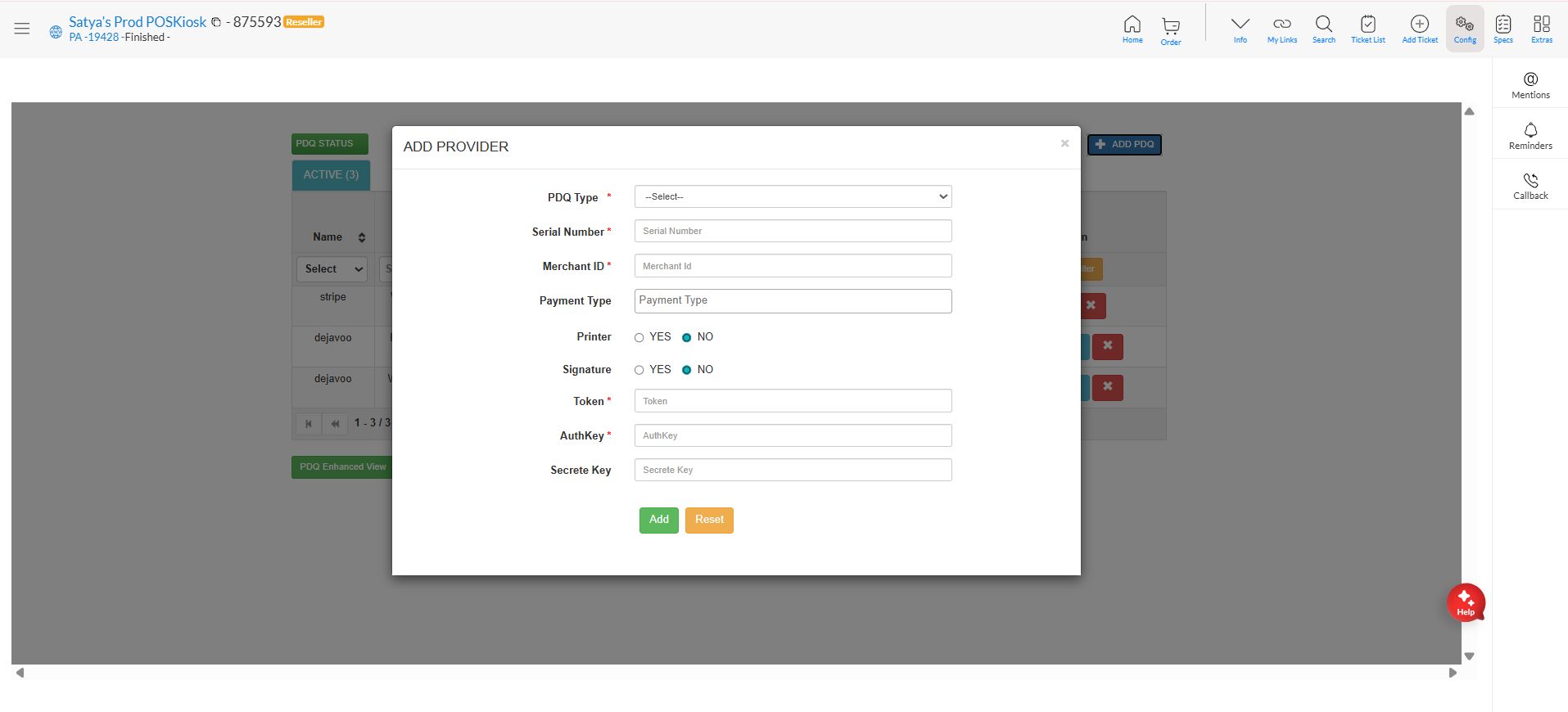
| Field | Description | Example / Source |
|---|---|---|
| PDQ Type | Select the terminal type from the dropdown. | Choose Dejavoo |
| Payment Mode | Default selection should remain unchanged. | PDQ Terminal |
| Serial Number | Enter the serial number found on your Dejavoo device. | From device label |
| Merchant ID | Enter the TPN number from iPOS. | Found in iPOS under Merchant details |
| Payment Type | Choose the payment type. | Credit |
| Printer | Enable printing capability. | Select YES |
| Signature | Enable signature capture. | Select YES |
| Token | Retrieve from iPOS → Merchant → TPN → Edit Param → Integration → Auth Token | Copy the token value |
| Auth Key | Retrieve from iPOS → Merchant → TPN → Edit Param → Integration → Auth Key | Copy the key value |
| Field | Description | Example / Source |
|---|---|---|
| PDQ Type | - Select the terminal type from the dropdown. | Choose Dejavoo |
| Payment Mode | - Default selection should remain unchanged. | PDQ Terminal |
| Serial Number | Enter the serial number found on your Dejavoo device. | From device label |
| Merchant ID | - Enter the TPN number from iPOS. | Found in iPOS under Merchant details |
- Log in to the iPOS portal.
- From the left-hand menu, click on “Merchants.”
- In the search bar at the top, type the account name (e.g., Zuppler).
- From the search results, select the desired merchant account and then copy the desired TPN (Merchant ID) and paste it under Merchant ID section on BOB
| Payment Type | Choose the payment type. | Credit |
| Printer | Enable printing capability. | Select YES |
| Signature | Enable signature capture. | Select YES |
| Token | Retrieve from iPOS → Merchant → TPN → Edit Param → Integration → Auth Token | Copy the token value |
| Auth Key | Retrieve from iPOS → Merchant → TPN → Edit Param → Integration → Auth Key | Copy the key value |
Step 3: Review and Save
Double-check all entered details for accuracy.
Once confirmed, click ADD to save the new PDQ configuration.
Step 4: Configure and Connect the PDQ on POS
After the PDQ is configured in BOB CRM, follow these steps to link it with your POS system:
Open the POS application and open Fusion App.
Navigate to: Settings > Store Settings > Configured PDQ
From the list, select the correct terminal by matching the serial number.
Click Save to confirm your selection.
Your POS is now linked to the PDQ terminal, and transactions can be processed seamlessly.
Important:
If the terminal is not configured on the POS, the order screen will still show the Card option to close the order, but it will not actually charge the customer’s card.
Always ensure the correct terminal is selected in the POS settings to avoid this issue.