Setting Up Surcharge in Dejavoo
Setting Up Surcharge in Dejavoo
If a merchant is utilizing surcharges, you will first want to ensure the profile is set to 'with fee'. Once selected, you can continue to add the merchant information as you normally would.
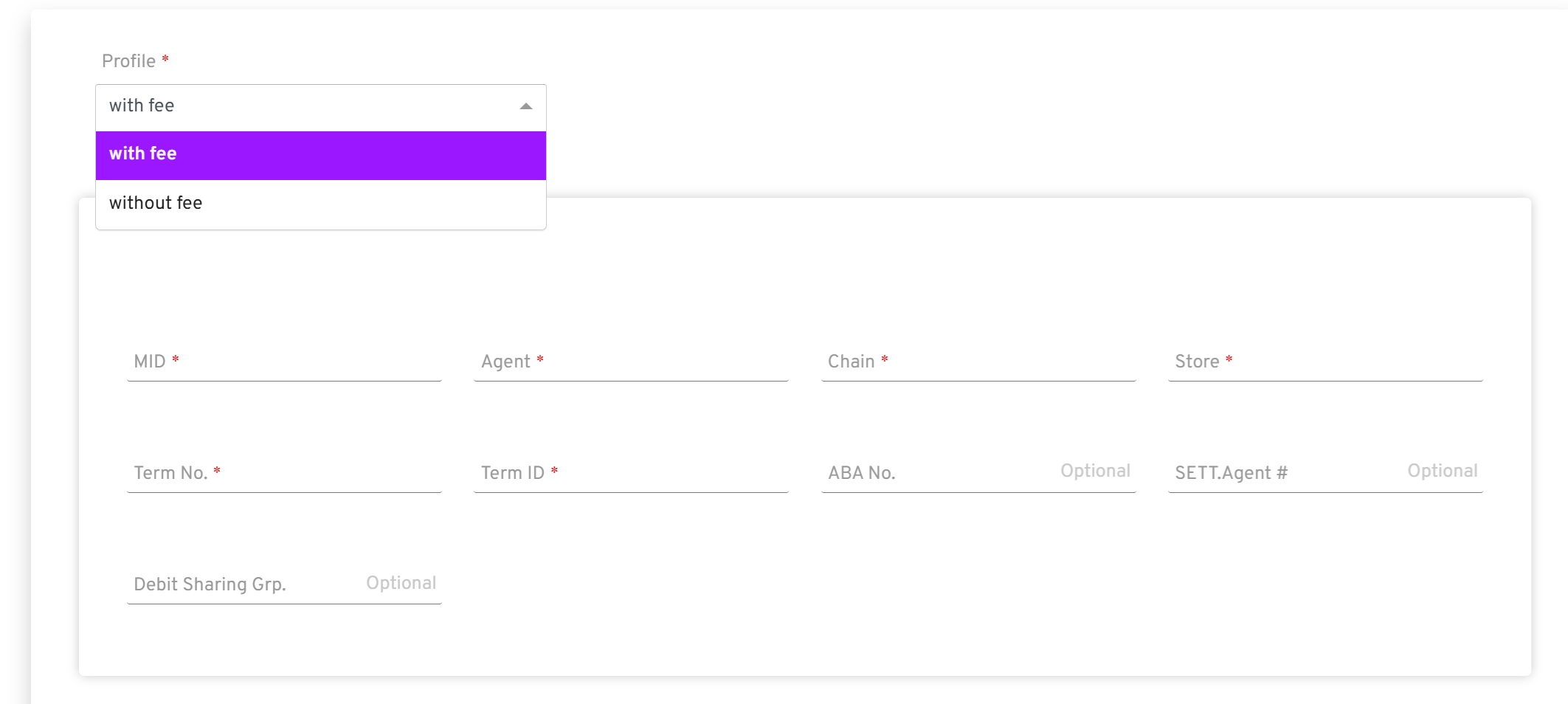
If a merchant was already configured with a 'without fee' profile, we need to make sure the 'without fee' profile is removed after setting up the 'with fee' profile.
To do this you will:
- select the 'without fee' profile
- Hit clear
- Hit Save
Device Configuration
Once the device is created, configure the surcharge as part of the params configuration by following these steps:
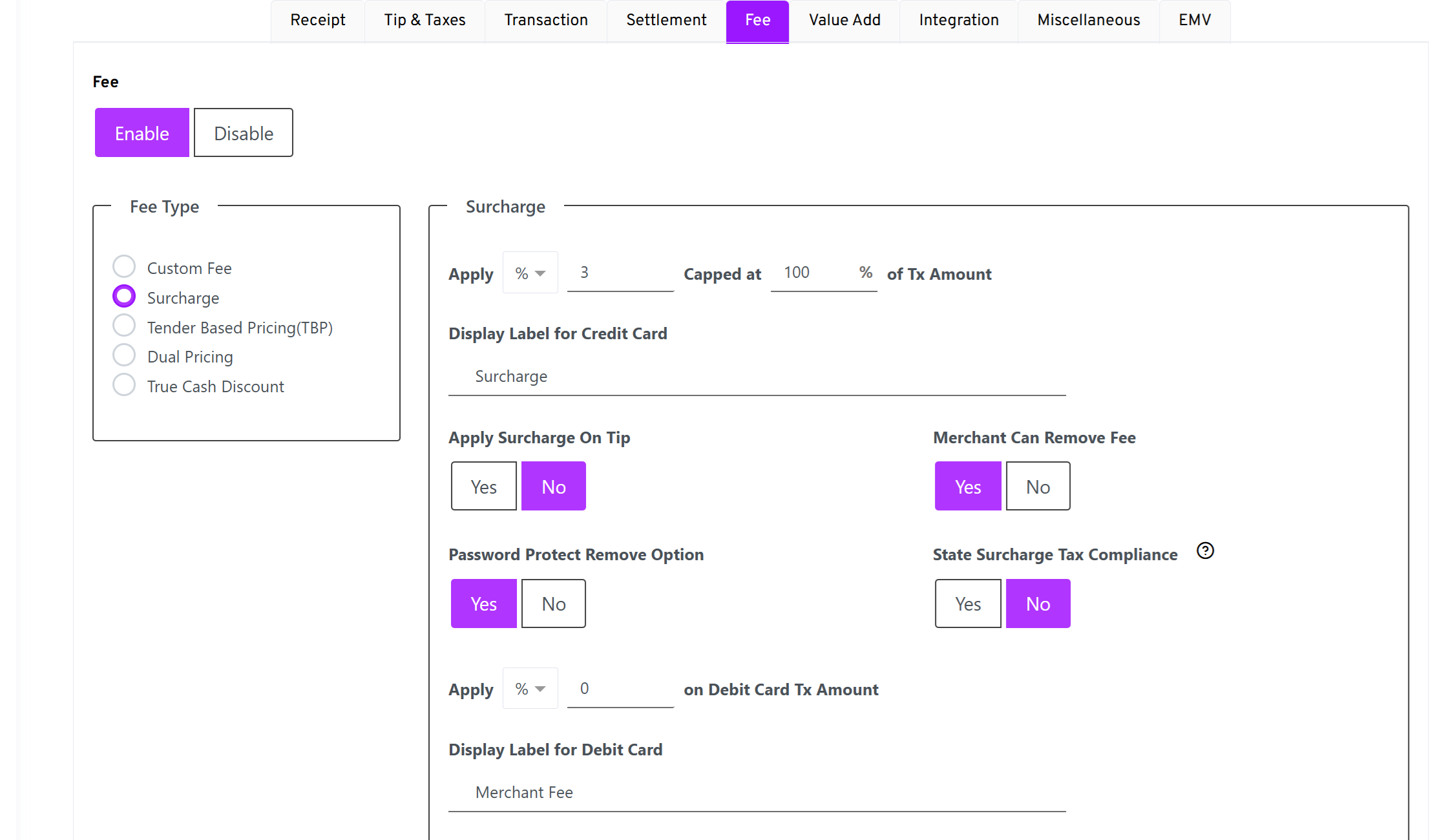
Navigate to the 'Fee' section.
Enable the 'Fee' flag.
Set Fee Type to 'Surcharge'.
Under Apply Option, select '%':
The first field is the percentage that the merchant is looking to surcharge. Dejavoo does not allow you to set this greater than 100%.
The second field is the % of the transaction that the fee should be applied to. This should always be 100%, unless directed otherwise.
Display Label for Credit Card: This will be set to 'Surcharge' by default. You can update this to 'Credit Card Surcharge' for clearer labeling on the receipt.
Apply Surcharge On Tip: Set to 'Yes'.
Merchant Can Remove Fee: Set to 'Yes'.
Password Protect Remove Option: Set to 'Yes'.
State Surcharge Tax Compliance: Set to 'No'. This is because the tax is coming from Foodhub and is sent as part of the base amount.
Apply % on Debit Card: This should always be set to 0% by default, unless directed otherwise.
Enable Breakup Screen
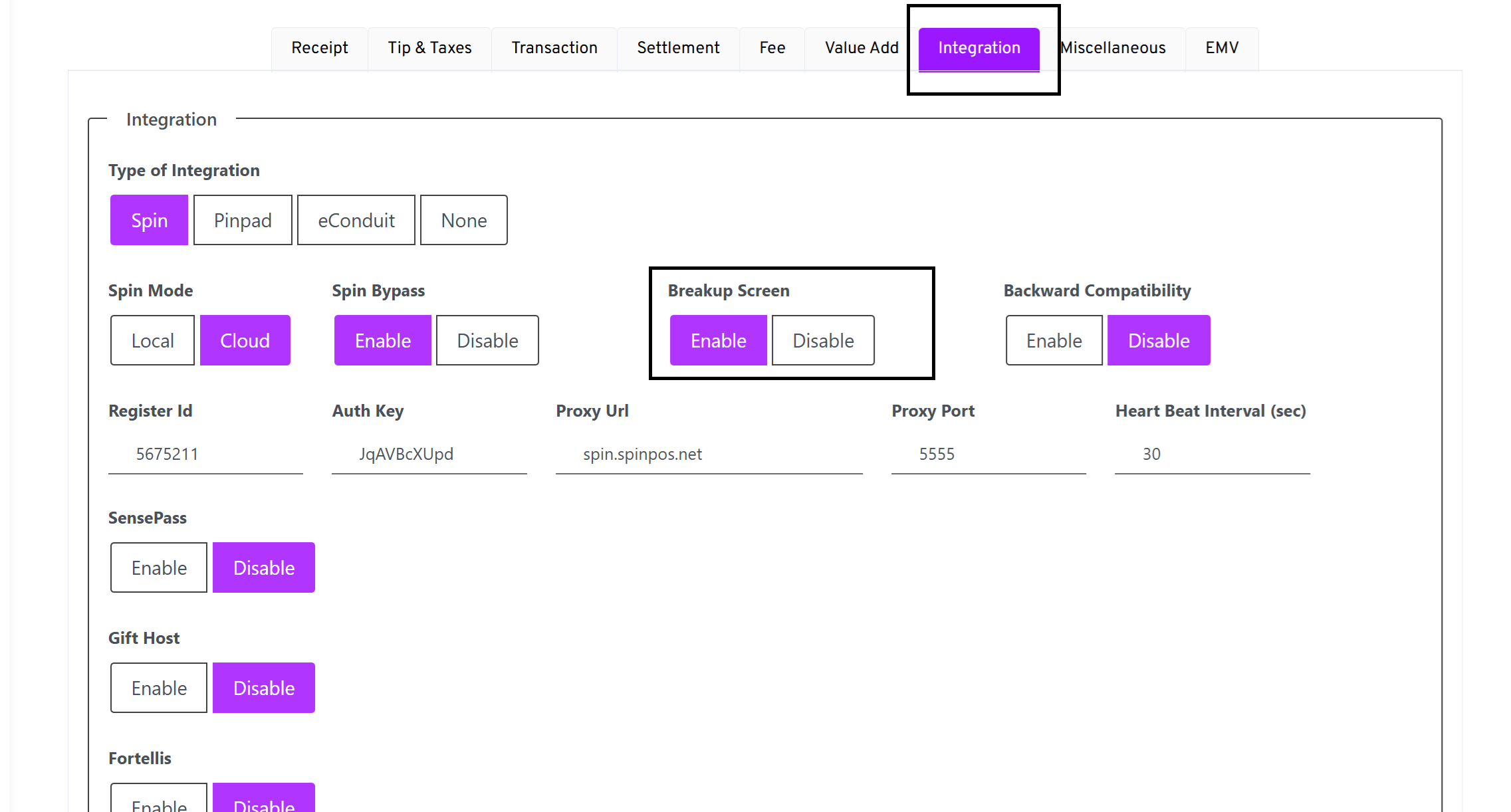
For accounts using the Surcharge functionality, you will also want to ensure the 'Breakup Screen' is enabled. Enabling this setting allows the customer to see the surcharge fee on the payment screen.
Select Integration.
Enable the 'Breakup Screen' setting.
Related Articles
Dejavoo Offline Mode – Setup and Usage Guide
Overview Dejavoo Offline Mode allows a store to accept card transactions even when the terminal is not connected to the internet. This feature is particularly useful during temporary network outages, ensuring that business operations can continue ...Dejavoo Command and Communication Center
Overview The Command and Communication Center is a feature on the iPOSpays portal that enables us to remotely control merchant payment terminals and communicate with them by sending commands or messages. This can help us efficiently perform some ...How to Set Up a PDQ (Payment Terminal) on BOB CRM
This guide explains how to configure a Dejavoo PDQ terminal within BOB CRM and link it with your POS system for seamless payment processing. Follow the steps below to ensure a successful setup and integration with iPOS. Step 1: Navigate to PDQ ...Zuppler POS & Kiosk Onboarding Checklist
Please refer this checklist and execute the manual steps in BOB CRM when onboarding a restaurant with a Zuppler POS or Kiosk. Adding a Zuppler Tablet/Printer should be a one click setup, orders will flow to the tablet once the tablet is added from ...POS Instore Loyalty Guide
Overview This article explains how to enable and use the Loyalty feature for POS orders. It also describes the requirements, workflow, and current limitations of the system. Setup Process Enabling loyalty for a store currently depends on the FH team. ...