POS Instore Loyalty Guide

POS Instore Loyalty Guide

Overview

This article explains how to enable and use the Loyalty feature for POS orders. It also describes the requirements, workflow, and current limitations of the system.

Setup Process

Enabling loyalty for a store currently depends on the FH team. The loyalty flags and configuration must be activated on their end before loyalty support becomes available in Fusion.

Info

Action required:
Create a ticket with POS Support including the store details. POS Support will coordinate with the FH team to ensure the necessary loyalty configuration is enabled.


Requirements

To ensure loyalty works correctly, all of the following must be in place:

  1. Restaurant must be tied to a loyalty plan in our system.

  2. "Loyalty feature for POS orders" enabled in Store Settings with Zuppler.


  3. Fusion version 16.6 or above installed on the POS device.

  4. “Collect customer details before orders” enabled in Store Settings.

    • This ensures the POS prompts for customer phone number and other details before starting an order.

    • Loyalty is tied to the customer phone number, so this step is required.

  5. “In Store – All fields must be filled” disabled in Store Settings. When the “In-Store – All fields must be filled” setting is disabled, the POS no longer requires customer information (name and phone number) for in-store order type.


    This allows the staff to choose how to proceed:

    • If the customer wants to use loyalty:
      Enter the customer’s phone number and the loyalty flow will begin as usual.

    • If the customer does not want to share their phone number or does not want to use loyalty:
      Simply bypass customer info and complete the order without loyalty.

    • Note: Pickup and Delivery orders still require a phone number, regardless of this setting.

  6. “Show customer details on receipt” enabled under the inbuilt printer settings.

    • This ensures loyalty-related customer details are printed on the receipt.


How It Works

1. Customer Identification

  • Start by selecting the order type (pickup, delivery, or in-store).

  • Enter the customer’s phone number and name.

  • If the customer has ordered before and their name was previously recorded, their name will auto-fill.

  • If this is the first order, you can input their name manually; it will be stored for future orders.

2. Loyalty Balance and Rewards Visibility

  • After entering the phone number and tapping Continue, the cart screen will display the customer’s current loyalty balance.

  • As items are added to the cart, reward options (if available) begin to appear.

  • Rewards are displayed based on the order subtotal.

3. Redeeming Rewards

  • If the customer has rewards available, tap the Redeem button.

  • All eligible reward redemption options will appear.

  • Select the reward to apply it to the order.

  • The reward is applied as a discount to the order.

4. Placing the Order

  • Once the order is paid (cash or card), the POS order screen will show:

    • Points awarded for this order

    • Updated loyalty balance

  • If a reward was used, it will appear as a discount in the order total breakdown.

  • All loyalty-related details print automatically on the customer receipt via the inbuilt printer.


Important Notes

  1. Points are awarded only when the order is marked as completed on the POS.

    • Orders can still be edited after they are placed and until they are completed (e.g., adding or removing items).

    • Because loyalty earnings depend on the final total, receipts show Points awarded (approx) and Points balance (approx).

  2. Reward points are deducted immediately when an order is placed using a reward.

  3. Orders with an applied reward cannot be edited.


Limitations

1. Customer Account Visibility and Merging

  • For POS orders, loyalty points are tied to the customer’s phone number.

  • Customers can only see their in-store loyalty points when they log in online using the same phone number.

  • If they log in with email/password, they will NOT see their in-store loyalty points unless they merge accounts.

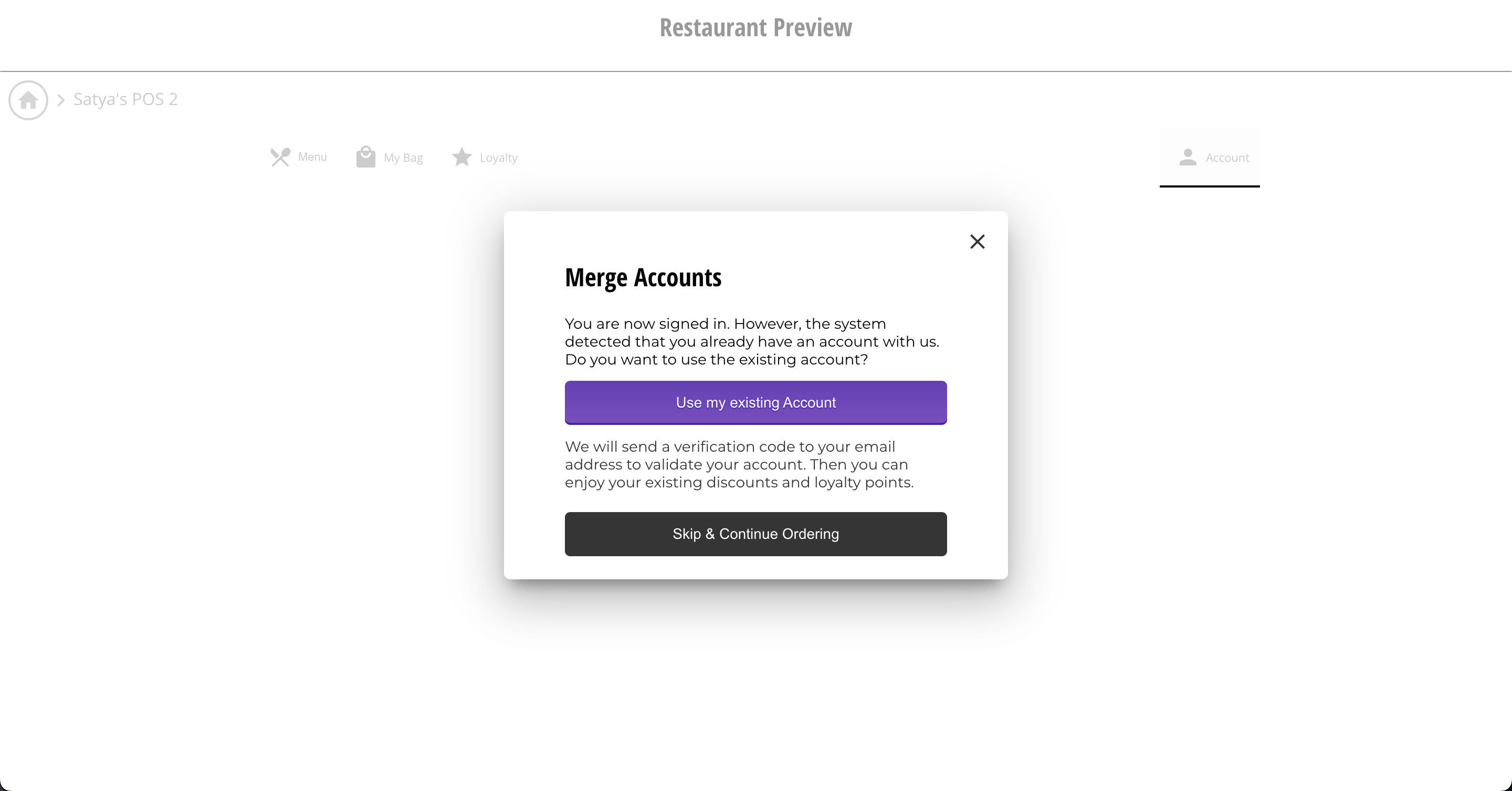
Merging Process:

  • When a customer signs in using their phone number online and a matching email/password account also exists (same phone number), they get a prompt to merge their accounts.

  • The user can get a code on their registered email and using this code, they can merge both accounts.

  • After merging, both in-store and online loyalty points and order history for both instore and online orders become visible in their loyalty dashboard, this applies to all orders moving forward from the time of merge.

Support recommendation:
If a customer reports missing in-store loyalty points online, instruct them to log in via phone number and complete the account merge flow.

Upcoming improvement:
We will be working on an update that will prompt users to merge accounts even when they log in via email/password, to make the flow a little better.


2. Unsupported Order Types

  • Loyalty is not yet supported with:

    • Table ordering in Fusion or,

    • Restaurant app

These will be supported in a future phase. There is no ETA at this time.

Summary Table

CategorySummary
EnablementLoyalty must be activated by FH team for the specific store. Submit a POS Support ticket with store details.
System Requirements• Restaurant tied to a loyalty plan
• FH team confirmation
• Fusion v16.3.9+ installed
POS Settings Required• “Collect customer details before orders” enabled
• “In Store – All fields must be filled” enabled
• “Show customer details on receipt” enabled
Customer IdentificationCustomer phone number is mandatory. Name auto-fills if previously stored; otherwise must be entered manually.
Loyalty Balance VisibilityLoyalty balance displays on cart screen after entering customer phone number.
Rewards AvailabilityRewards appear as items are added. Eligibility depends on subtotal.
Reward RedemptionClick “Redeem” → choose reward → applies as discount to order.
Points AwardingPoints awarded only when order is marked as completed (shown as approximate on receipt).
Points DeductionPoints are deducted immediately when a reward is applied.
Editing RestrictionsOrders with applied rewards cannot be edited.
Customer ReceiptReceipt prints loyalty details: earned points (approx), updated balance (approx), applied discounts.
Online Dashboard BehaviorPOS loyalty points visible online only if customer logs in via phone number or have their accounts merged.
Account MergeIf customer also has email/password login, they must merge accounts by logging in via phone and verifying email code. After merge, all loyalty points + history appear in dashboard.
Known Limitations• Loyalty not supported for table ordering or restaurant app (future phase, no ETA)
• Customers logging in via email/password only will not see POS loyalty points unless accounts are merged


    • Related Articles

    • Zuppler POS & Kiosk Onboarding Checklist

      Please refer this checklist and execute the manual steps in BOB CRM when onboarding a restaurant with a Zuppler POS or Kiosk. Adding a Zuppler Tablet/Printer should be a one click setup, orders will flow to the tablet once the tablet is added from ...
    • Dejavoo Offline Mode – Setup and Usage Guide

      Overview Dejavoo Offline Mode allows a store to accept card transactions even when the terminal is not connected to the internet. This feature is particularly useful during temporary network outages, ensuring that business operations can continue ...
    • How to Set Up a PDQ (Payment Terminal) on BOB CRM

      This guide explains how to configure a Dejavoo PDQ terminal within BOB CRM and link it with your POS system for seamless payment processing. Follow the steps below to ensure a successful setup and integration with iPOS. Step 1: Navigate to PDQ ...
    • Clover Printing Troubleshooting

      This article guides you through the troubleshooting steps you can follow if a restaurant reports that their online orders are not printing through the Clover POS printer. Zuppler<>Clover Connection The connection between Zuppler and Clover is ...
    • Kiosk Settings and Features

      This guide will walk you through the different settings and features that are available on the Zuppler kiosk. Settings highlighted in blue are the ones which are enabled by default by the shipping team when a new kiosk is sent. The restaurants can ...